Category: Video Marketing

  • Video Marketing in Your Silhouette or Cricut Craft Business

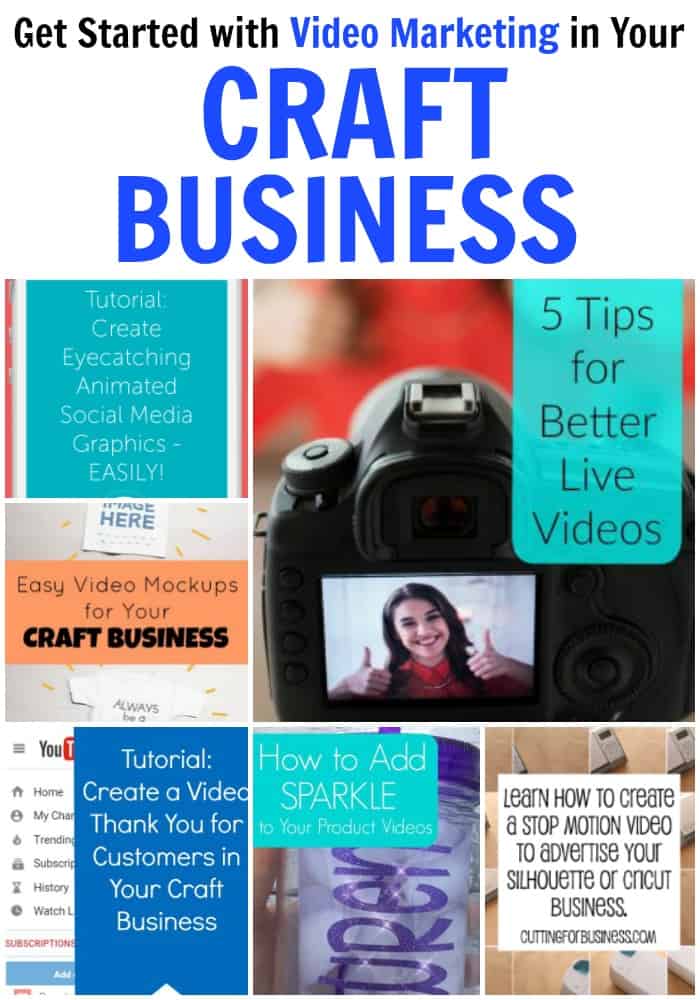
    I’ve got a challenge for you this week: Decide on a video technique to use in your Silhouette or Cricut small business and create a video to post to social media by the end of the week. Here’s a look at the video marketing related posts on the blog:

    Why Video Marketing?

    According to Wordstream, more than one-third of online activity is spent watching video! They further go on to state that the millennial age group watches the most online videos. If that isn’t enough, it is estimated that videos on social media networks generate more shares than text and images combined!

    Get out there and get recording!

    Save this post to Pinterest:

    Video Marketing in Your Silhouette or Cricut Craft Business - by cuttingforbusiness.com

  • How to Easily Add Sparkle to Your Product Videos

    I’ve told you before: Videos are the “thing” on social media right now. Today, I’m sharing a quick (and fun!) way to add a sparkle effect to your videos. But first, Let’s look at the posts related to videos on Cutting for Business:

    Now, bring on the sparkle! Don’t you hate it when you photograph a specialty material and it looks dull in the photo but shines in real life? There’s an app for Apple devices called Kirakira+ that allows you to take video and it automatically adds a sparkle to anything reflective. (For the Android users, I couldn’t find anything that works similarly. I’m sorry. Although there are a few apps that look similar in your store.)

    Tutorial to Use Kirakira+

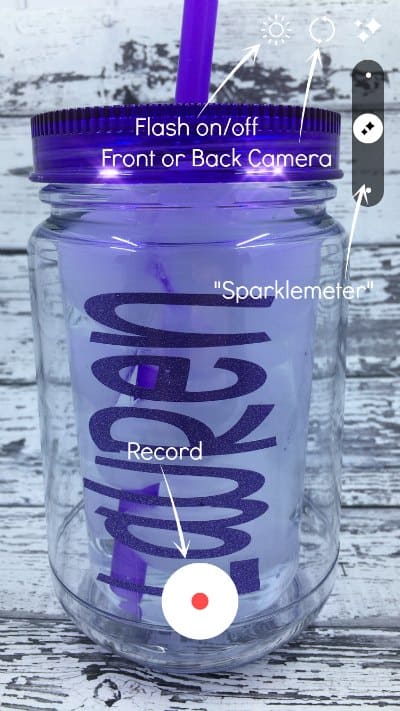
    It’s really simple: After downloading it in the Apple App Store, open it and choose the “kirakira” effect. Once open, you’ll simply record a video within the app.  Here’s what the app interface looks like, along with a few notes:

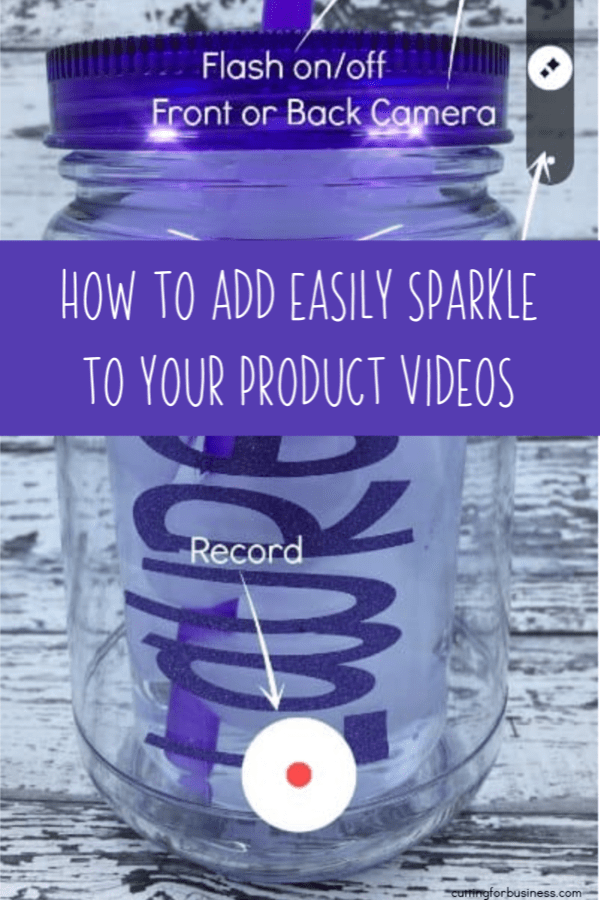
    How to Easily Add Sparkle to Your Product Videos - Great for Silhouette Cameo or Cricut Explore Small Business Owners - by cuttingforbusiness.com

    After recording your video, it will be saved to your camera roll and you can use it.

    Here’s my sample video:

    A few tips for using Kirakira+

    • Use this sparingly! Everyone loves a little sparkle, but too much of a good thing is bad!
    • Try this app with glitter materials, holographic materials, and reflective materials.
    • The sparkle placement is automatic, however, you can manipulate it somewhat using the “Sparklemeter”. Also, for more sparkle, use a bright light and move the product or camera a lot. For less sparkle, use a darker room and keep the camera still (or move it only slightly).
    • Unfortunately, you have to record your video using the app. At this time, it does not support importing existing videos.
    • There’s other settings in the Kirakira+ App, go explore!

    Wondering about the video? I shot the video in my Shotbox (read more here), the mason jar tumbler is this one (straw included) from Save A Cup, and the adhesive glitter vinyl is from this pack. The font I used can be picked up here.

    Love this post? Save it to Pinterest:

    How to Easily Add Sparkle to Your Product Videos for Social Media - Great for Silhouette or Cricut Small Business Owners - by cuttingforbusiness.com
  • 5 Tips for Better Live Videos

    While we are talking product photography this week, we need to take a few minutes and look at videos. I’ve mentioned before – more than a few times – that videos on social media are a great way to reach your followers. Before we look at tips for live videos in your Silhouette Cameo or Cricut Explore small business, let’s take a look at video related posts on Cutting for Business:

    And now, 5 tips for better live videos:

    1. Advertise to your social media following the date and time of upcoming live video. So many times I see crafters just decide to do a Facebook Live at the spur of the moment. While that is great, you miss customers who may like to interact with you because they didn’t know to expect it.
    2. Prepare ahead of time and practice, practice, practice. It’s obvious when watching live videos if the person in the video has practiced ahead of time or not. A polished video will leave a much better impression on your customers than one where you wing it. Once you’ve got several videos under your belt, then you can go live on the fly. Also, having a general written schedule you can refer to will make sure that you don’t forget anything during your video. As you prepare, be sure that your recording space will be quiet during the video (nothing worse than a child screaming in the background of your company’s product launch video)!
    3. Use a tripod for still videos and an image stabilizer if you are moving. For the love of all things crafty, there is nothing worse than viewing a crafters video that is shaking! (Personally, I get motion sickness and it makes me turn it off!) So, use a tripod (click here to see super cheap ones Amazon) or an image stabilizer (again, find them on Amazon) if you will be walking around.
    4. Decide when you will answer questions before you start. Facebook Live allows broadcasters to see questions from viewers in real time. Decide whether you will answer questions in real time or tackle them at the end. If you aren’t taking questions until the end, say this at the beginning of the video.
    5. Follow up after the video. If you are using Facebook Live, go through the comments immediately at the end of the broadcast and answer them all. This helps those viewing a replay of the video at a later time; but it also lets viewers know that they are important to you.

    Now that you are armed with tips, get out there and get broadcasting! Need a few ideas for your first live video? How about a simple DIY related to the products you sell, a sneak peek at a new design you will be selling soon, your brand new product packaging, or you working on an order?

    Save this post to Pinterest:

    5 Tips for Better Live Videos in your Silhouette Cameo or Cricut Explore small business - by cuttingforbusiness.com

  • Easy Video Mockups in Your Craft Business

    It’s no secret that videos are a great way to advertise your Silhouette Cameo or Cricut small business. A while back, I even spent a whole week sharing different ways to incorporate videos into your business. It’s also no secret that I love PlaceIt to create mockups. I also wrote a post about their website that you can read here. Today, I’m thrilled to share that PlaceIt has recently ventured into videos!

    How to Create a Video Mockup Using PlaceIt

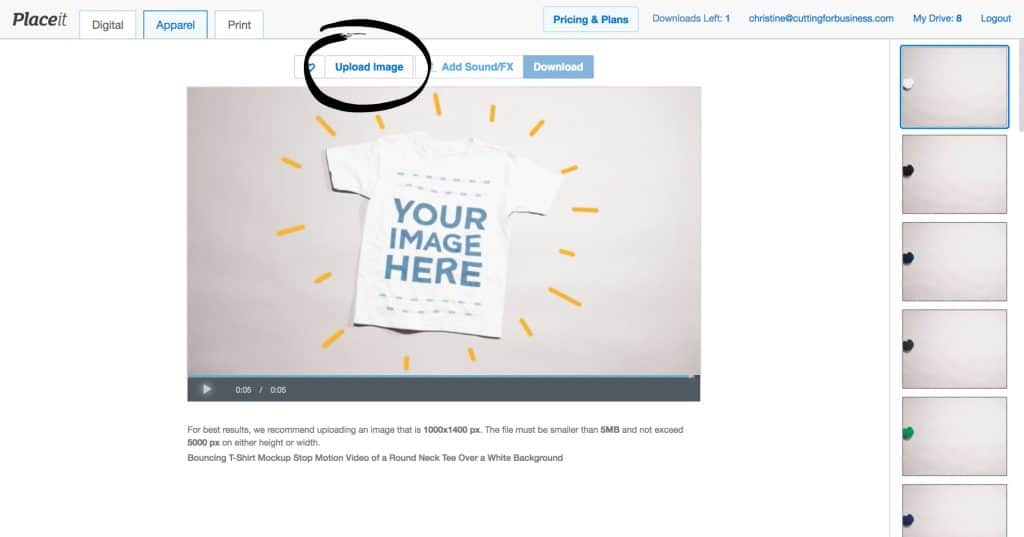
    1. Visit placeit.net. Browse the videos until you find a mockup to use.
    2. Once you locate a video to use, click on “Upload Image” and upload your image. Your image should be in .jpg or .png format.Easy Video Mockups in Your Craft Business - by cuttingforbusiness.com
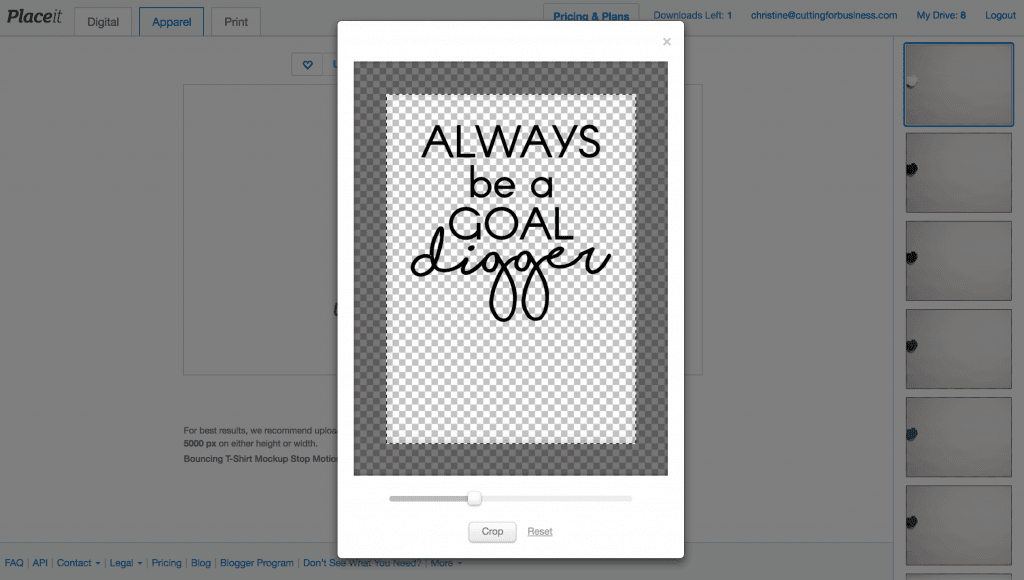
    3. Resize your image to fill the light area and click “Crop”. Easy Video Mockups in Your Craft Business - by cuttingforbusiness.com
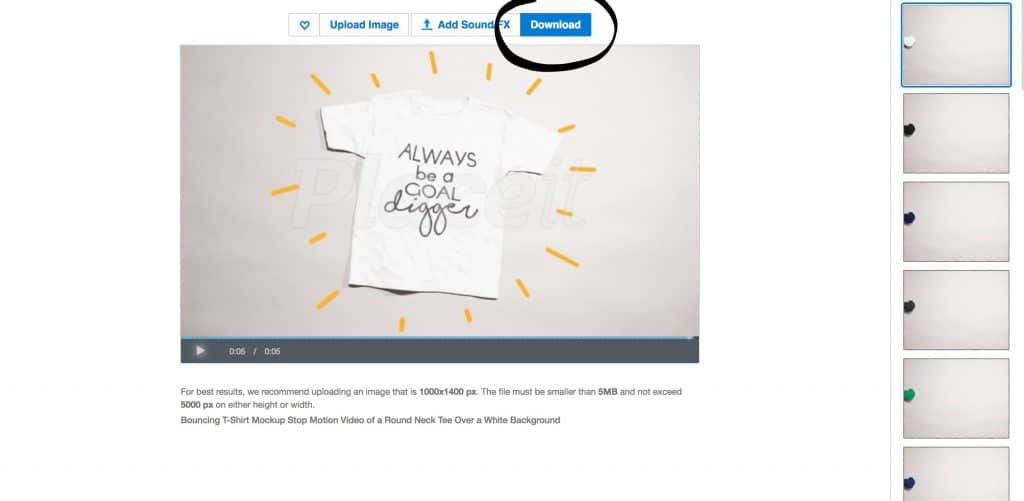
    4. Once the video processes, click “Download” to purchase and remove the watermark or download a watermarked video for free. Easy Video Mockups in Your Craft Business - by cuttingforbusiness.com

    Here’s my video:

    You’ll be able to post your video on social media, your website, or anywhere else that accepts video formats.

    Want the cut file I used in my video? Download the SVG here.

    Save this post to Pinterest:

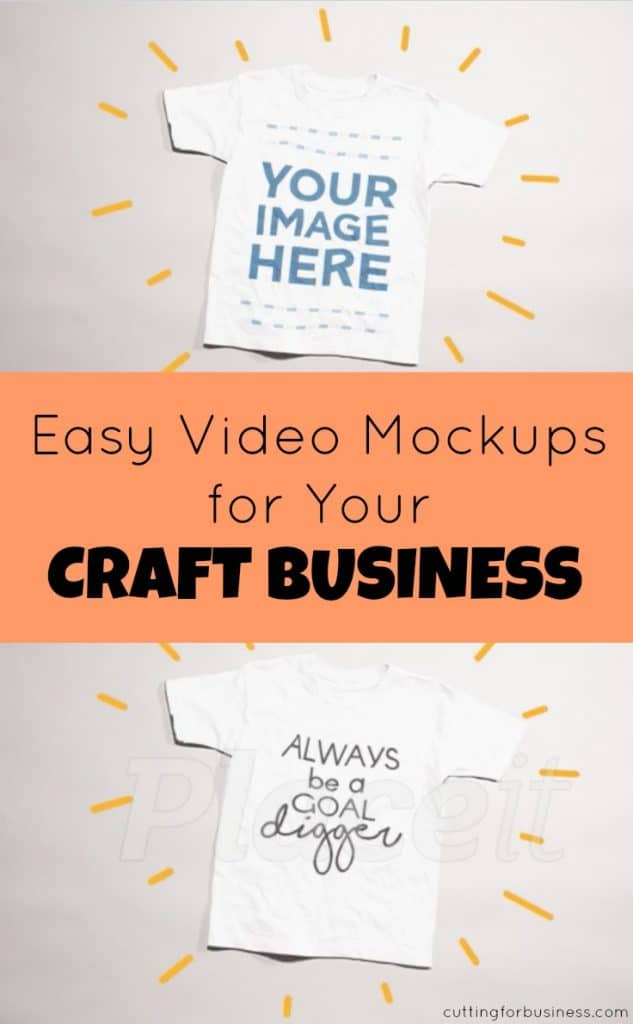
    Easy Video Mockups in Your Craft Business - by cuttingforbusiness.com

  • Tutorial: How to Create Animated Social Media Graphics

    I’ve shared before that videos are a great way to encourage interaction with your followers on social media. Today, I’m showing you how to create animated social media graphics – easily – using an app called Ripl.

    Tutorial to Create Animated Social Media Graphics Using Ripl

    1. Install Ripl on your smartphone, then open the app. Tap the “+” sign to get started:Tutorial: How to Create Animated Social Media Graphics - Great for Silhouette Cameo and Cricut Business Owners - by cuttingforbusiness.com
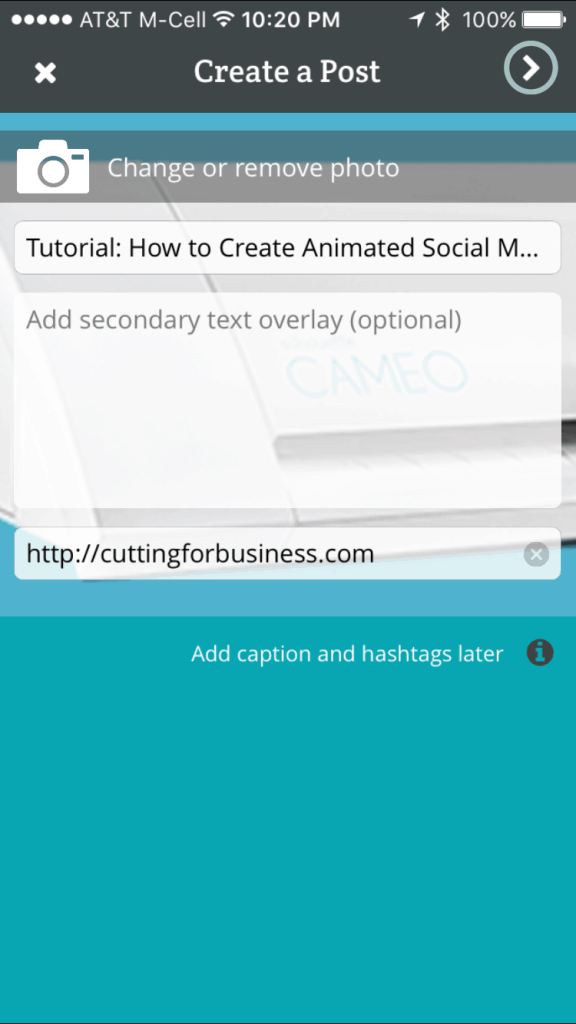
    2. Upload a photo, enter text, and a link to your product or shop: Tutorial: How to Create Animated Social Media Graphics - Great for Silhouette Cameo and Cricut Business Owners - by cuttingforbusiness.com
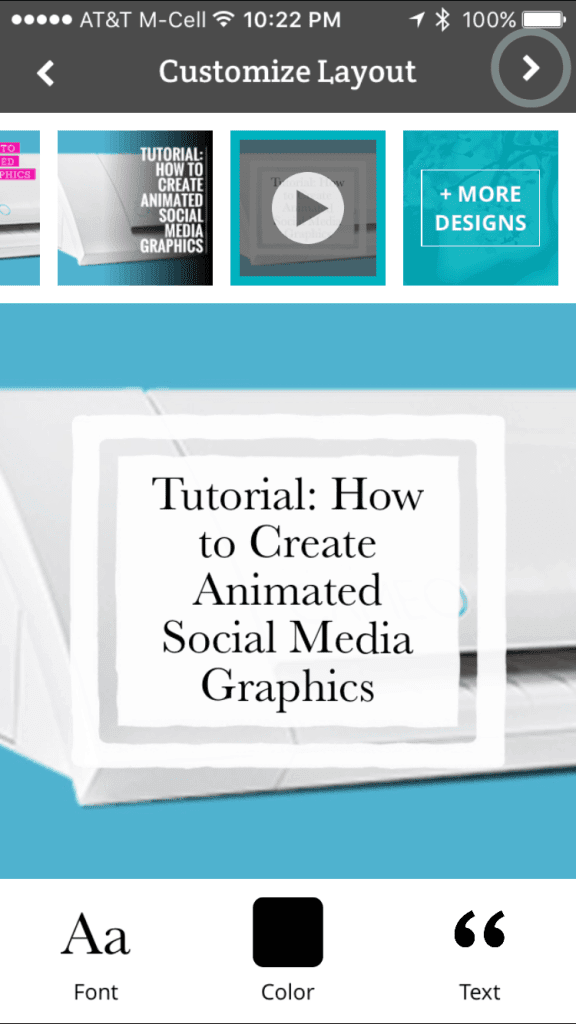
    3. Choose an animated overlay. Use the buttons at the bottom of the screen to fine tune your design. Some layouts are free while others require a subscription: Tutorial: How to Create Animated Social Media Graphics - Great for Silhouette Cameo and Cricut Business Owners - by cuttingforbusiness.com
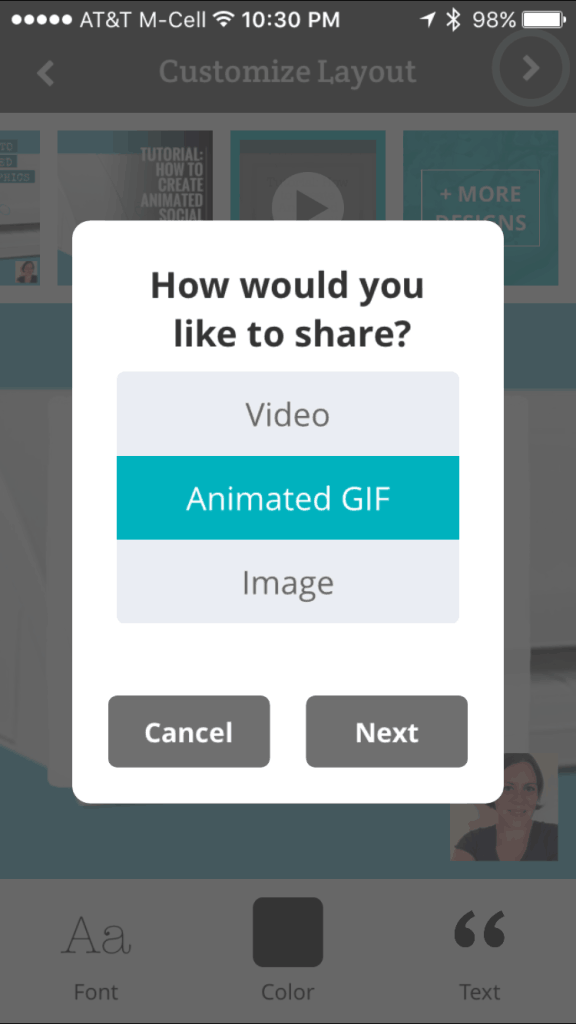
    4. That’s it! Choose how you would like to share your post: Tutorial: How to Create Animated Social Media Graphics - Great for Silhouette Cameo and Cricut Business Owners - by cuttingforbusiness.com
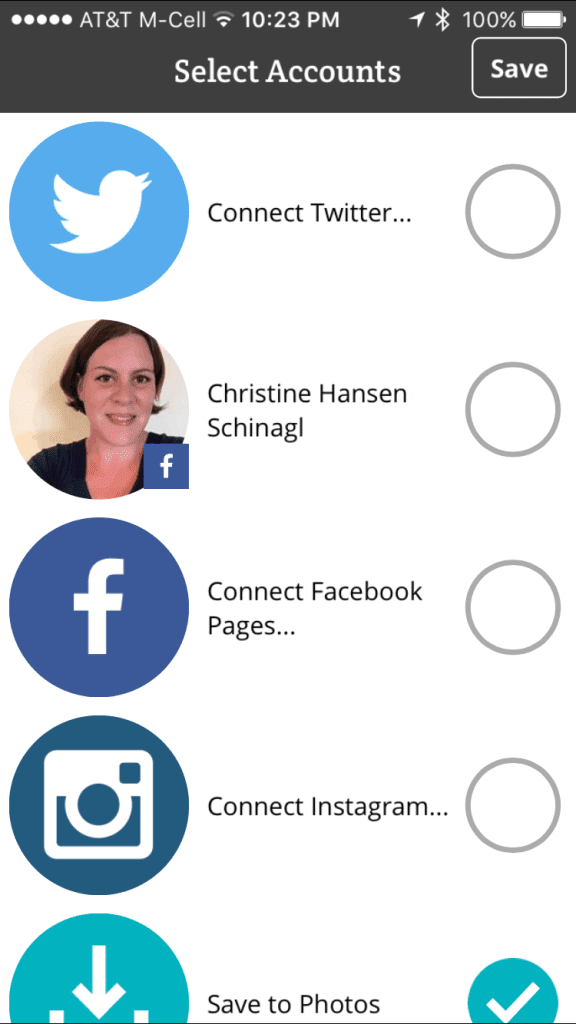
    5. Upload it to your favorite social media network, or save it to your camera roll: Tutorial: How to Create Animated Social Media Graphics - Great for Silhouette Cameo and Cricut Business Owners - by cuttingforbusiness.com
    6. Here’s my animated social media graphic: [huge_it_video_player id=”4″]

    To see more posts on videos on Cutting for Business, click here.

    Share this tutorial on Pinterest by hovering over the image below:

    Tutorial: How to Create Animated Social Media Graphics - Great for Silhouette Cameo and Cricut Business Owners - by cuttingforbusiness.com

  • How to Create Slideshows for Advertising Your Craft Business

    Today we are continuing with easy types of video advertising for your Silhouette Cameo or Cricut small business. As I mentioned yesterday when we looked at slideshows with Flipagram, video marketing has become more popular than ever! Did you know that statistics show that video promotion is 600% more effective than print and direct mail combined? Let’s look at another style of slideshows that you can use in your Silhouette Cameo or Cricut small business.

    Sample Video Slideshow:

    How to Create Your Own Slideshow

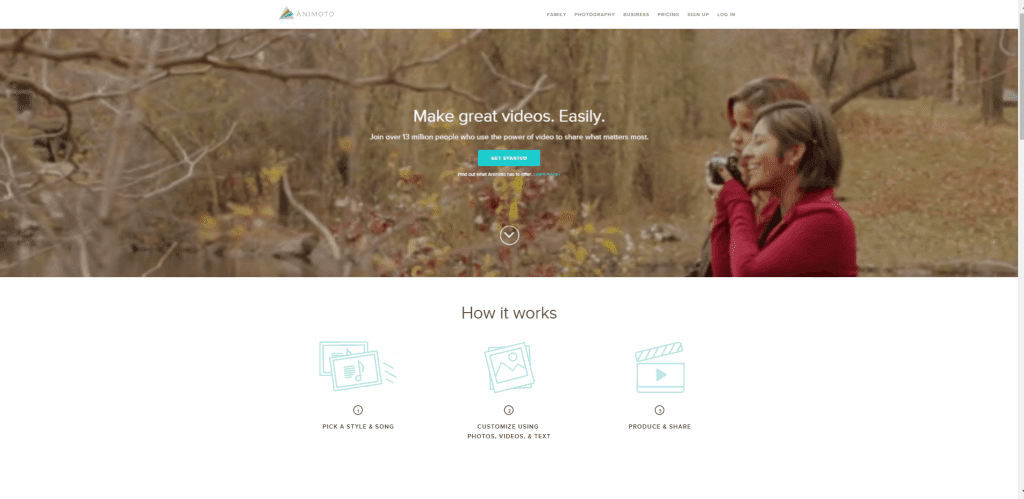
    1. Visit Animoto and create an account. I tested out several different slideshow makers for this post and found that Animoto was the most user friendly. How to Create Slideshows for Advertising Your Craft Business - by cuttingforbusiness.com, Make money with your Silhouette Cameo or Cricut
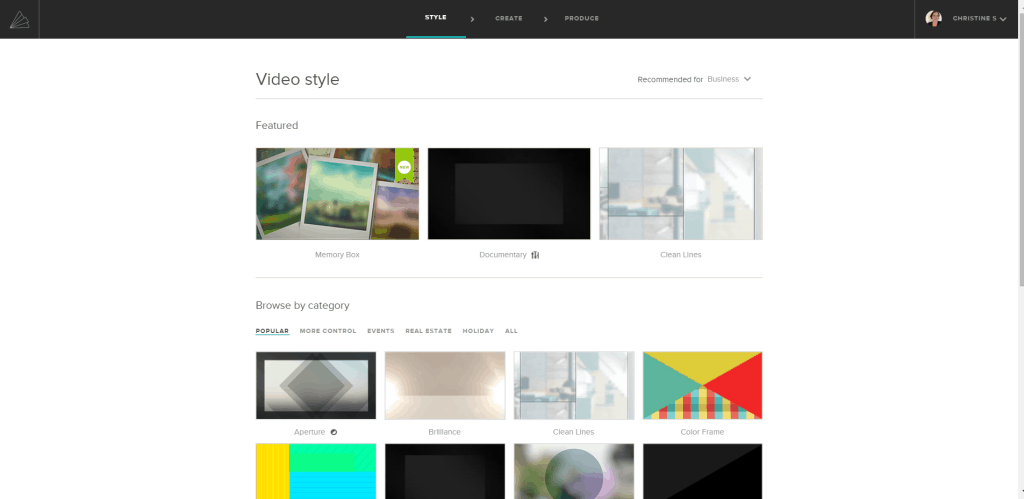
    2. Choose a theme for your slideshow. One of the things that I like best about Animoto is the premade themes that work well for small business advertising. The sample slideshow above uses the Clean Lines theme. When choosing a theme, go for something minimal that makes your photos stand out rather than the slideshow effects.How to Create Slideshows for Advertising Your Craft Business - by cuttingforbusiness.com, Make money with your Silhouette Cameo or Cricut
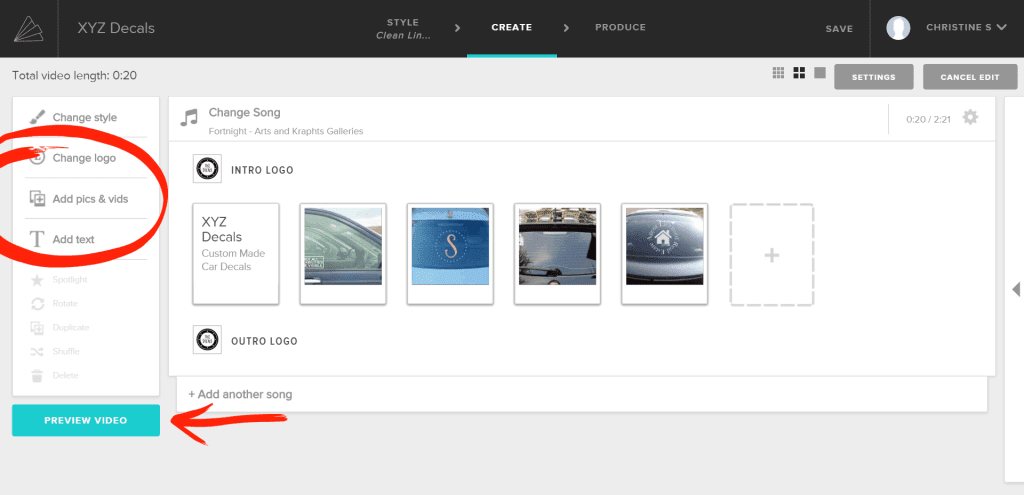
    3. Next, from the left hand side of the screen, you’ll upload photos and your logo. You can also change the soundtrack if you’d like. When you are finished, you can preview your slideshow. How to Create Slideshows for Advertising Your Craft Business - by cuttingforbusiness.com, Make money with your Silhouette Cameo or Cricut
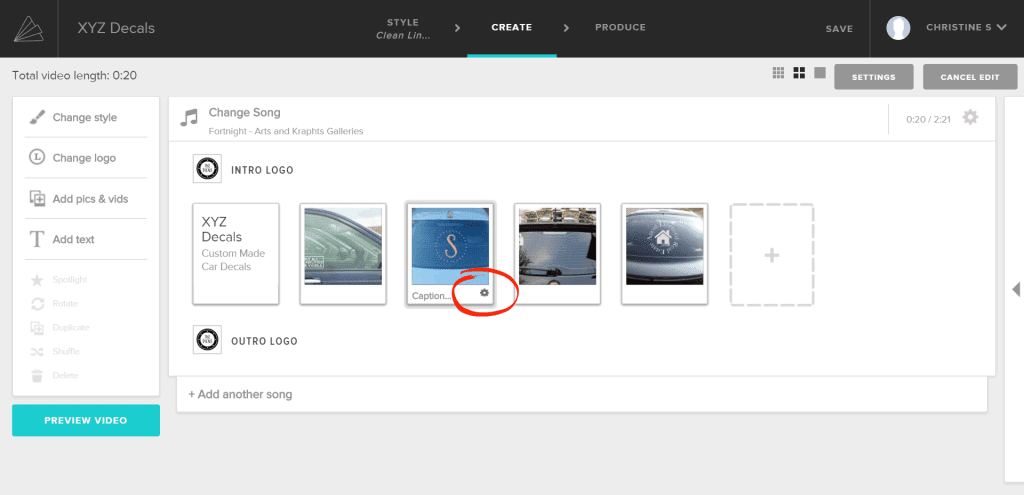
    4. If you want to edit your photos, there is a basic photo editor built into Animoto. Click on the gear under any photo. (I circled it in red in the photo below.) How to Create Slideshows for Advertising Your Craft Business - by cuttingforbusiness.com, Make money with your Silhouette Cameo or Cricut
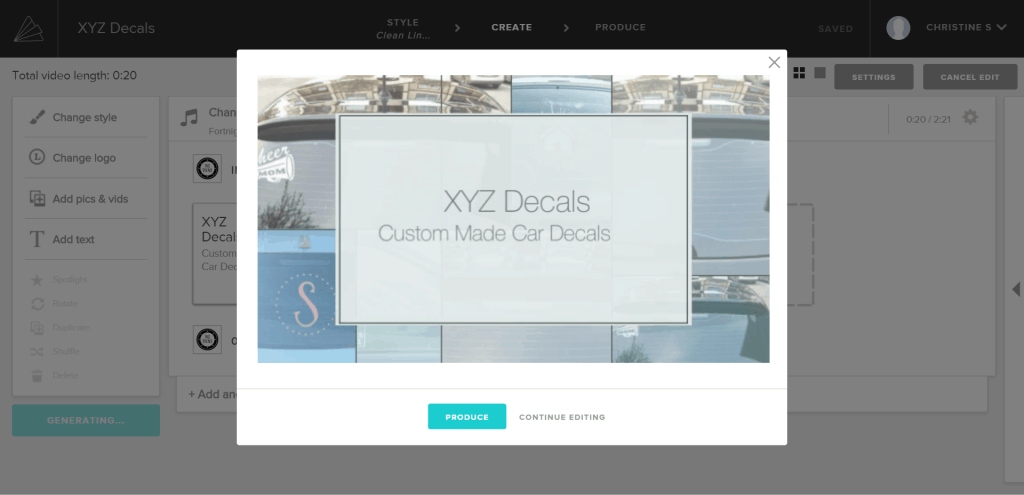
    5. When you are ready to publish your slideshow, click “Preview Video”, then “Produce”. How to Create Video Slideshows for Advertising Your Craft Business - by cuttingforbusiness.com, Make money with your Silhouette Cameo or Cricut
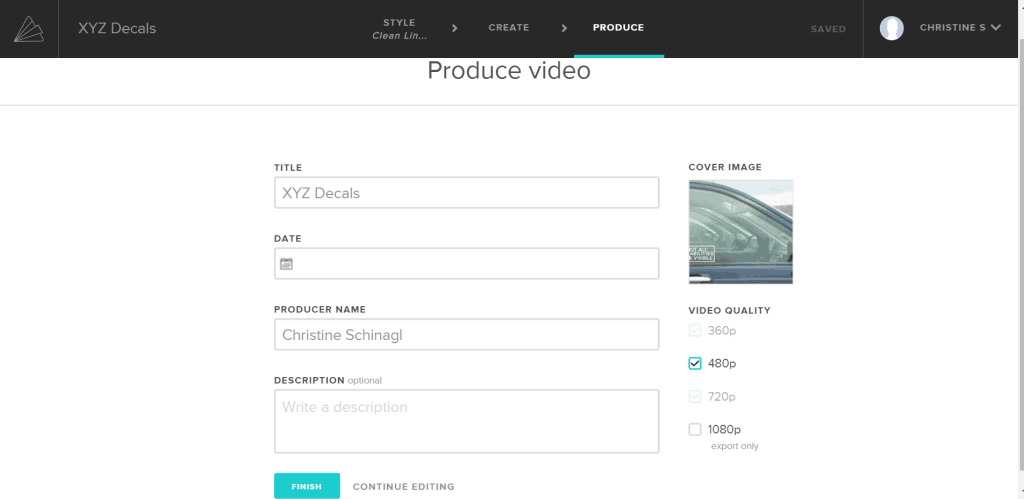
    6. You’ll now be able to save your video slideshow and click “Finish”.How to Create Video Slideshows for Advertising Your Craft Business - by cuttingforbusiness.com, Make money with your Silhouette Cameo or Cricut
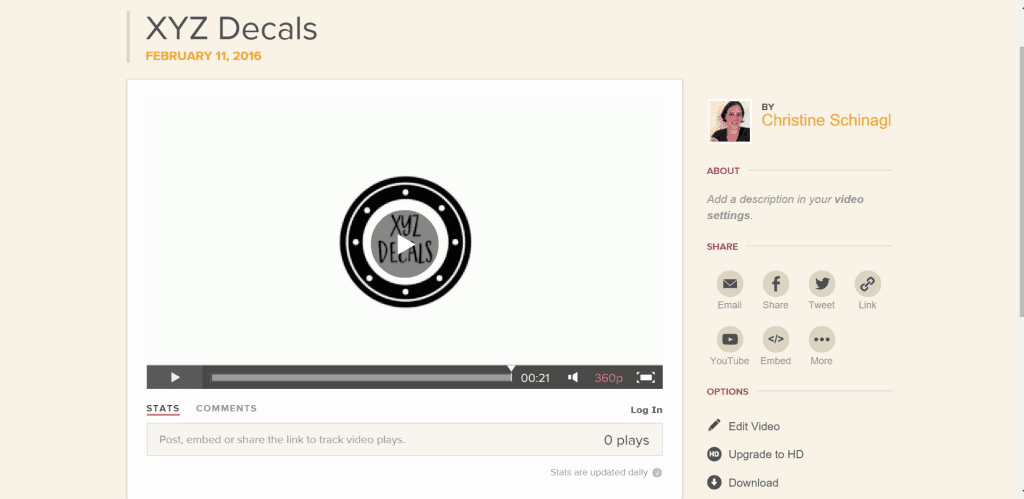
    7. After you produce your video slideshow, you can share it using the icons on the right hand side of the screen. How to Create Video Slideshows for Advertising Your Craft Business - by cuttingforbusiness.com, Make money with your Silhouette Cameo or Cricut

    A few tips before you start creating your video slideshow in Animoto: 1) Remember, your video should be a teaser that introduces your products quickly. For Facebook slideshows, I like to keep them under 59 seconds maximum and under 30 seconds if possible. For Instagram videos, your limit is 15 seconds. 2) Keep your slideshow to a theme. For example, if you sell many different types of products make several slideshows to use in advertising (one for decals, one for tumblers, one for shirts, one for decor). So, what slideshow will you create first? Let me know in the comments.

    How to Create Video Slideshows for Advertising Your Craft Business - by cuttingforbusiness.com, Make money with your Silhouette Cameo or Cricut

  • How to Create a Stop Motion Video for Your Craft Business

    I’m sure you know that videos are a great way to advertise your craft business. In fact, one source states that in 2022, videos accounted for 82% of the global internet traffic.

    I recently shared a review of my Create Room DreamBox. Since the article posted, I’ve gotten a few emails about how I created the stop motion video.

    I created the DreamBox video using a technique called Stop Motion.

    How to Make a Stop Motion Video - cuttingforbusiness.com.

    What is a Stop Motion Video?

    A stop motion video is actually created using an animation technique. Stop motion videos are made by moving an object, then photographing the object, then moving the object, then photographing the object, and so on.

    When you string all the frames together and play them quickly, it looks like the object(s) is moving.

    Stop motion videos work the same way that flip books work.

    DreamBox Stop Motion Video

    How I Created the DreamBox Stop Motion Video

    1. I placed my phone on a tripod.
    2. I walked to my DreamBox and slightly opened it.
    3. I used my Apple Watch to remotely snap a photo.
    4. I walked to my DreamBox and opened it a little more.
    5. I snapped another photo.
    6. I walked to my DreamBox and opened it even more.
    7. I took another photo.
    8. I walked to my DreamBox and opened it all the way.
    9. I took yet another photo.
    10. I continued this process until I had opened my DreamBox, put some supplies on the table, cut a design from vinyl, put the supplies away, and closed the DreamBox.
    11. Between each step, I photographed.

    My DreamBox stop motion video consisted of 76 still photos.

    Stop Motion Studio Pro App

    After taking the photos, you’ll upload them to your favorite stop motion video app and the app will compile the photos into a video.

    The process using the app is straightforward: Upload your photos, choose a video playback speed, add music, save the video. The app I used is called Stop Motion Studio Pro.

    4 Tips for Creating Stop Motion Videos

    1. Have a plan for your video.
    2. You must use a tripod to keep your camera still while taking photographs.
    3. A remote shutter is a great way to make sure that your camera doesn’t move while photographing.
    4. Experiment with different video playback speeds to see which one looks best.

    Stop Motion Video Ideas for Crafters

    Vinyl Crafters: Weed something intricate in a video. I would cut the vinyl and tape it to your table or desk. Weed one piece at a time and take a photo after each piece is removed. An overhead tripod would be perfect.

    Paper Crafters: Assemble a paper craft in a video. After you add each paper piece or embellishment, take a photo.

    Shipping: It would be easy to make a stop motion video of your packages “walking” out the door or down your driveaway.

    Tell me in the comments: Have you ever made a stop motion video?

  • Tutorial: How to Create a Video Thank You in Your Craft Business

    A few months ago, I urged Cutting for Business readers to send handwritten thank you notes (or thank yous printed out in a nice font) with their handmade products. I recommend this because it is an effective way to show the human side of your small business. Today, let’s take the idea farther using videos. Imagine your customer opening their package with your handmade product inside and being able to view a short view of you thanking them for their order. Wouldn’t that be awesome? Well, it’s pretty easy, too!

    Tutorial to Create a Video Thank You for Your Craft Business

    1. Create a short video thanking your customer for their order. Consider telling them about an upcoming product launch or giving them a coupon code for their next order. Remember, use a tripod or prop up your camera so your video doesn’t have camera shake.
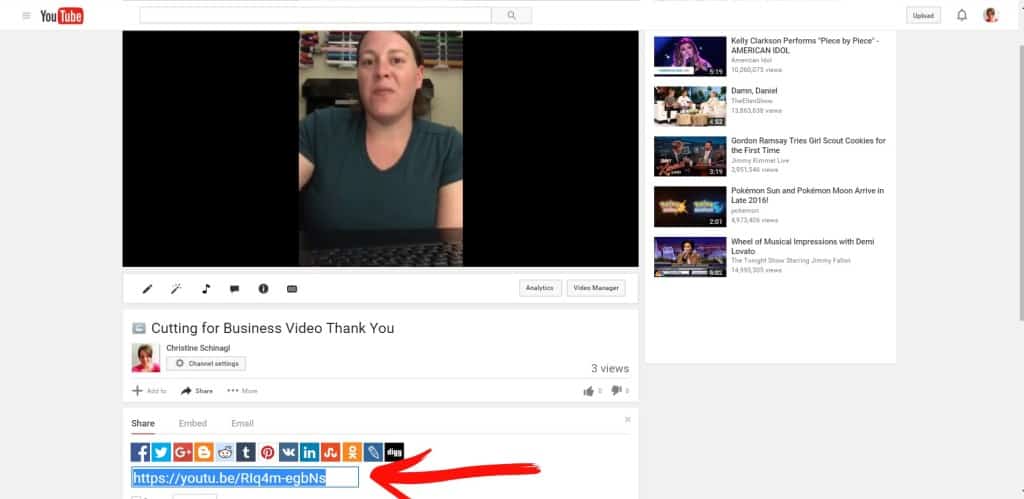
    2. Upload your video to a video hosting service. In this case, I used YouTube because it is easy to use and it’s free. Additionally, you can choose the privacy setting. I set my privacy setting to “Unlisted” which means that it is not visible in the search results and you must have a link to the video to view it.
    3. Next, you’ll need to be able to provide a short link to your customers to view your video. The link that YouTube provides is pretty long, so let’s shorten it.

    First, copy and paste the “Share” link from YouTube:  Tutorial: How to Create a Video Thank You in Your Craft Business by cuttingforbusiness.com
    Next, go to is.gd and copy the link into the box. Click on the link that says, “Further options/Custom URL”:
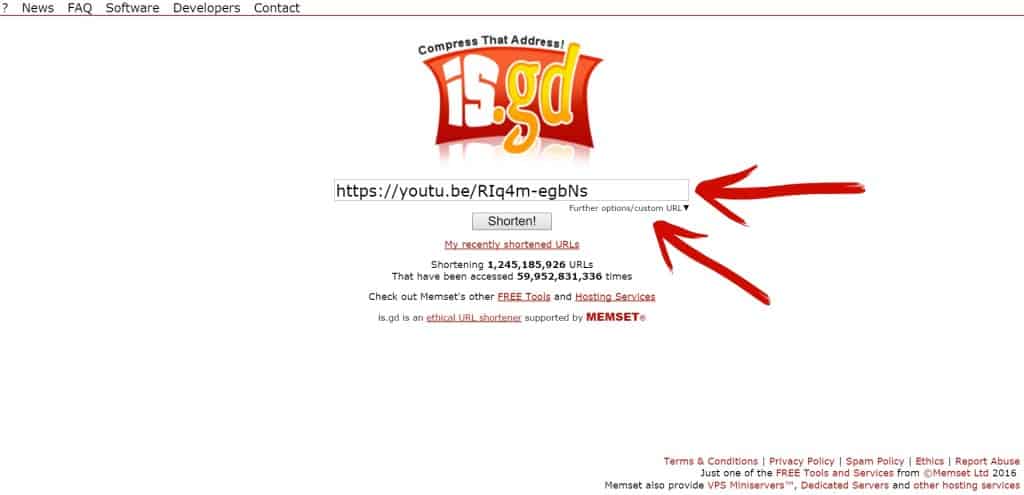
    Tutorial: How to Create a Video Thank You in Your Craft Business by cuttingforbusiness.com

    Enter your business name or something else that your customer will recognize into the box and click “Shorten”:
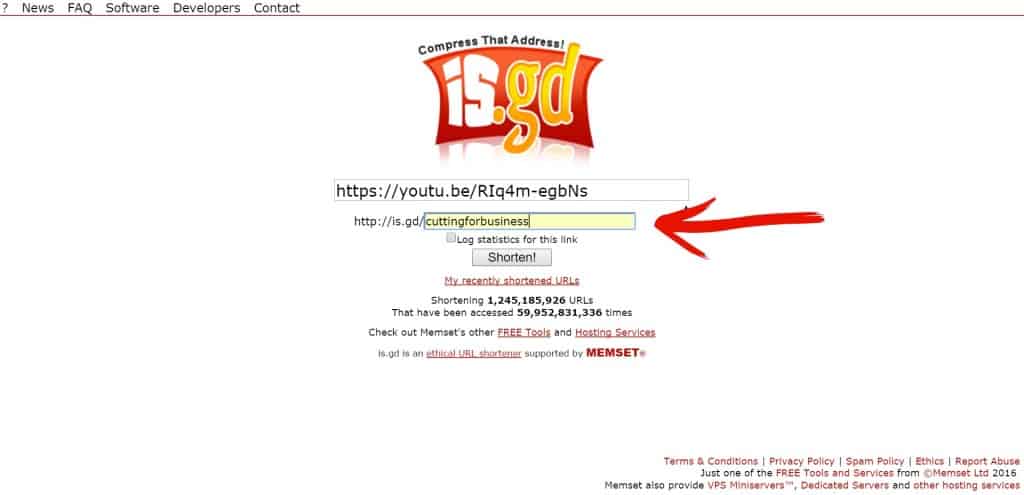
    Tutorial: How to Create a Video Thank You in Your Craft Business by cuttingforbusiness.com

    Write down your new link.

    4. Now that you’ve got your shortened video link head over to Silhouette Studio or Cricut Design Space and design a Print and Cut/Print then Cut sticker with a catchy quote and the link to your video. Your catchy quote should make your customer want to type the link into their browser to view the video. Here’s a few ideas: “I want to thank you for your purchase, view this link”, “Get a coupon code for your next order at xyz business at this link”, “I’ve got a message for you at this link”.

    5. Stick your stickers onto your packing slip and start impressing your customers.

    6. Alternatively, you could also make a stamp with your Silhouette Mint (which have come way down in price)!

    What about QR Codes?

    I know that someone will ask about using a QR Code instead of using a shortened link. Unfortunately, QR codes are pretty much dead. Many, many people can’t scan them. I think we will see improved QR codes in the future, but the upcoming technologies aren’t easily accessed by small businesses right now.

    Want to see my video message?

    Tutorial: How to Create a Video Thank You in Your Craft Business by cuttingforbusiness.com

    Or click here: is.gd/cuttingforbusiness.

    If you enjoyed this tutorial, be sure to share it:
    Tutorial: How to Create a Video Thank You in Your Craft Business by cuttingforbusiness.com