Author: christine

  • 6 Things to Do Before You Take a Vacation from Your Craft Business

    Planning to take a vacation but not sure what you need to do for your Silhouette or Cricut craft business before you go?

    Here’s my checklist of things to do before you leave for vacation.
    6 Things to Do Before You Take a Vacation from Your Craft Business - by cuttingforbusiness.com.

    6 Things to Do Before You Take a Vacation from Your Craft Business

    1. Let customers know early. Make several announcements on social media, your website, or your shop about your vacation beginning several weeks before you leave.
    2. Be specific. Be specific about the details of your vacation. I’m not talking where you are going. Instead, include what dates you’ll be gone, when (and if) you’ll be accepting orders while you are gone, whether or not you will you be keeping up with emails or issues that arise, or if you will be offline and completely unreachable.
    3. Schedule social media ahead of time. Keep up with your social media content while you are away. Schedule either with each network or use a third party service.
    4. Set up autoresponders. Set up messages to instantly reply to customers on social media and email who may message while you are away. Promptly return any messages when you arrive home.
    5. Have a sale. Hosting a sale either immediately before you leave or immediately when you return can help offset having your business closed.
    6. Share some pictures. Sharing a few vacation pictures while you are gone, reminds customers that you are gone. As a bonus, it helps customers put a face to your business.

    How Do I Handle a Vacation From My Etsy Shop

    If you sell on Etsy, read this article on 3 methods for closing your Etsy shop.

    Allow Yourself an Extra Day When You Get Home

    One more thing: When I go out of town, I always allow myself one extra day or two to be home before returning to work. This gives me time to catch up on laundry, household chores, mail… and rest!


  • Accounting and Bookkeeping in your Silhouette Cameo Business

    Alright readers, I have a challenge for you today! Answer these questions quickly (and accurately!):

    • How much money did you make in your Silhouette Cameo based business last month?
    • What did you spend in expenses for the month before last?
    • How many supplies do you have on hand right now?

    If you can’t answer these questions in less than a few minutes, then this blog post is for you.

    When running any small business, you need to know your numbers. You should be keeping records for 1) All sales made 2) All expenses incurred 3) All supplies on hand. There are numerous ways to keep track of these things, and I’ve seen everything from envelope systems to binders or notebooks, custom made spreadsheets, and online accounting programs that range from free to hundreds of dollars per month.

    For Silhouette Cameo small business owners, I highly recommend Craftybase. Craftybase is an online accounting and bookkeeping system created especially for professional crafters. Among it’s features:

    • Inventory tracking of all supplies and equipment
    • Supplier information lists for every site or company that you purchase from
    • Order tracking
    • Labor cost calculation
    • Expense and purchase recording
    • Ability to list projects with the required amount of supplies
    • Various reports on the health of your business
    • Automatic imports from Etsy shops, Shopify stores, with integrations from Paypal and Square coming soon
    • And standard features like a great support team, 256 bit SSL security, and secure backups

    A few of my favorite features of Craftybase include that you can customize many sections of the program. For example, if you sell vinyl items, you can track your inventory in rolls, inches, feet, or yards – it’s up to you. Next, I love that you can add photos next to your supplies. This means no more digging through old orders to figure out which name you gave your favorite printed fabric in your accounting records! Lastly, the program itself is broken down in to easy to understand language. There are help tutorials throughout the program, and I never feel like I need an advanced accounting degree to navigate it. When using Craftybase, you’ll just need to keep your purchase receipts in an envelope and all other records will be online.

    Craftybase offers a free (no credit card needed) trial available for 14 days. After that, you can choose from 3 different plans – the most expensive being $19.99 per month. But, after you become a paid subscriber, you can earn your Craftybase program free of charge if you refer 10 new customers to the program. Today, Cutting for Business is able to offer you 10% off your Craftybase subscription by clicking the banner below:
    Craftybase inventory software for handmade sellers

    Save this post to Pinterest:

    Accounting and Bookkeeping in your Silhouette Cameo Business - The Easy Way! By cuttingforbusiness.com.

  • How Much to Charge for Rush Orders in Your Craft Business?

    Most business owners receive orders and complete them in the order they were received, or in another method that makes sense to the crafter.

    But, what happens when a customer inquiries if they can get their order in a hurry? You should charge the customer a rush order fee for rush orders. But how much to charge for rush orders?

    Depending on the product being made, it is appropriate for crafters to charge from 20% to 100% of the item’s final cost to get the order sent out before the stated turnaround time plus the cost of expedited shipping, if applicable.

    How Much to Charge for Rush Orders in Your Craft Business - Great for Silhouette, Cricut, Juliet, and Glowforge crafters- by cuttingforbusiness.com

    How Much to Charge for Rush Orders

    When deciding what to set your rush fee at, you’ll need to be careful to set it high enough that the average buyer won’t want to add it unless they really need an expedited order. For example, if I am selling custom made decals for $8.00 each, a 20% rush order fee is only $1.60 – not enough to keep the average buyer who doesn’t need it quickly from tacking it on to get their item faster. Unfortunately, when your rush order fees are too low, you’ll receive too many rush orders.

    A general rule of thumb for rush order fees: The lower the price of the item, the higher the rush order percentage should be. 

    How to Tell Your Customers About Rush Order Fees

    Rush order fees, and standard turnaround times, should be disclosed to customers prior to ordering. Here are a few example blurbs about turnaround times and rush orders. Feel free to use them in your Silhouette or Cricut craft business.

    • (Name of company’s) turnaround time is two weeks, not including shipping. If you need your item sooner, we can accommodate you with a rush order fee and expedited shipping. This allows us to put your order at the head of our production queue.
    • (Name of company’s) turnaround time is currently four weeks, plus shipping time. We can accommodate rush orders with a flat rate of xx% of the total item’s cost, plus the cost of USPS Express Mail. Please contact us for an exact quote.
    • (Name of company’s) turnaround time is one week. If you need your item to be ready for pickup in sooner than one week, please contact us to arrange payment of our xx% rush fee charge.

    What If You Don’t Want to Take Rush Orders

    If you don’t want to take rush orders, then don’t. Again, you should be disclose that you do not accept rush order with your turnaround times.

  • How to Host a Giveaway in Your Craft Business

    Whether your business has hit a lull in sales or you are brand new, a great way to get new customers is to have a giveaway on social media. Different social media sites have different rules that you must follow in order to host a giveaway on their site. Unfortunately, it seems that the guidelines on social media sites for giveaways, raffles, and contests are constantly changing. The easiest way to host a giveaway is through a third party application. Over the years, I’ve tried several of them and the easiest to use for a multi-site giveaway is Rafflecopter.

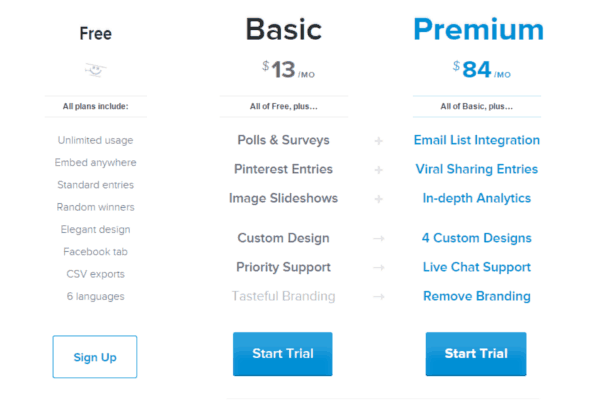
    With Rafflecopter, you can collect entries for your giveaway through Facebook, Twitter, Pinterest, blog comments, and more. Rafflecopter offers a free 7 day trial to see if you like the program, no credit card required. Pricing after the 7 day trial is shown below, but there is a free plan available:

    Getting New Customers Through Social Media Giveaways by cuttingforbusiness.com

    Here’s a walkthrough of the process of setting up your giveaway:

    1) Visit rafflecopter.com and create an account.

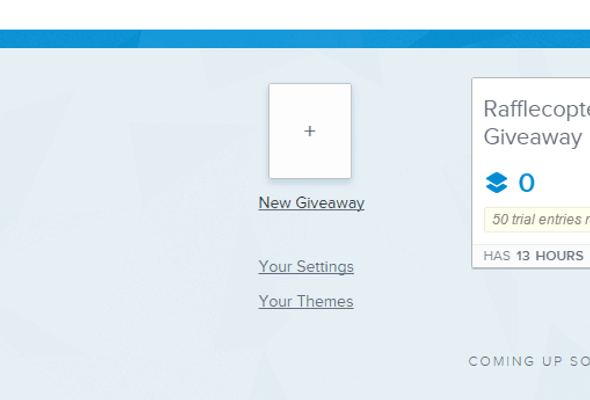
    2) Click “New Giveaway”.

    Getting New Customers Through Social Media Giveaways by cuttingforbusiness.com

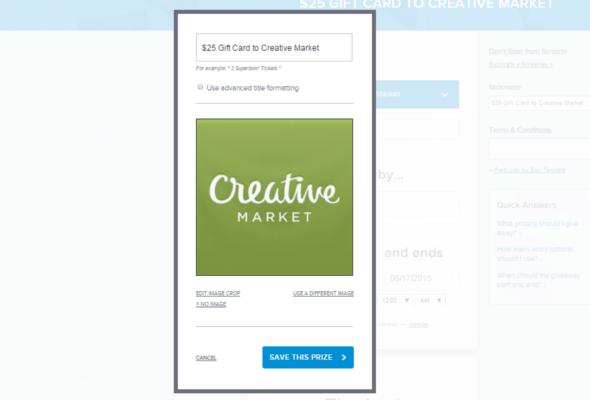
    3) Click “Add Prize” and fill in the details about the prize(s) that someone can win in your giveaway. You’ll need to add a title for your giveaway, and a photo of the prize. Click “Save this Prize”.

    Getting New Customers Through Social Media Giveaways by cuttingforbusiness.com

    4) Optional: Repeat step 3 and add additional prizes to your giveaway.

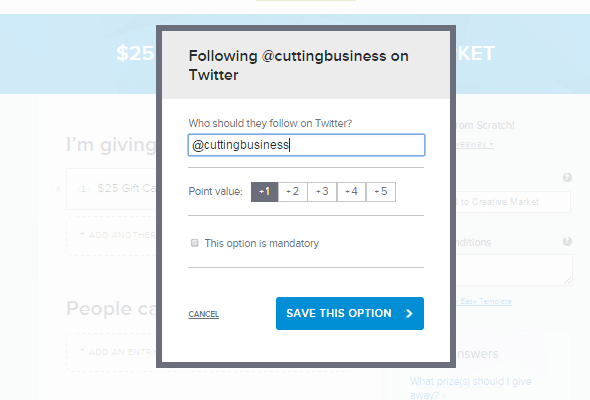
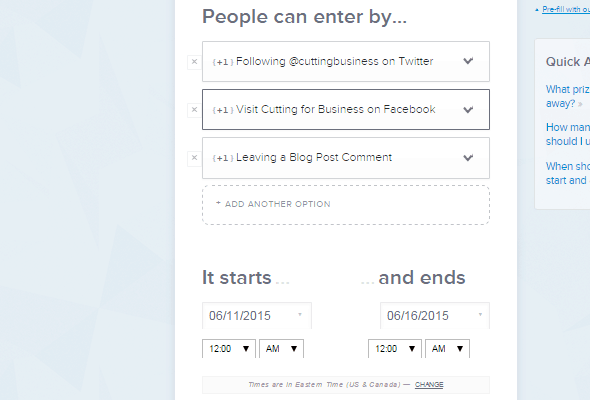
    5) Now, you’ll add how people can earn entries. On Rafflecopter, people can earn entries by doing things such as following you on social media platforms, tweeting messages, or pinning images (Pinterest functionality is limited to paid plans). You’ll assign each task a point value and the user receives that number of entries into the giveaway for completing the task. You can set options to be mandatory or optional.

    Getting New Customers Through Social Media Giveaways by cuttingforbusiness.com

    6) Repeat step 5 for each social media outlet you want to include in your giveaway.

    7) Choose starting and ending dates and times.

    Getting New Customers Through Social Media Giveaways by cuttingforbusiness.com

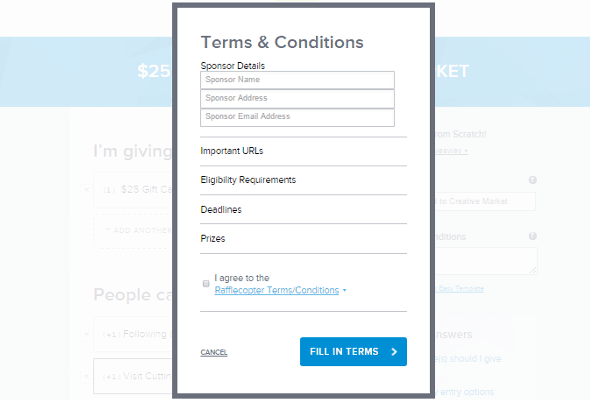
    8) On the right hand side, click “Terms and Conditions” and fill out the fine print details, including residency, age, your company name, and other legal details.

    Getting New Customers Through Social Media Giveaways by cuttingforbusiness.com

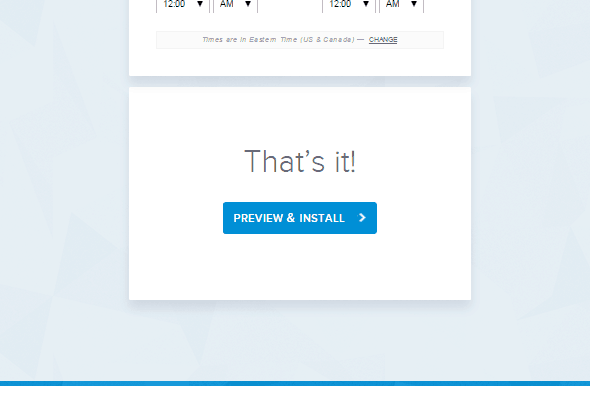
    9) Now you’ll click “Preview and Install”.

    Getting New Customers Through Social Media Giveaways by cuttingforbusiness.com

    10) From the install screen you’ll either need to copy and paste the provided HTML code onto your website or click “Choose a Page” to post it on your Facebook Business Page. You are ready to share your giveaway with everyone you can!

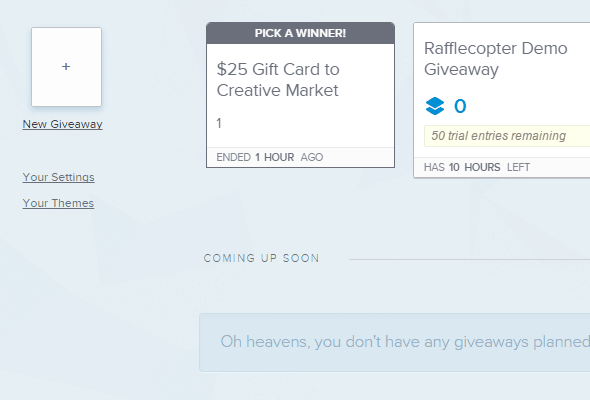
    11) At the end of your giveaway, Rafflecopter will send you an email letting you know that your giveaway has ended. Log in at Rafflecopter.com and click “Pick a Winner”.

    Getting New Customers Through Social Media Giveaways by cuttingforbusiness.com

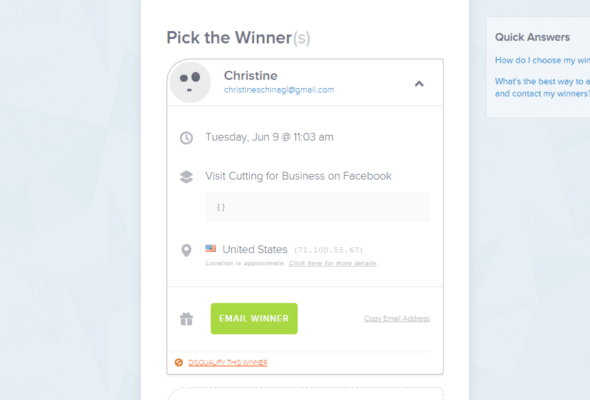
    12) Next, click “Add a Random Winner” and Rafflecopter will choose a winner. You can then contact the winner.

    Getting New Customers Through Social Media Giveaways by cuttingforbusiness.com

    If you are stumped for what prizes to offer, a gift certificate to your company, a gift basket with products from your company, or an item themed to the current upcoming holiday or season all make great giveaways!

    Share this post on Pinterest:

    How to Host a Giveaway in Your Silhouette Cameo or Cricut Handmade Craft Business - by cuttingforbusiness.com

  • 10 Handmade Products to Sell to Local Businesses

    Does it sometimes seem like the craft market is saturated? Do you feel that everyone now has their own Silhouette or Cricut machine?

    If you do, it might be time to go looking for customers in different places. Instead of listing products for sale on marketplaces (like Etsy or Goimagine) and social media (Facebook, Instagram, or TikTok), you can sell your products directly to fellow small business owners.

    Today, I’m sharing a list of handmade products to sell to local businesses.

    10 Handmade Products to Sell to Local Businesses - cuttingforbusiness.com

    10 Handmade Products to Sell to Local Businesses

    Thank You Gifts for Realtors and Real Estate Agents

    It is customary for realtors to give a thank you gift to clients upon purchasing a home. If you create floating frames or wooden signs, you may be able to sell “Welcome” or “New Home” themed signs or wall decor to your local realtors. Each time a realtor sells a home, they return to you to purchase again.

    Cupcake and Cake Toppers for Bakeries and Cupcake Stores

    Consider approaching your local bakery about custom made cupcake toppers or cake toppers. If you create custom stencils with your Silhouette or Cricut, your local store may also be interested in using them in their kitchen.

    Photo Props for Photographers

    Photographers are often in need of signs and photo props to use during their photo shoots. Photographers will need different props depending on the season, so partnering with one could lead to steady work throughout the year.

    Party Props, Decor, Paper Goods, or Favors for Party and Event Planners

    Like photographers, party planners need props and decor to use during events. It may be signs, paper goods, favors, or other items.

    Themed Bags for Book Stores, Sewing Stores, or Yarn Shops

    Customers of local book stores, and sewing or yarn shops often carry items like books or crafting supplies with them. A line of themed bags would work well for all three!

    Coffee Themed Goods for Coffee Shops

    Coffee lovers love their coffee themed products! I know that both of our local coffee shops have coffee tumblers, sleeves, and themed products made by crafters in their stores.

    Decor for Event Rental Stores

    Similar to other event businesses, event rental stores may purchase handmade items to rent to their customers along with the usual offerings of tables, chairs, and tents. If you like working in the wedding niche, this may be a good opportunity for you.

    Client Gifts for Travel Agents

    Like realtors, travel agents often send clients a small token of appreciation for using them. Custom made luggage tags or an embellished frame to display their favorite vacation photo may work well.

    Etched Vases for Florists

    Local florists and flower shops needs vases. You could sell embellished ones (or embellish the ones they already have) using glass etching or vinyl.

    Uniforms for Tradesmen

    Small companies like landscaping, plumbing, HVAC, electricians, and plowing companies often order locally for t-shirts and uniform needs. If the business needs a larger quantity than you can do, outsource them.

    What ideas can you help me add to this list? Let me know in the comments, and I will add them in.

    Wait, one more before you go: If you like working with vinyl and looking for a quick way to get ‘in’ with local businesses head to this post on hours of operation decals.

  • Fundraising in your Silhouette or Cricut Based Business

    For as long as I can remember, I’ve always had an interest in volunteering for different causes and have also enjoyed doing my part to give back to others. One of my favorite things about the Silhouette Cameo is that it makes it easy to give back to my local community or to help raise funds in adverse times.

    Fundraising with your Silhouette Cameo falls into three different categories:

    1. Create an item or items and donate them to a fundraiser, auction, or gala in the name of your company. Generally, when donating an item to be sold or auctioned you donate the materials used, as well as your time in creating them. The cause or event keeps 100% of the money they raise from the sale and your company name is typically listed on an event program, donation list, or other promotional material. This can be a great way to spark interest in your business while giving back. Themed gift baskets full of Silhouette Cameo made products do well at this style of event, as do home decor items. Be sure that your business information is displayed clearly on the donation item packaging.

    2. Create an item or items and give them to another company or person to sell. This style of donation works well for smaller companies and individuals looking to raise money. The company or individual may pay you to create the items, you can offer them free of charge, or at a discounted rate. For example, memorial car window decals are popular right now to show support of a lost friend or loved one. I’ve seen several examples online of families selling this style of decal to raise money for final expenses or family members left behind. In this style of donation, your company name is not associated with the sale of the item.

    3. Create an item or items, sell the product, and donate a portion of the sale to a charity, cause, or individual. This last style of fundraising is the most labor intensive, as you also need to sell the final Silhouette Cameo made product. When listing the products online, or selling locally, be sure to advertise that a portion of the sale goes to XXX fund or charity. Donating to a well known charity can help your sales, especially if the other company helps promote the item. The amount that you donate to the cause is up to you, and can range from 1 to 100% of the total sale price or 1 to 100% of the total profit (the sale price minus the cost of making the item and labor). When making your monetary donation to the cause or charity, be sure to use your business name.

    Before you agree to fundraising for an individual, charity, or other cause, be sure to thoroughly research it. Unfortunately, not every cause is legitimate. However you decide to give back with your Silhouette Cameo, be sure to record your expenses – including labor – in your accounting program. If you don’t have a favorite accounting program yet, be sure to read my previous post on Accounting and Bookkeeping in your Silhouette Cameo business. How have you used your Silhouette Cameo to fundraise? Share your ideas in the comments.

    Save this post to Pinterest:

    Fundraising in your Silhouette or Cricut Based Business - by cuttingforbusiness.com

  • FAQ: What is a Domain Name & Why Do You Need One?

    What is a Domain Name?

    A domain name is a website address. For example, my domain name is cuttingforbusiness.com.

    Why Do I Need a Domain Name?

    Here are a few reasons you need a domain name:

    1. To prevent someone else from getting it. You should reserve the domain name related to your business. Even if you don’t want to use it now, you’ll want to own it so no one else gets it.
    2. To use for your email. I’ve mentioned before that I strongly recommend using your domain. It is more professional to have an email address of sarah@sarahscrafts.com than sarahscrafts@gmail.com. (And, if you want to use Gmail, you can forward your domain email to your Gmail account for free.)
    3. To redirect to your store. It’s tough for customers to remember ‘yourstore.etsy.com’ or ‘facebook.com/yourshop’. The easiest way to fix this is to purchase a domain, then forward from the domain to your shop.
    4. To grow into. You might not want your own website right now, but later in your business you might want one. Also, you don’t have to put a whole web store together right now. You could have a single page website with links to your store and social media.

    FAQ: What is a Domain Name & Why Do You Need One? - Craft Business Owners - cuttingforbusiness.com.

    How Much Do Domain Names Cost?

    Pricing varies for domain names. It is generally $10 to $15 per year for a domain name. Domain names have to be renewed yearly. If you do not renew your domain name on time, someone else can claim your domain.

    What is the Best TLD?

    TLDs are the ending of the domain. For example, .com and .org are widely known TLDs. I recommend you purchase the .com version, but there are hundreds of other options.

    Where Can You Purchase a Domain?

    Domain names are purchased at registrars. Some of them include: GoDaddy, Namecheap, Google Domains and more. Personally, I use and like GoDaddy. Mr. Cutting for Business uses and likes Google Domains.

    FAQ: What is a Domain Name & Why Do You Need One? - Small Business Owners - cuttingforbusiness.com.

    Tips for Buying a Domain Name

    Buying a domain name is similar to choosing a craft business name.

    1. Keep it short and sweet. Honestly, the shorter your domain name – the better. For example, a store called Tumblerific would use tumblerific.com instead of tumblerificstoreandgifts.com.
    2. Proofread it written out. For example, ‘thosewhoread.com’ is not a good domain name because of the word inside it. Unfortunately, social media networks and search engines will pick this up and it will become an issue.
    3. Skip the dashes. Dashes are hard to remember and awkward. Just skip them altogether. For example, I chose cuttingforbusiness.com rather than cutting-for-business.com.
    4. Consider adding a keyword. While it won’t be possible for all craft businesses, a keyword in your domain name can help customers know exactly what you sell. For example, I would expect glittertumblers.com to sell glitter tumblers. But, make sure your domain name and business name leaves room for growth. If you know you want to expand beyond glitter tumblers – don’t name your business glittertumblers.com.
    5. Steer clear of trademarks. You can’t use someone else’s trademark in your domain name (or business name). For example, onesiesbyme.com isn’t a good domain name since onesie is trademarked to the Gerber Company.
  • How to Create Custom Color Charts in Silhouette Studio

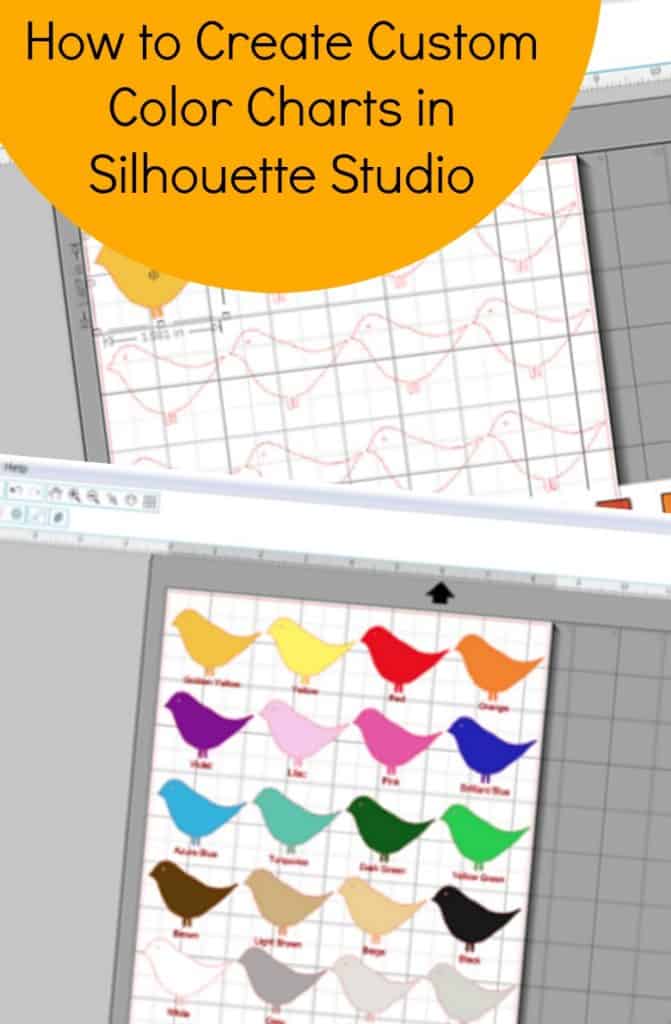
    Do you carry every color vinyl, paint, or paper color that your supplier offers? Most businesses don’t, so it is helpful to have a color chart to reference and also share with customers. Custom color charts are not difficult to create in Silhouette Studio. Here’s how:

    1) Open a new file in Silhouette Studio. I plan to print this color chart and place it in a binder, so I set the size to 8.5″ by 11″.

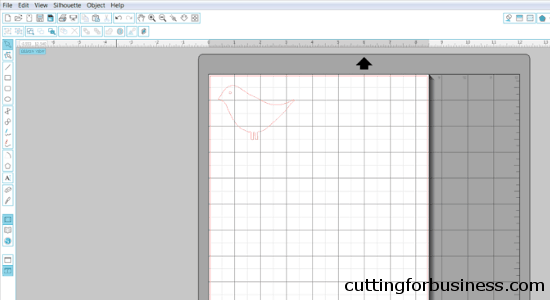
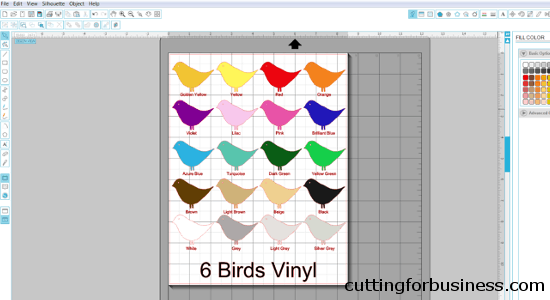
    2) Find an image that you’d like to use for your custom shape and open it. Many businesses use circles or squares, but you can use any shape you’d like. When choosing a custom shape, be sure it is large enough that a potential customer can see the color. For a simple square or circle, draw one using the tools within Silhouette Studio. For this example, I’ve chosen a bird.

    Creating custom color charts in Silhouette Studio

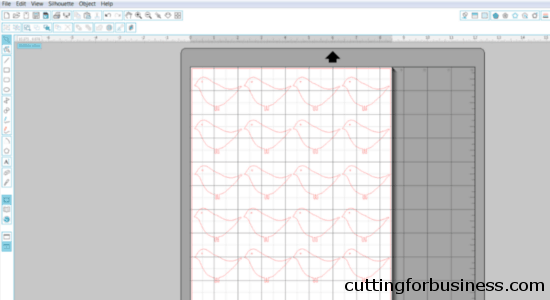
    3) Next, you’ll click “Object”, “Replicate”, and “Fill Page”. (Tip: If you don’t want to fill the page, you can choose a different replicate setting – Column of Three – Column of Four – Row of Three – Row of Four.)

    Creating custom color charts in Silhouette Studio - by cuttingforbusiness.com

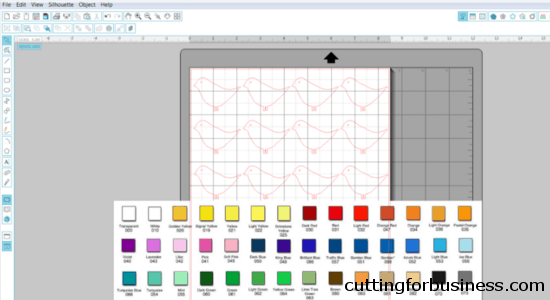
    4) Open your color chart within Silhouette Studio. If you don’t have a color chart on your computer, you can use Google or Google Images to find one.

    Creating custom color charts in Silhouette Studio - by cuttingforbusiness.com

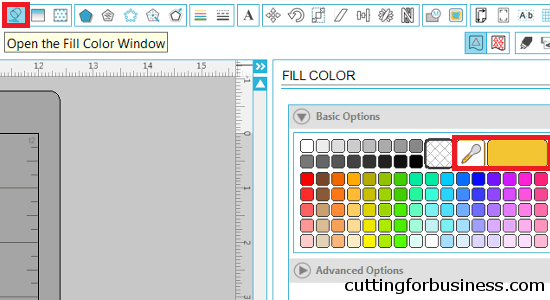
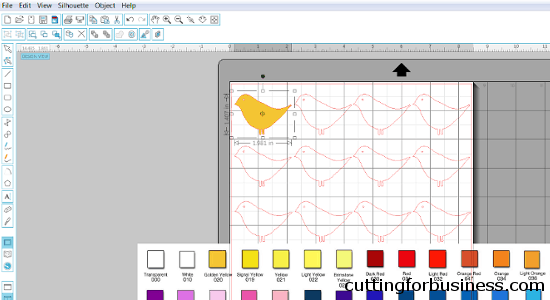
    5) Select your first shape. From the Fill Color window, use the dropper tool to choose a color in your color chart by clicking on it with the tool. I’ve highlighted the Fill Color icon and the dropper tool in red in the image below. Your first shape will fill in with your chosen color.

    Creating custom color charts in Silhouette Studio - by cuttingforbusiness.com

    Creating custom color charts in Silhouette Studio - by cuttingforbusiness.com

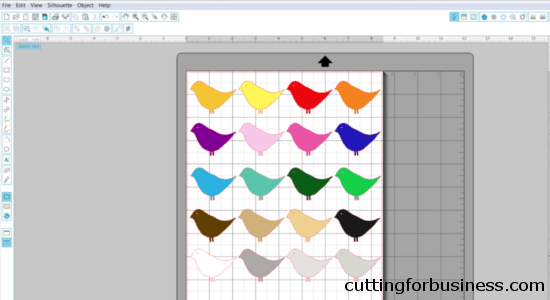
    6) Repeat step 5 to fill in the remaining shapes with colors from your color chart.

    Creating custom color charts in Silhouette Studio - by cuttingforbusiness.com

    7) Using the text tool, add the names of each color below your shapes. I recommend keeping the names the same as the supplier names, this will make it easier for you when ordering supplies. You can also add your business name, watermarks, or other details.

    Creating custom color charts in Silhouette Studio - by cuttingforbusiness.com

    8) Now you’ll need to get your color chart out of Silhouette Studio. To save them as a .jpg or .png file, you can use a virtual printer, like Bullzip. There are a lot tutorials online for Bullzip, but quickly: 1) Install Bullzip 2) From Silhouette Studio, click “File”, “Print”, and select “Bullzip PDF Printer”. Create a file name and select the file format and Bullzip will virtually print it to your computer. Depending on your computer, you can also take a screenshot (CNTL + ALT + PRTSCN) or use the snipping tool.

    Besides simplifying the ordering process, custom color charts can also help your business in a few more ways:

    • You can charge a special order materials charge if a customer requests something made in a color you don’t normally stock.
    • You can reduce your turnaround times by keeping all the colors on your custom color chart in stock at all times.
    • You will save time not having to constantly order more and more colors of materials.
    • When selling with a limited number of colors, you’ll be more likely to receive multiple customers requesting the same colors. This will allow you to use more of your scrap materials.

    Save this post to Pinterest:

    How to Create Custom Color Charts in Silhouette Studio - by cuttingforbusiness.com

  • Silhouette Studio Business Edition – Is it worth it?

    I’ve covered Silhouette Studio Business Edition in depth. First, I explained the different versions of Silhouette Studio. Then, I highlighted the unique features of Business Edition.

    Today, I’m going to give my opinion on whether or not Silhouette Studio is worth it.

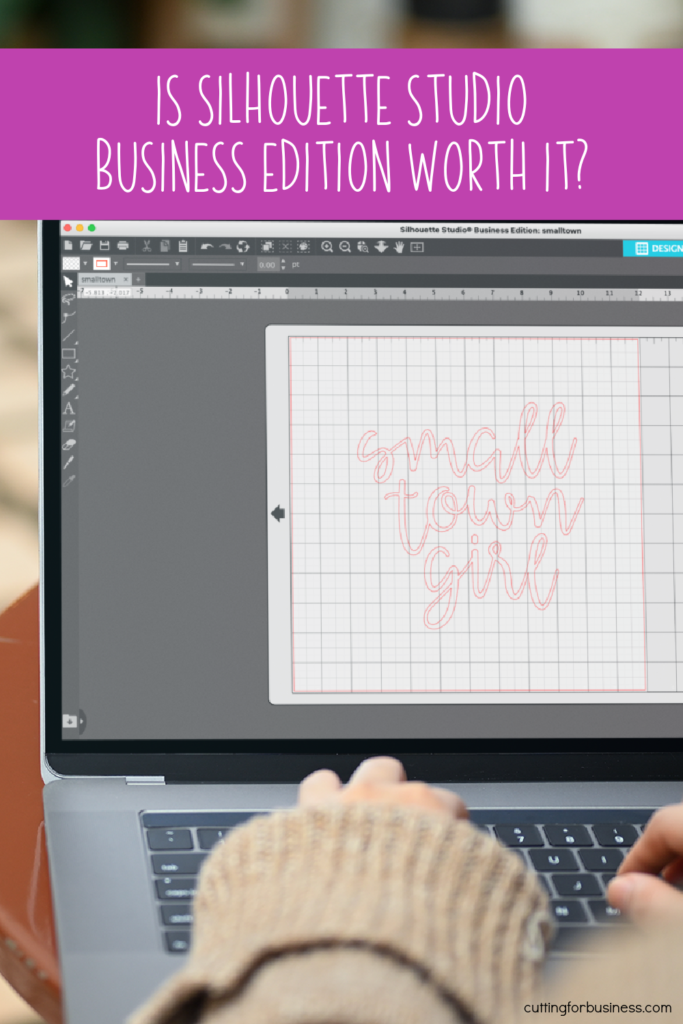
    Is Silhouette Studio Business Edition Worth It? cuttingforbusiness.com.

    Is Silhouette Studio Business Edition Worth It?

    In my opinion, Business Edition is only worth it in certain circumstances:

    • Work in Adobe or Corel. If you regularly work in Adobe or Corel and want to open AI, EPS, or CDR file formats without having to convert them using a third party tool. The other option is to purchase Silhouette Connect, which is a plugin that allows you to send files directly from Adobe or Corel to your machine. Silhouette Connect is $39.99 from Silhouette America.
    • Run More than One Machine. If you want to run two or more machines on the same computer, you’ll want to purchase the Business Edition version.
    • Large Designs. If you regularly designs that are wider AND longer than 12″, the Business Edition tiling feature will speed up the process of cutting your designs – you won’t have to manually move the design around to cut each section.
    • Personalized Designs. If you design something and cut multiple copies of the design as customers order them, the nesting and matrix copy functions will help speed up your process. (For example, if you have a number of stock car decals for sale in your store and cut them once a customer orders them, you will find the Business Edition time saving. If the customer orders 3 of Design A, 5 of Design B, and 2 of Design C – you would use the matrix copy (and nesting if desired) to multiply each design and send it to cut. After cutting, simply close the design and move to the next, rather than having to replicate each manually.)
    • Cut Intricate Designs. If you routinely cut intricate designs and want to automatically add weeding lines, the Business Edition might work well for you. However, you can manually add weeding lines to any design without the Business Edition.
    • Saving as SVG, PDF, or JPG. If you want to be able to save designs in SVG, PDF, or JPG format you will need Business Edition.

    If you want to learn to design SVG cut files in Silhouette Studio Business Edition, check out my course How to Design SVGs.

  • Silhouette Studio Business Edition – An Overview of the Features

    I recently talked about the differences between the four versions of Silhouette Studio. As a refresher, they are Basic, Designer, Designer Plus, and Business Edition.

    Today, I’m am going to give an overview of the additional features found only in Business Edition.

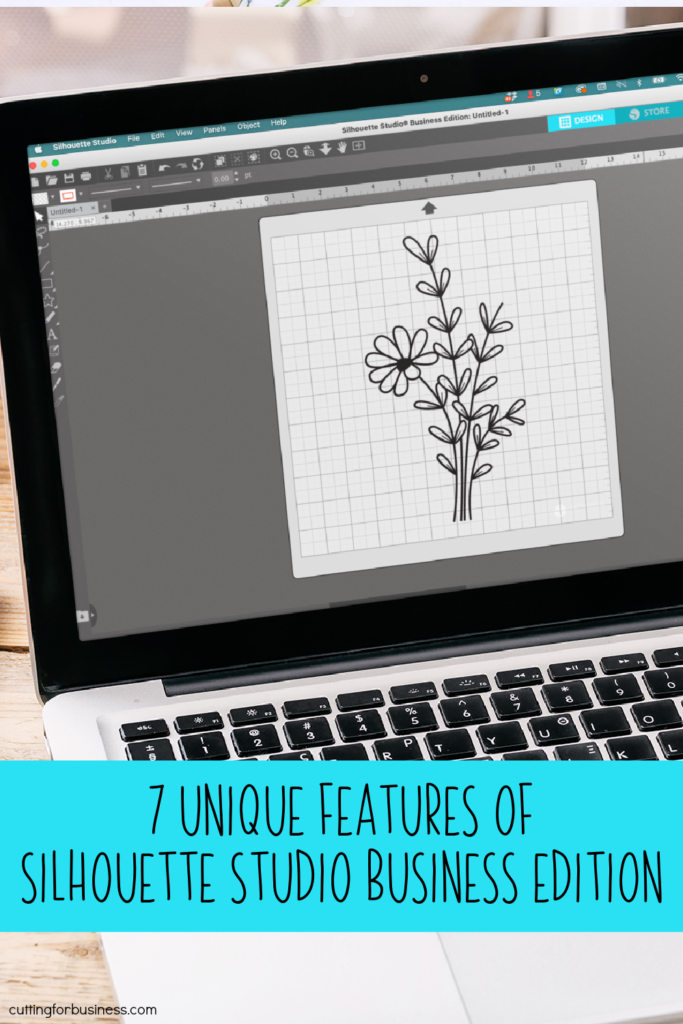
    Silhouette Studio Business Edition - An Overview of the Features - Cameo, Curio, Portrait - cuttingforbusiness.com

    Features Only Found in Silhouette Studio Business Edition

    • Ability to Open AI, EPS, and CDR File Formats: If you prefer to create design files in Adobe, Corel, or other graphics program, you can open them directly in the Silhouette Business Edition. To open the additional file formats in Silhouette Studio Business Edition, click “File”, then “Open”.
    • Weed Lines: This feature automatically inserts weeding lines for projects like vinyl.
    • Multi Cutter Support: If you own two or more Silhouette machines, you can hook them up to the same computer and run them both using the Silhouette Business Edition. You can choose to cut either the same design or cut different designs on each machine at the same time.
    • Matrix Copy Feature: This feature allows you to create a design in Silhouette Studio, then use the matrix copy feature to replicate the design without changing the original. This is helpful to cut down additional design time for designs you create over and over again with small changes.
    • Media Layout View: Media Layout View offers a preview of exactly how your designs will cut on the material before cutting.
    • Automatic Nesting: This feature allows you to nest a cut job to save materials. Nesting is available in the Designer Edition, but the program nests your original design. In the Business Edition, the design is nested “on the fly”, and the original is not changed.
    • Tiling: This feature allows users to cut larger designs easier. The tiling function automatically breaks the cut job into smaller chunks. After cutting, you assemble the pieces together to make your larger design. For example, if I wanted to cut a 24″ by 24″ tree on my Silhouette Cameo in vinyl, I would use the tiling feature which automatically breaks the design into 4 equal pieces on my 12″ by 12″ mat, or 2 equal pieces on my 12″ by 24″ mat or rolled vinyl cutting without a mat. When using tiling, your original design is not altered.

    Where to Buy Silhouette Studio Business Edition

    You can download or purchase Silhouette Studio through Silhouette America, authorized resellers, or Amazon.