Blog

  • How to (Easily!) Make Animated Graphics for Social Media

    A few weeks ago, I was creating advertising graphics for my new course, How to Design SVGs. I wanted to make a few animated graphics, since they tend to perform well across my most popular social media platforms – Facebook and Instagram.

    Honestly, I dread tasks that I consider ‘time sucking’ – like making animated graphics. However, I was pleasantly surprised that it didn’t take too long when I used a few of Canva’s newer templates. I made a mental note to come back to the blog and share a tutorial so you could make some animated graphics as well. Let’s take a look at it today.

    How to (Easily!) Make Animated Graphics for Social Media

    1. Head over to canva.com. Then, click the ‘Video’ icon on the home page.
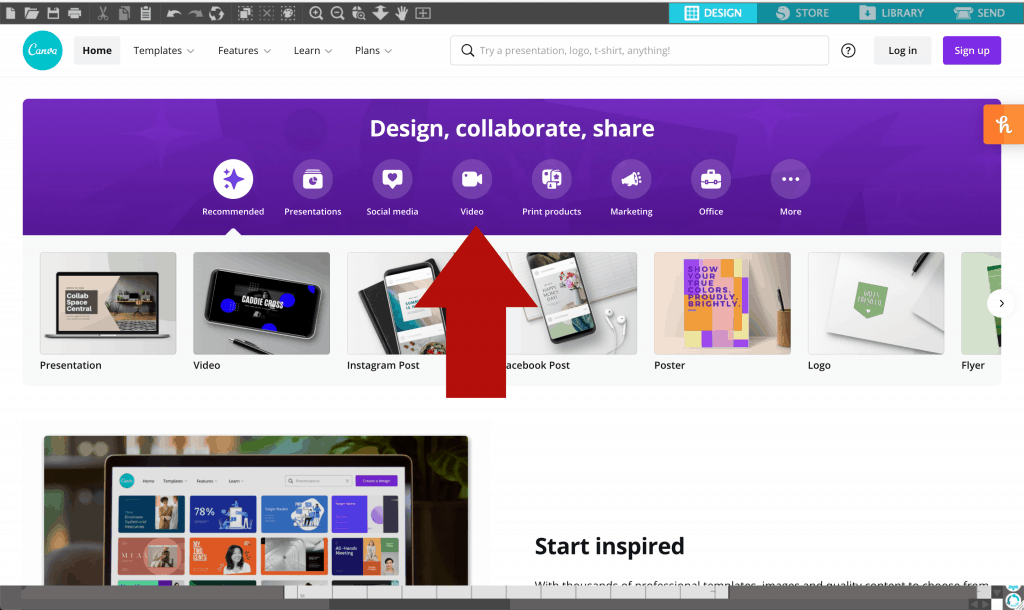
    Tutorial: How to Make Animated Social Media Graphics for Small Business Use - by cuttingforbusiness.com.

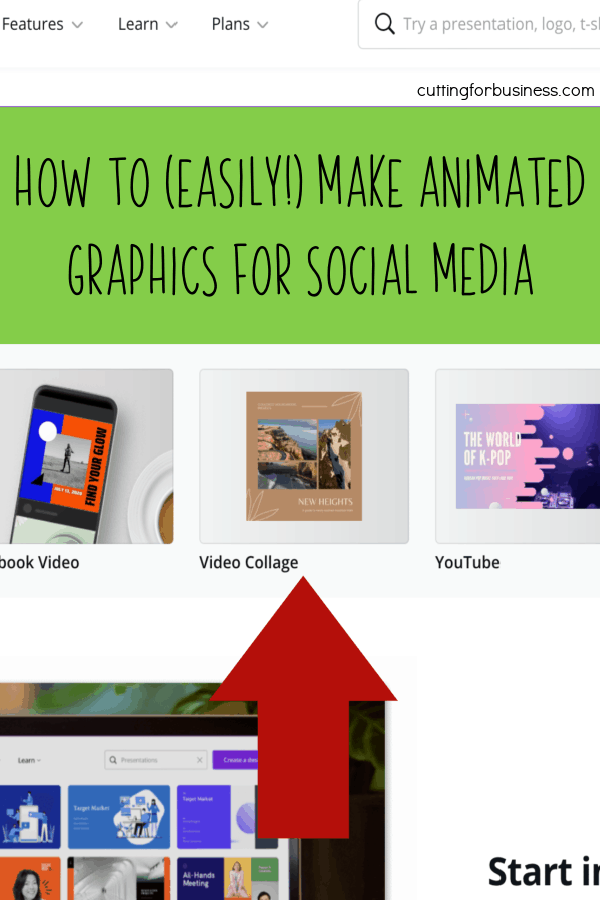
    2. Once on the Video Tab, select a template size. In this case, I’m choosing ‘Video Collage’.
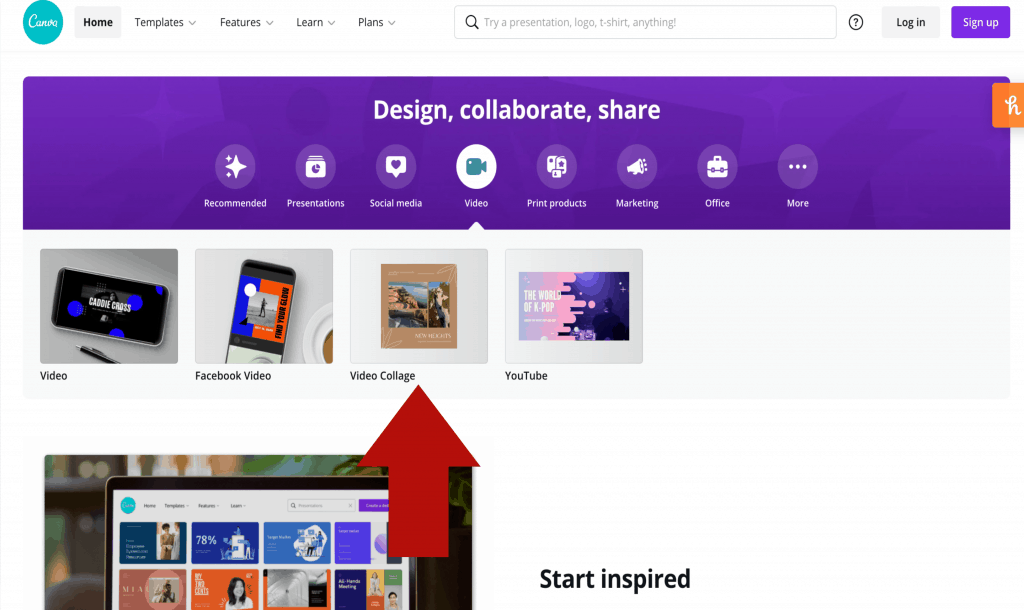
    Tutorial: How to Make Animated Social Media Graphics for Small Business Use - by cuttingforbusiness.com.

    3. Now, you’ve got video templates on the left hand side of the screen.
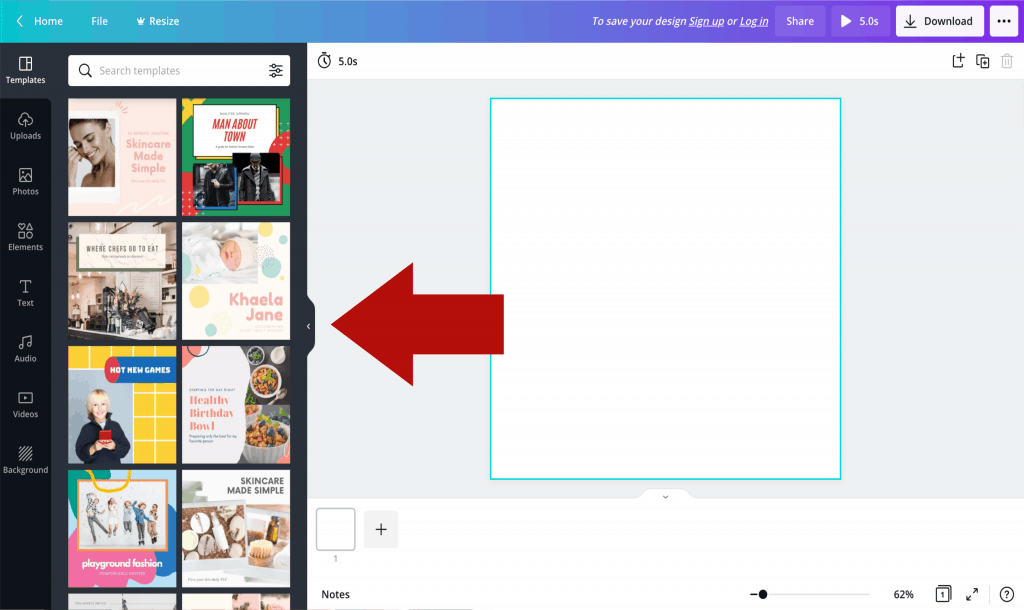
    Tutorial: How to Make Animated Social Media Graphics for Small Business Use - by cuttingforbusiness.com.

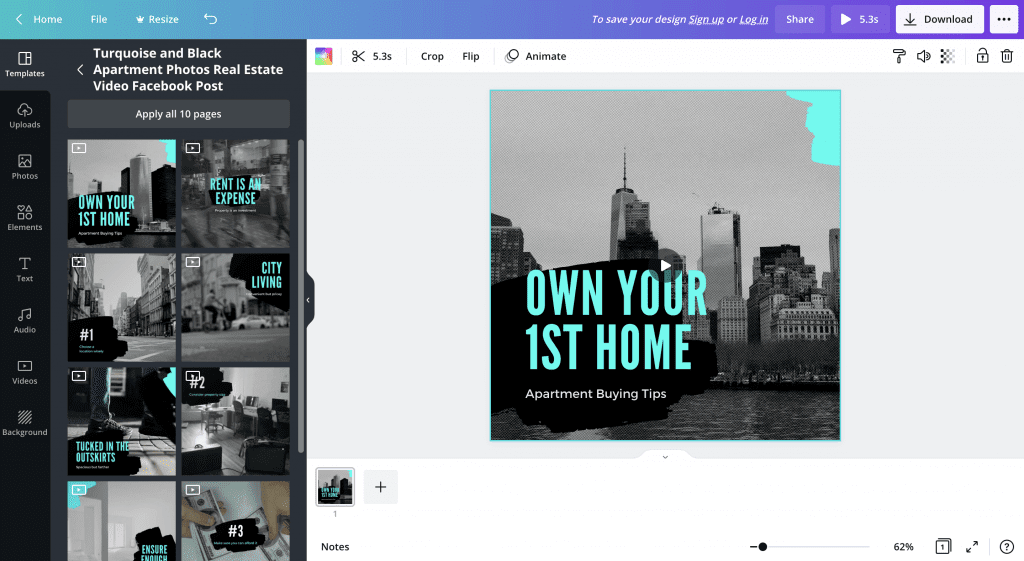
    4. Choose a template and click on it. When selecting a template, look more at the layout of the template than anything else. The words, fonts, and colors can be changed. Also, you’ll notice that some of the templates are slideshows; while others are animated graphics. You can also use one of the animated graphics in a slideshow template. For this tutorial, I chose a real estate themed animated graphic that is part of the slideshow, but I am only using one slide.
    Tutorial: How to Make Animated Social Media Graphics for Small Business Use - by cuttingforbusiness.com.

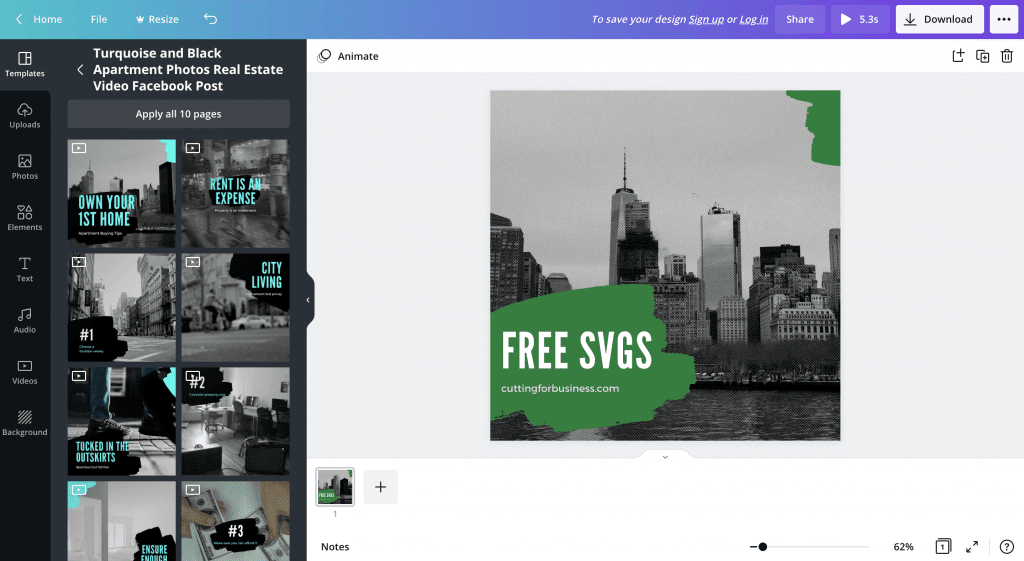
    5. Click the text to edit it. Change any colors as desired. Remember, you’ll want to make it match your brand colors.
    Tutorial: How to Make Animated Social Media Graphics for Small Business Use - by cuttingforbusiness.com.

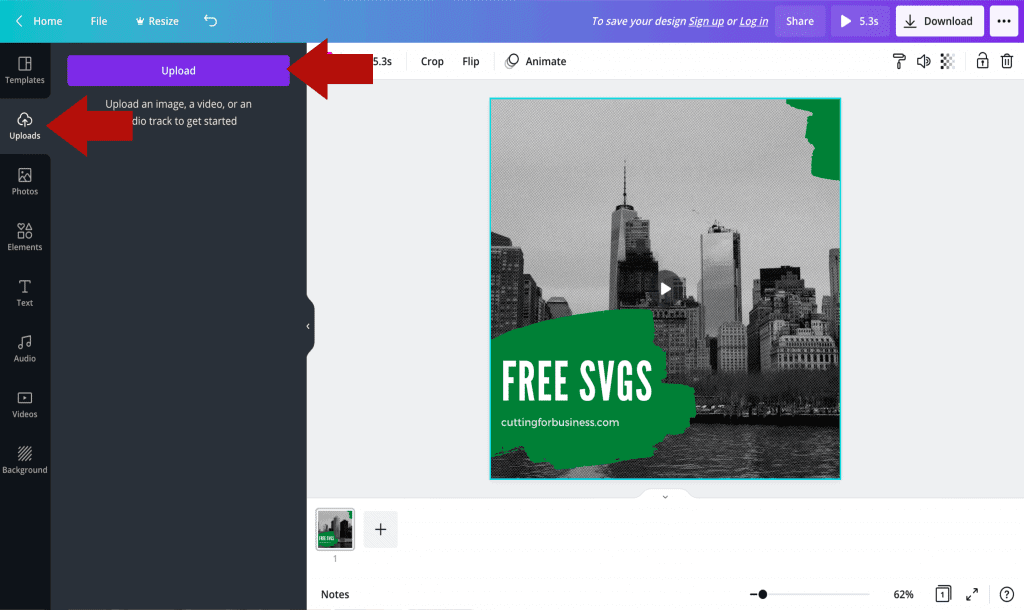
    6. Next, we need to add a video. Navigate to ‘Uploads’ on the left hand side and upload your video. I used my favorite screen recording program (Loom) to record a section of my website while I scrolled through some of the free SVGs on Cutting for Business. A short video of one of your products, a video of your workspace, or a video of your packaging all work well.
    Tutorial: How to Make Animated Social Media Graphics for Small Business Use - by cuttingforbusiness.com.

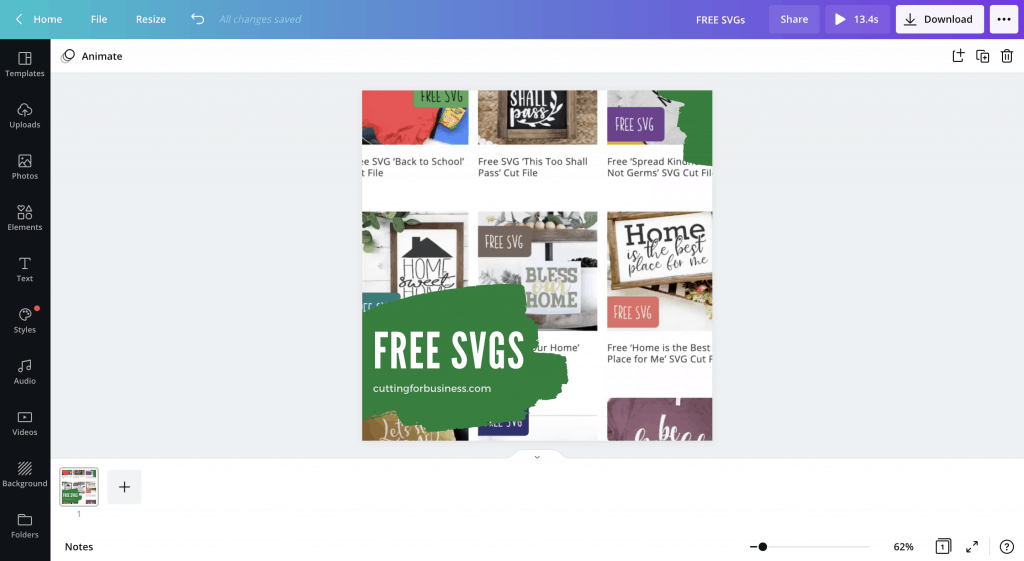
    7. After your video is uploaded, click the video in the template and add your video.
    Tutorial: How to Make Animated Social Media Graphics for Small Business Use - by cuttingforbusiness.com.

    8. Last, double click the video to resize it if needed.
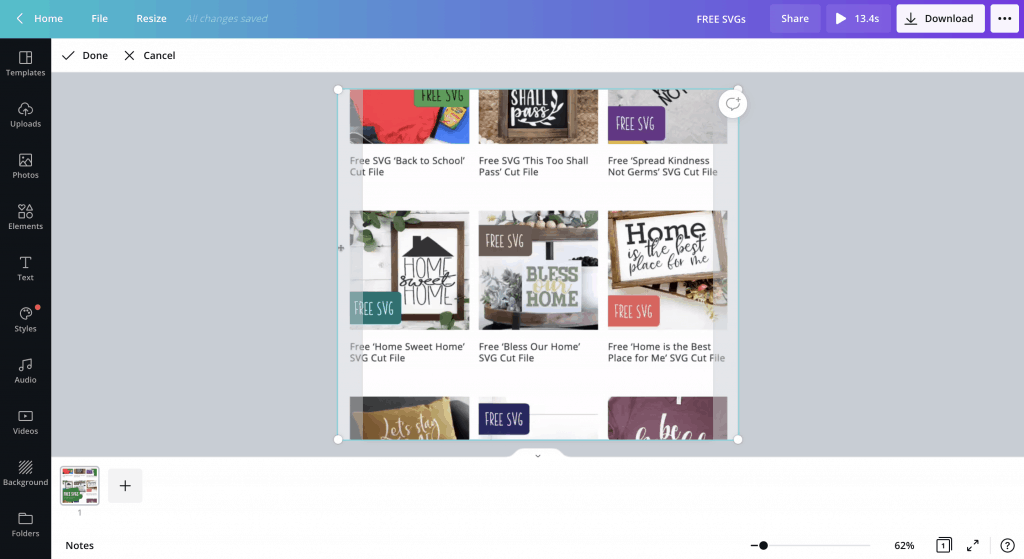
    Tutorial: How to Make Animated Social Media Graphics for Small Business Use - by cuttingforbusiness.com.

    9. As an optional step, you can adjust the video transparency if you’d like. I prefer to make it slightly transparent so that the text overlay jumps out a bit more. Click the checkerboard icon near the top, then use the slider to adjust the transparency.
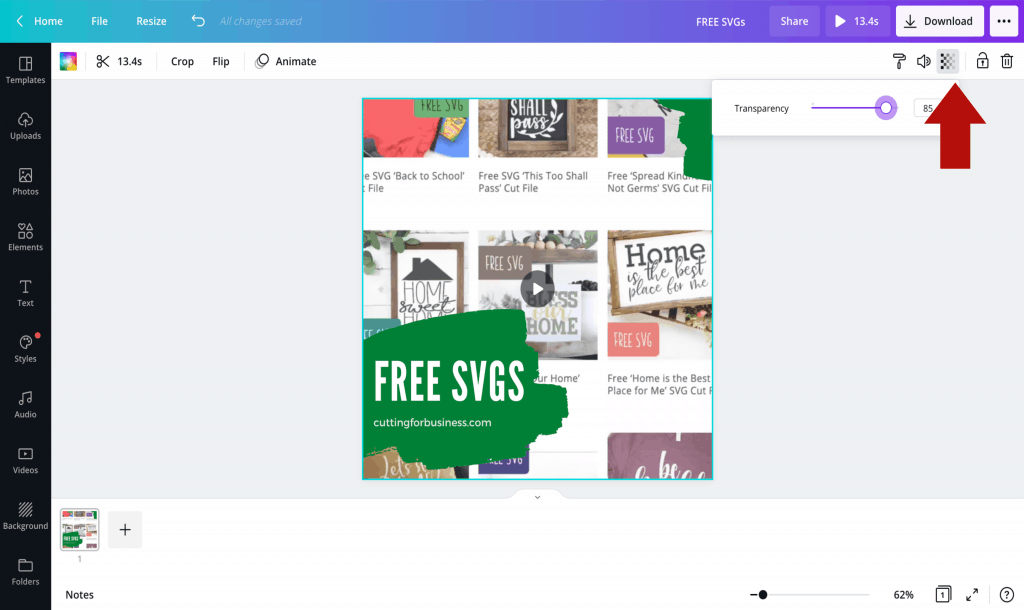
    Tutorial: How to Make Animated Social Media Graphics for Small Business Use - by cuttingforbusiness.com.

    That’s it! Save and download your video (Canva account required). The final video is ready to post to social media and looks like this:

    The goal with animated graphics is to use a short background video to catch the eye of someone scrolling through their social media feed. Give it a try and spice up your customer’s feed!
    How to Easily Make Animated Social Media Graphics for Your Small Business - by cuttingforbusiness.com.
  • 5 Blank Pet Products to Make Money in Your Craft Business

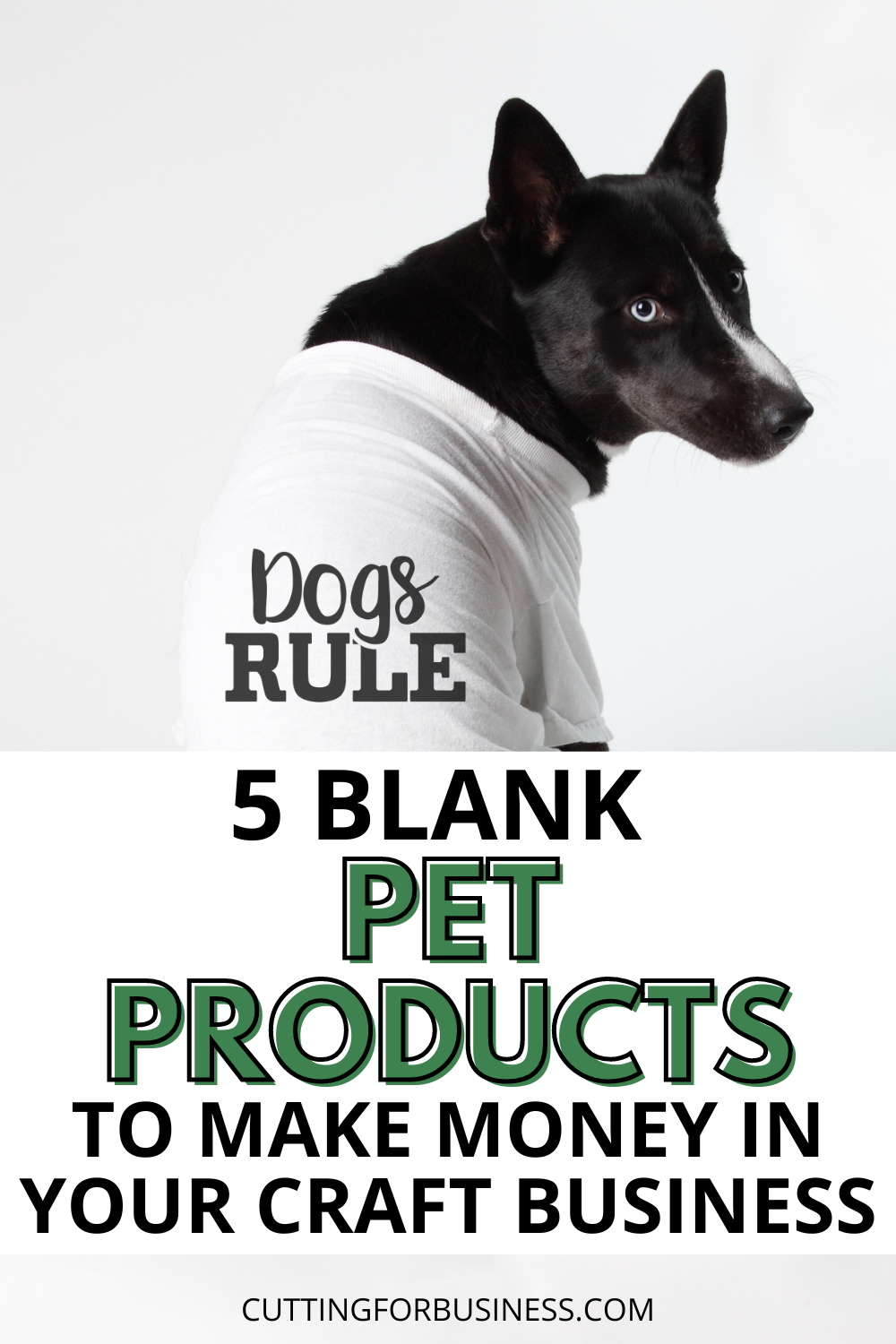
    According to the American Pet Products Association, in 2023 Americans spent a combined $147 billion dollars on their pets. (Source.)

    With so much money being spend, crafters should take advantage of the trends and offer customized or personalized pet goods.

    I was looking at some pet products the other day and asked Mirage Pet Products for a short list of their best selling blank pet products. They got me over a list and sponsored this post so that I could give you some pet product ideas.

    5 Blank Pet Products to Make Money in Your Craft Business - cuttingforbusiness.com

    5 Blank Pet Products to Cash in on with Your Craft Business

    Blank Pet Shirts

    • Available in 20 solid colors and 10 sizes.
    • Cost: $7.55 to $11.55.
    • Additional wholesale pricing available.
    • Embellish with HTV (heat transfer vinyl), rhinestones, screen printing, embroidery.
    • Personalized pet shirts are currently listed on Etsy for between $14 and $25.
    • Links: Pet shirts – smaller sizes, Pet shirts – larger sizes

    Blank Pet Bandanas

    • Available in 14 solid colors and seasonal patterned designs.
    • Cost: $3.42.
    • Additional wholesale pricing available.
    • Embellish with HTV (heat transfer vinyl), rhinestones, screen printing, embroidery.
    • Personalized pet bandanas are currently listed on Etsy for between $10 and $16.
    • Link: Pet bandanas – solid colors

    Blank Pet Dresses

    • Available in 11 color combos.
    • Cost: $9.70 to $12.74.
    • Additional wholesale pricing available.
    • Embellish with HTV (heat transfer vinyl), rhinestones, screen printing, embroidery.
    • Personalized pet dresses are currently listed on Etsy for between $20 and $35.
    • Link: Pet dresses

    Blank Pet Hoodies

    • Available in 10 colors and 10 sizes.
    • Cost: $13.66 to $25.06.
    • Additional wholesale pricing available.
    • Embellish with HTV (heat transfer vinyl), rhinestones, screen printing, embroidery.
    • Similar personalized pet hoodies are currently listed on Etsy for $25+.
    • Fun fact: Pet hoodies were featured on Oprah’s Favorite Things 2020. Click here to see them.
    • Links: Pet hoodies – smaller sizes, Pet hoodies – larger sizes

    Blank Nylon Pet Collars & Leashes

    • Available in 20+ colors.
    • Cost: $9.12+
    • Additional wholesale pricing available.
    • Embellish with HTV (heat transfer vinyl), rhinestones, embroidery.
    • For HTV users, this is a great way to use small scraps!
    • Similar personalized collars and leashes are currently listed on Etsy for $10+.
    • Link: Pet collar and leash combo (also available individually)

    Wholesale Requirements for Mirage Pet Products

    Obviously, wholesale is going to be the way to go to make the most money in your Silhouette or Cricut craft business.

    Since Mirage Pet Products is the manufacturer, you can buy directly from them without a ‘middle man’. They offer around a 50% discount for wholesale pricing, no minimum orders, and flexible registrations for businesses that may not have an official business license in their state. Additionally, Mirage Pet Products offers free shipping for orders over $250 and a 24 hour turnaround.

    Need some inspiration on what to put on your pet products? Read my list of dog and cat sayings.

  • Enroll Now: How to Design SVGs Course

    Have you ever wanted to learn to design SVG cut files to use with your Silhouette or Cricut? Yes? I’ve got great news for you: My brand new course, How to Design SVGs, is officially available!

    What is the Course About?

    How to Design SVGs is all about creating SVG cut files. When I sat down to write the course, I knew I wanted something different from what was already available online. In this course, I’m not just giving you a tutorial and telling you to follow it. Instead, I’m explaining the ‘whys’ behind designing cut files. Why put that there? Why does that not work with that? Why should I do it that way? I firmly believe that when you understand the ‘whys’ behind designing SVG cut files – you’ll be able to create your own unique cut files. Of course, I’m sharing plenty of tutorials, too. And, after you finish the course – you can stick around for additional tutorials each week.

    Get More Information

    CLICK HERE TO LEARN MORE ABOUT THE HOW TO DESIGN SVGs COURSE

    Class now available: How to Design SVG Cut Files Course for Silhouette or Cricut crafters - by cuttingforbusiness and howtodesignsvgs.com.
    Enrollment now open for How to Design SVG Cut Files Course for Silhouette or Cricut crafters - by cuttingforbusiness and howtodesignsvgs.com.
  • Tutorial: How to Set Up Linktree for Instagram

    It has always been difficult to convert Instagram posts to actual traffic to your website or shop. This is because you can only post a single link in your profile bio to direct shoppers. I’ve been using Linktree for a bit now without any problems, so I’m confident enough in the service to offer you the recommendation to use it. Today, I’ll share a quick tutorial on how to set it up.

    What is Linktree?

    Linktree is a third party service that adds a page to your Instagram profile that directs social media users to links and pages that you set up.

    Tutorial: How to Set Up Linktree

    1. Visit linktree.com and click the ‘Get Started for Free’ button, then complete the quick form. I’d recommend that your username be your business name (example: cuttingforbusiness).
    Screenshot of Linktree sign up page - by cuttingforbusiness.com.

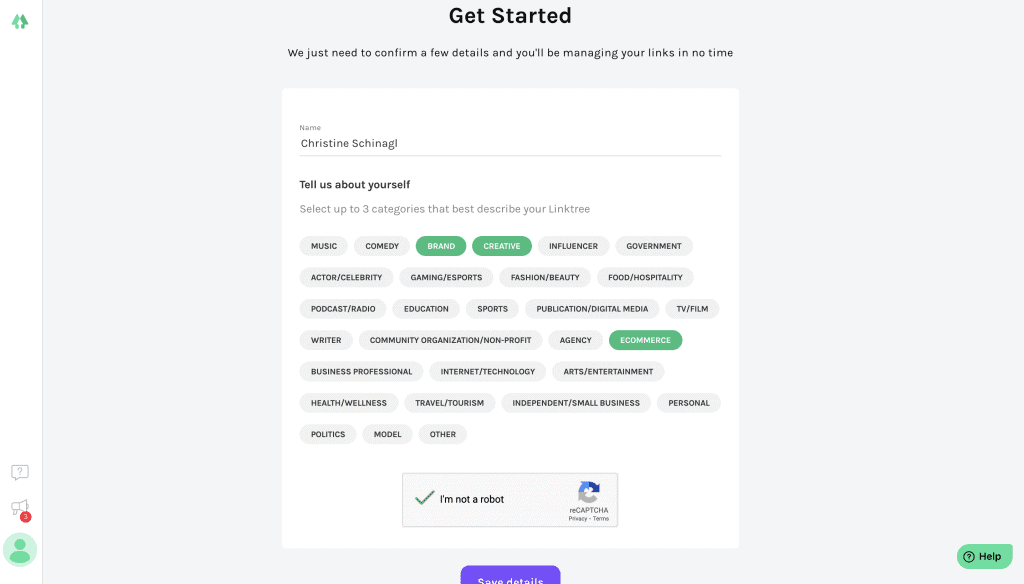
    2. On the next page, choose your categories. For most Silhouette and Cameo businesses, ‘Brand’, ‘Creative’, and ‘Ecommerce’ should work fine. Click the ‘Save Details’ button when you are finished.

    Screenshot of creating a Linktree account - by cuttingforbusiness.com.

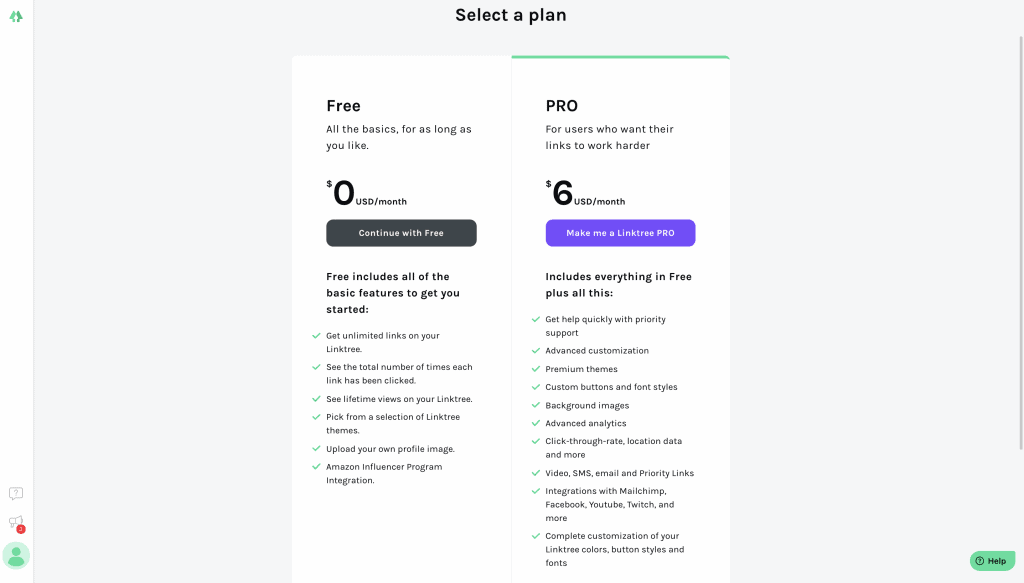
    3. Choose a plan. The Pro plans gives you additional features. It’s well worth the $6, but the Free plan may work for you as well.

    Plans available for Linktree accounts - by cuttingforbusiness.com.

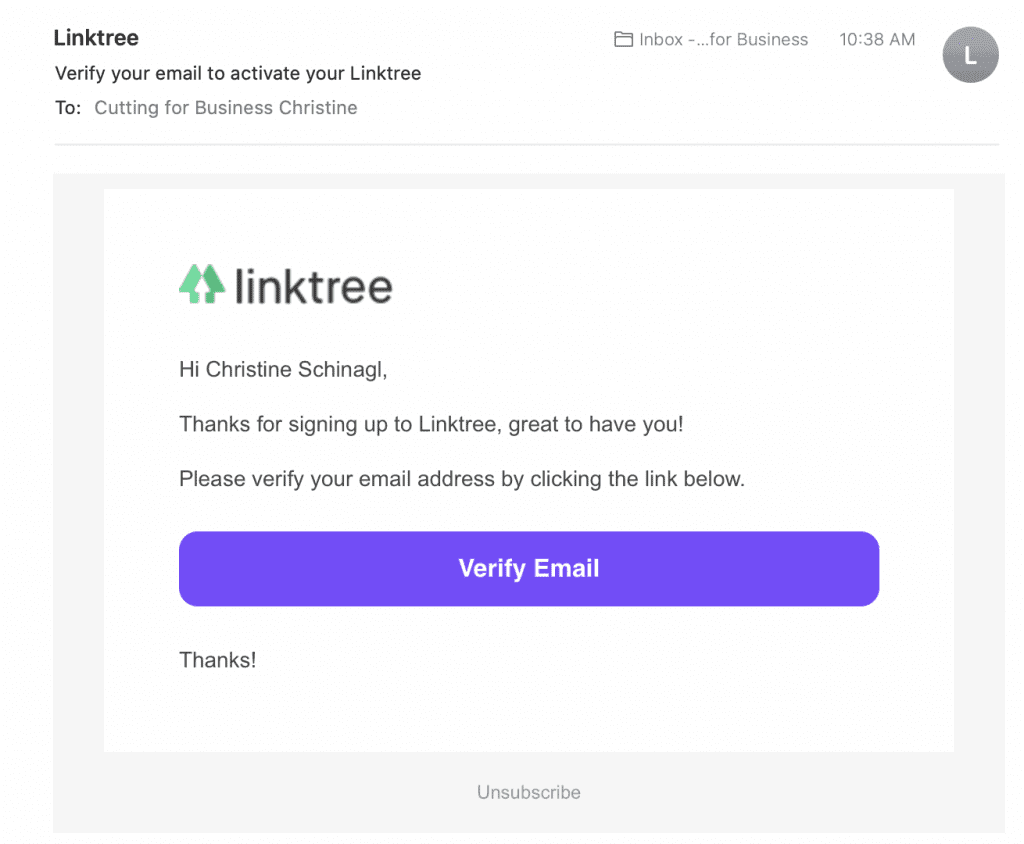
    4. If you are new to Linktree, you’ll need to verify your email address. Quick and easy, click the link on the email they send to you.

    Email verification of Linktree accounts - by cuttingforbusiness.com.

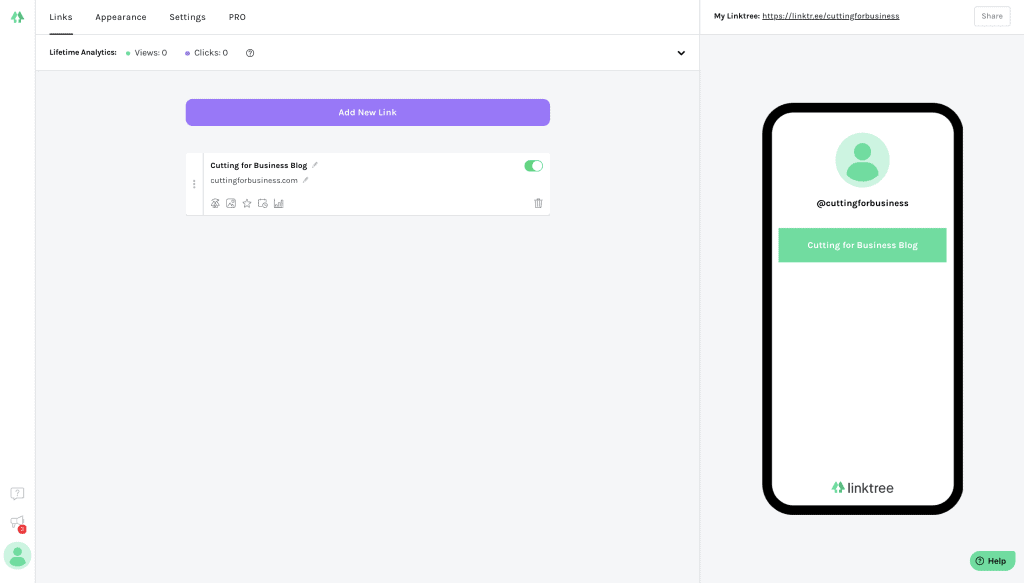
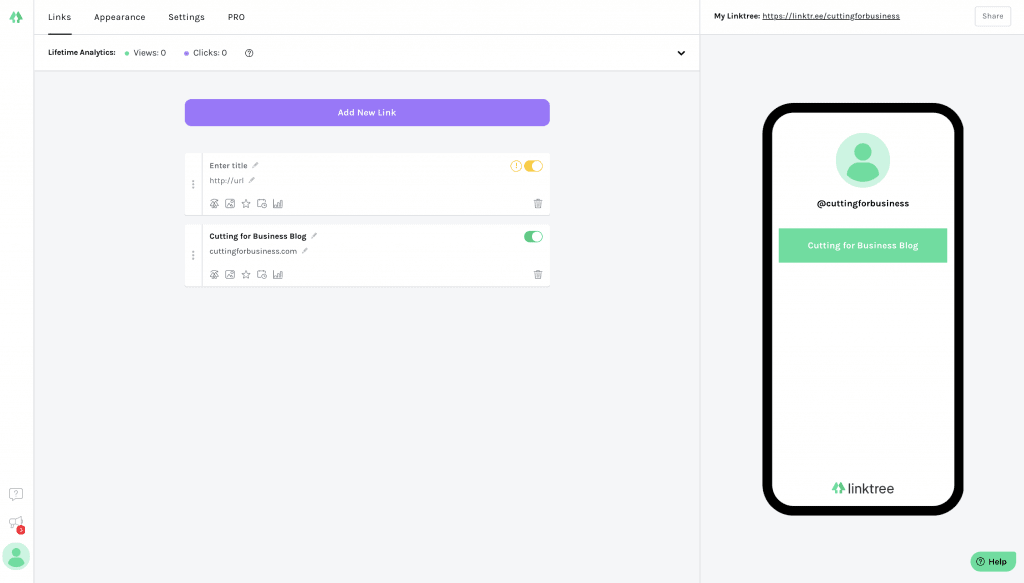
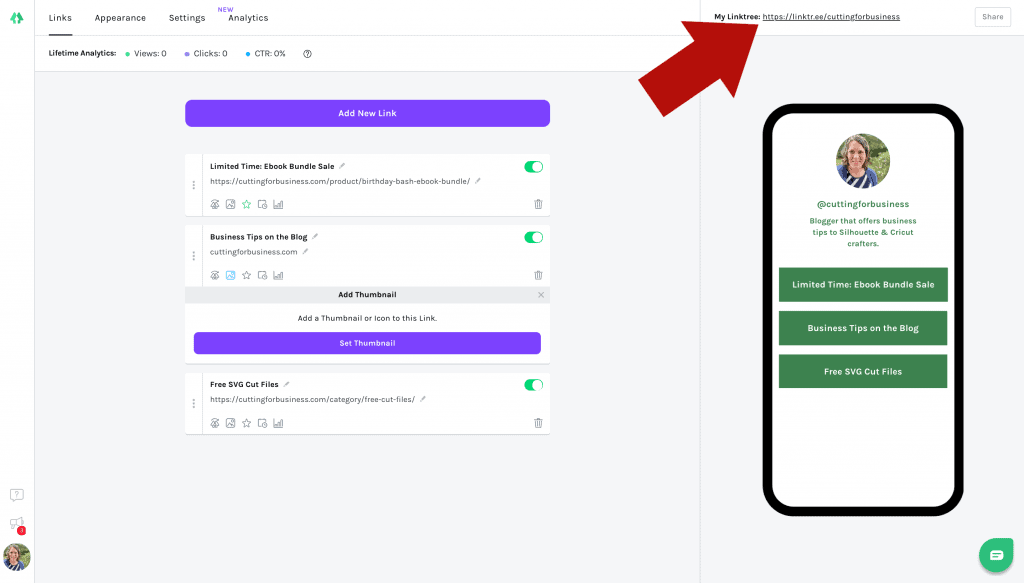
    5. Now is the fun part! You’ll add links to places you want to direct Instagram users to. I think that the first link you enter should be your website or shop’s home page. For the other links, consider adding to a sale you are promoting on Instagram, a popular product in your shop, your About Me page, or anything else.

    To add links, click the ‘Add New Link’ button, then fill in the details. Be sure to click the button to switch the link on to be viewable on your Linktree (this is the yellow switch on the right side).

    Creating links in Linktree - by cuttingforbusiness.com.
    Creating more links in Linktree - by cuttingforbusiness.com.

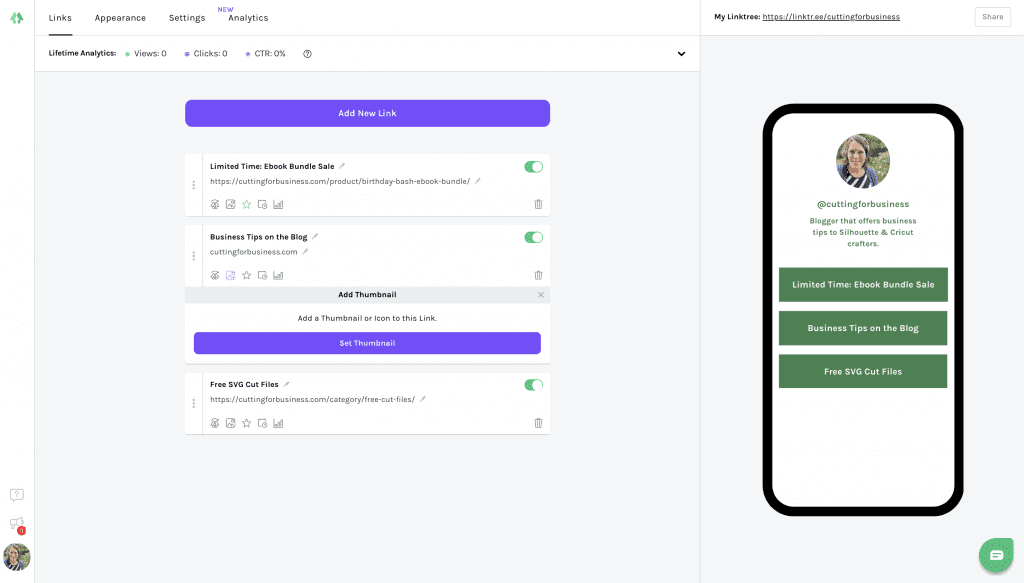
    6. Click the ‘Appearance’ link at the top of the page and take a minute to style your Linktree landing page. First, enter a short biography and upload a profile picture. Then, choose a background. On the Free plan, many of the background options are busy. I’d recommend a simple page that doesn’t distract from your links AND that matches your branding.

    Advanced: On the Pro plan, you can add button effects, a thumbnail, scheduling, and more.

    Customizing your profile page in Linktree - by cuttingforbusiness.com.

    7. Finally, take your Linktree link and add it to your Instagram profile page. (Tip: You don’t have to include the ‘https://’ part. Example in your Instagram bio: linktr.ee/cuttingforbusiness.)

    Where to find your Linktree link - by cuttingforbusiness.com.

    That’s it! You can get your Linktree up and running on Instagram in about 15 minutes. If you want to see mine: Click here.

    Don’t Forget to Update It

    If you are going to use Linktree, don’t forget to regularly update that links. I mean, no one wants to see links to your Halloween products in April!

    You Can Create Your Own Link Page on Your Website

    Oh! If you are pretty tech savvy, you can create the same kind of landing page from your website. Simply create a new page (make sure it is mobile friendly!) and add your links. Then, add your page to your Instagram bio.

    Use it in Other Places

    You can also use your Linktree on TikTok (or anywhere else)!

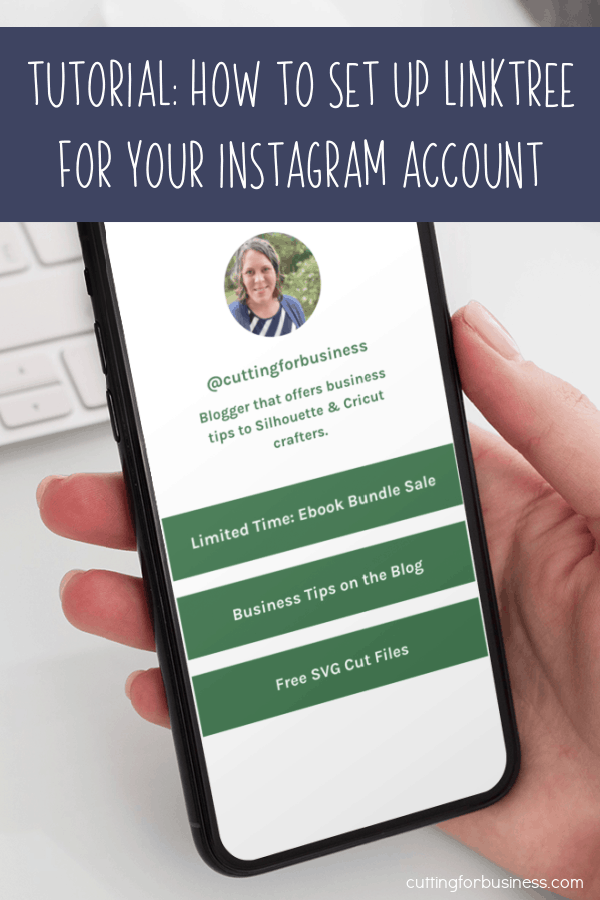
    Tutorial: How to Set Up Linktree for your Instagram account in your Craft Business - by cuttingforbusiness.com.
  • Birthday Bundle Ebook Sale

    You missed it! This sale is over! Click here to see the entire collection of ebooks at Cutting for Business.


    Happy birthday to me, happy birthday to me, happy birthday dear Chhhrrriiissstttiiinnnneeeee, happy birthday to me.

    Yep! You may not have known, but today is my birthday! This year, I’m offering my entire collection of craft business ebooks in a (never-done-before-and-won’t-happen-anytime-soon-again) bundle!

    What’s Included

    Diving In: 30 Days to Start Your Silhouette or Cricut Business ($20)

    Diving Deeper: 30 Days to Grow Your Silhouette or Cricut Business ($20)

    15 Home Parties to Host with Your Silhouette or Cricut ($20)

    Pinterest Boot Camp ($10)

    Instagram Boot Camp ($10)

    Etsy Shop Boot Camp ($10)

    Regularly priced for $90, pick up your set for $50.

    Of course, since my birthday only happens once per year, you have to be fast. This deal ends at midnight tonight (1-22-21).

    Cutting for Business Ebook Bundle Sale - cuttingforbusiness.com
  • Free Printable: USPS Christmas Holiday Shipping Deadlines 2020

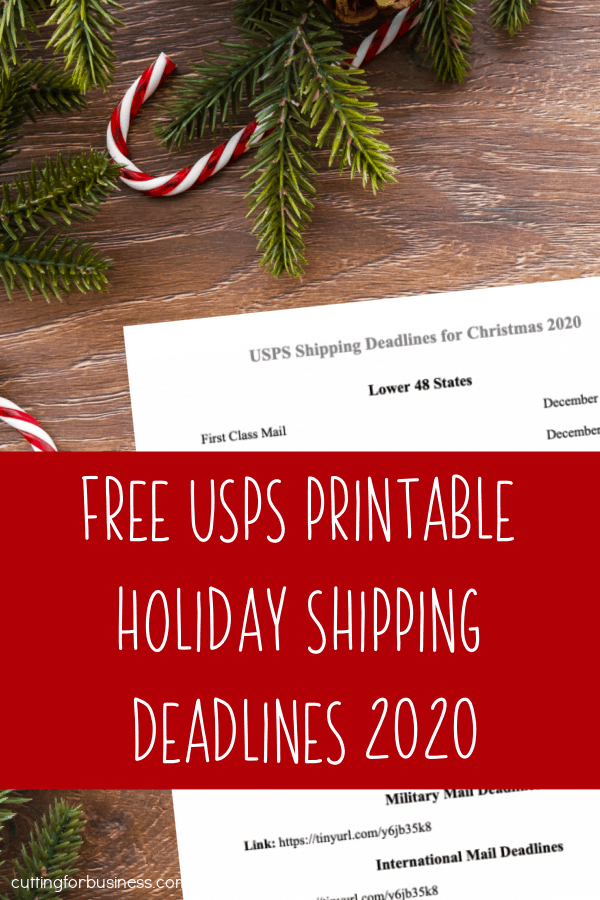
    If you ship products through the United States Postal Service (USPS) in your Silhouette or Cricut small business, you should know the shipping deadlines for Christmas. I’ve made it easy for you this year with a free, printable deadline chart.

    This printable covers the USPS deadlines only. If you ship with FedEx, UPS, or DHL – check their website for similar information.

    Download it, print it, and hang it in your workspace, or screenshot it to your phone.

    Click here to download the printable.

    Free Printable: USPS Christmas Holiday Shipping Deadlines 2020 for Etsy Shops and Small Craft Business Owners - by cuttingforbusiness.com.
  • 10 Ideas for Using Pinterest Story Pins

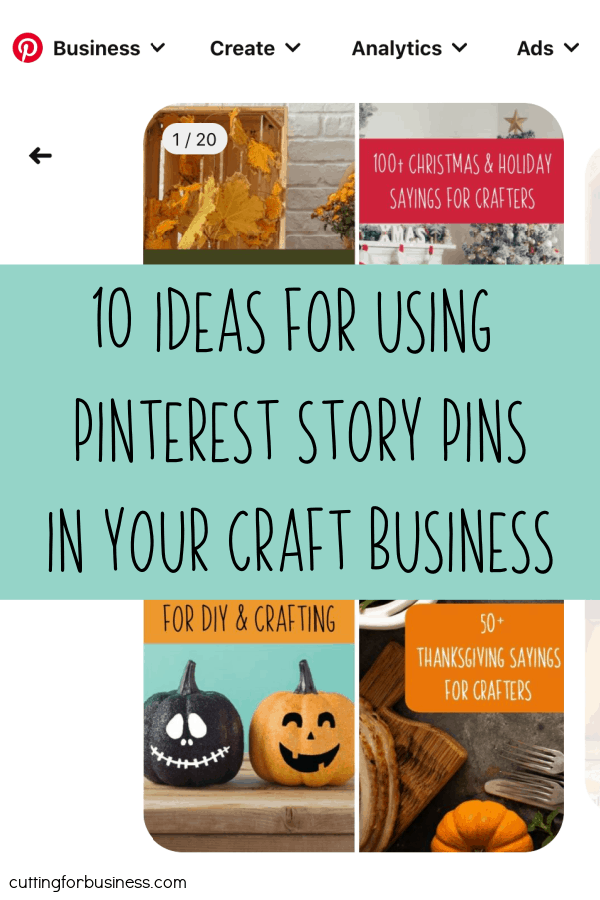
    I recently talked about Pinterest Story Pins. Today, I’m sharing some ideas I’ve come up with to utilize the new format for your craft business.

    10 Ideas for Using Pinterest Story Pins

    • Share a step-by-step tutorial related to what you sell. This is particularly useful if you sell supplies like vinyl or blanks.
    • Show your Pinterest followers how to use your product. For example, if you sell digital cut files, show your followers how to edit or personalize your cut file.
    • Take your followers through a journey of creating one particular product. For example, if you sell greeting cards, show yourself designing the card, cutting out the pieces, gluing them down, packaging them, then shipping them.
    • Use Pinterest Story Pins to share collections of products. For example, if you sell shirts, put together all the holiday shirts you sell into one Story Pin. You could do the same if you sell ornaments, wood signs, or anything else that can be grouped around a theme, season, or holiday.
    • Show the flexibility of your products. If you sell cut files or digital papers, show a single product being used in various different ways or on several different products.
    • Use Pinterest Story Pins to tell the story behind your business. This is a great opportunity to show off your workspace, you working, or other behind the scenes clips.
    • Offer several different views of a particular product using short videos and still images tied together in a Pinterest Story pin. I think this is a great idea for products that are difficult to photograph, like an epoxied tumbler.
    • Highlight happy customers in a Pinterest Story Pin. You can include customer submitted pictures along with screenshots of positive feedback.
    • Collaborate with another maker and you can both post the same Pinterest Story Pin around the same time. You can show your products, the other maker’s products, and both of your products together.
    • Use Story Pins to create a modified time lapse of anything. Establish the time of day in the first few pins, then work through the day in the rest. Or, start with hour 1, hour 2, hour 3, and so on. This would work well to show your day, or the creation of a product that takes a long time.

    Remember, work smarter – not harder. The easiest way to get started with Pinterest Story Pins is to reuse the pins you’ve already made.

    10 Ideas for Using Pinterest Story Pins in Your Silhouette or Cricut Small Craft Business - by cuttingforbusiness.com.
  • What are Pinterest Story Pins?

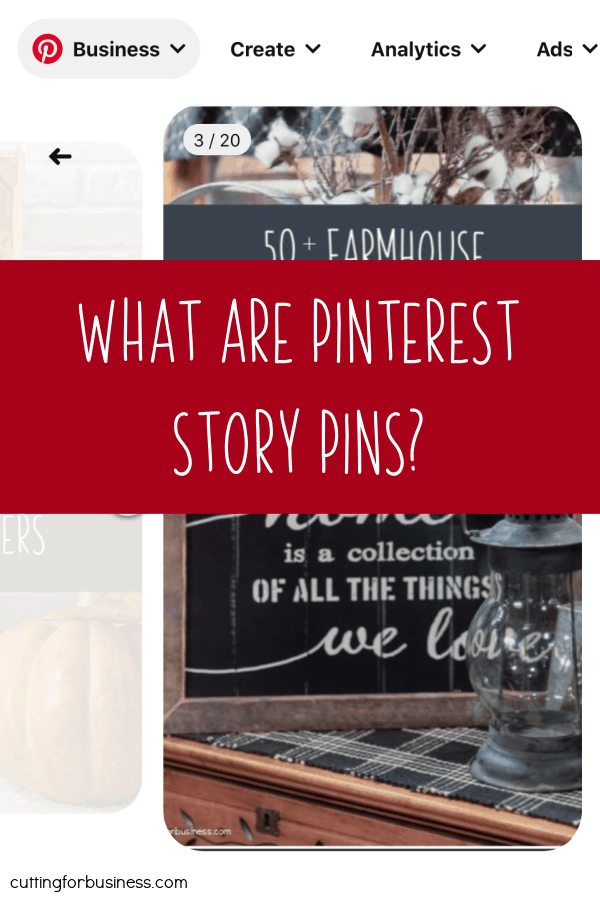
    Pinterest has been testing Story Pins for several months, but they’ve only just officially been released as a beta test about a week ago. Story Pins are available to those with Pinterest Business Accounts, but you may or may not have access to them at this time.

    What are Pinterest Story Pins?

    Pinterest Story Pins are collections of up to 20 related pins. Unlike regular pins, Pinterest Story Pins do not allow a spot to include a link (for US based accounts). (Note: Pinterest Story Pins in other countries do allow you to add links, so this feature may be coming to the US.) Some social media commentators are stating that Pinterest is using Story Pins to promote users staying on Pinterest and not clicking to outside websites.

    If you are thinking about Story Pins being similar to Stories on say Instagram or Facebook, they aren’t. They are permanent pins that do not disappear after a period of time.

    How Do I Create a Pinterest Story Pin?

    Pinterest Story Pins are created in Pinterest, either using the Pinterest App or the website. Here is a quick walkthrough using the Pinterest website:

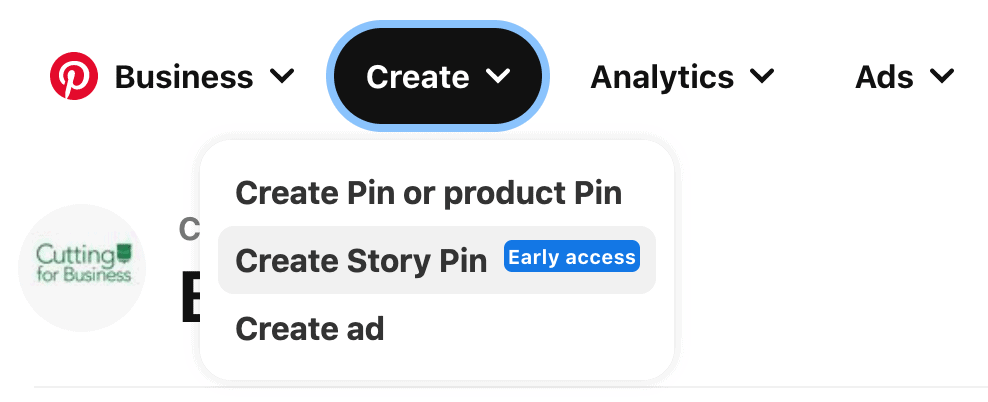
    1. From your profile page, click ‘Create’ along the top. Then, select ‘Create Story Pin’.
    What are Pinterest Story Pins? Are They Worth It For Craft Businesses? - by cuttingforbusiness.com.

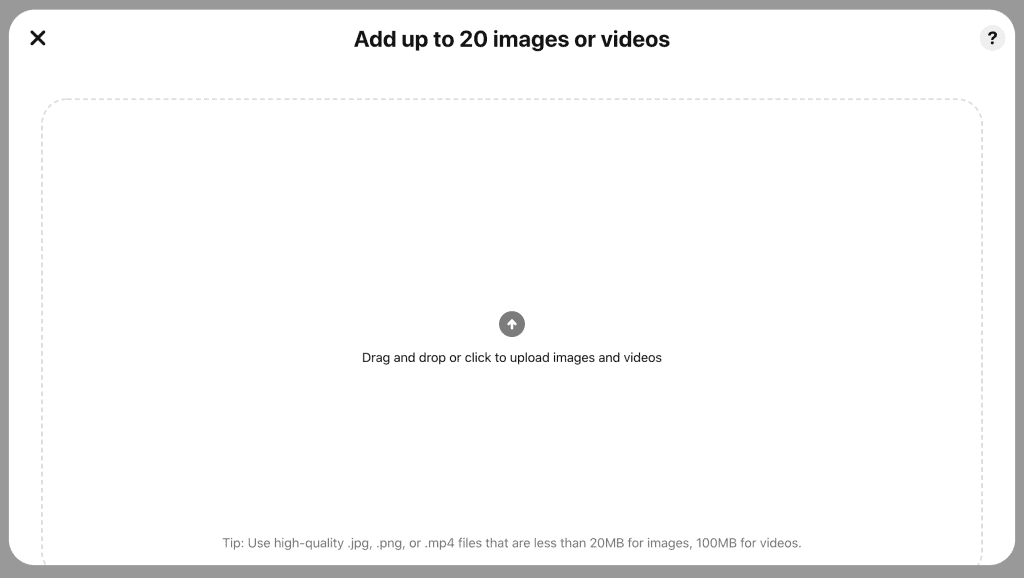
    2. The pin builder will launch and you can drag and drop or upload your images or videos into it. The recommended image size is 1080×1920.

    What are Pinterest Story Pins? Are They Worth It For Craft Businesses? - by cuttingforbusiness.com.

    3. After uploading, the pin builder will switch views and you’ll see all the images you just uploaded.

    What are Pinterest Story Pins? Are They Worth It For Craft Businesses? - by cuttingforbusiness.com.

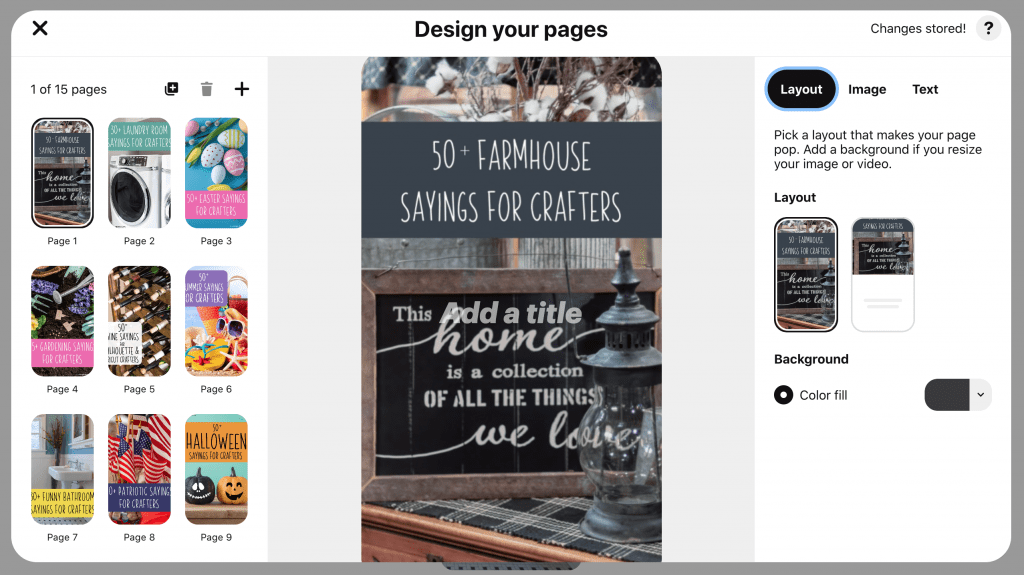
    4. A few things to know about the pin builder:

    • You can change the order of the pins by dragging them around. You can add up to 20 images.
    • In the ‘Layout’ tab, there are two layouts to choose from. One allows you to add text under it.
    • The ‘Image’ tab allows you to edit the image.
    • From the ‘Text’ tab, you can overlay text onto your image.

    Click ‘Next’ when you are happy with your arragement.

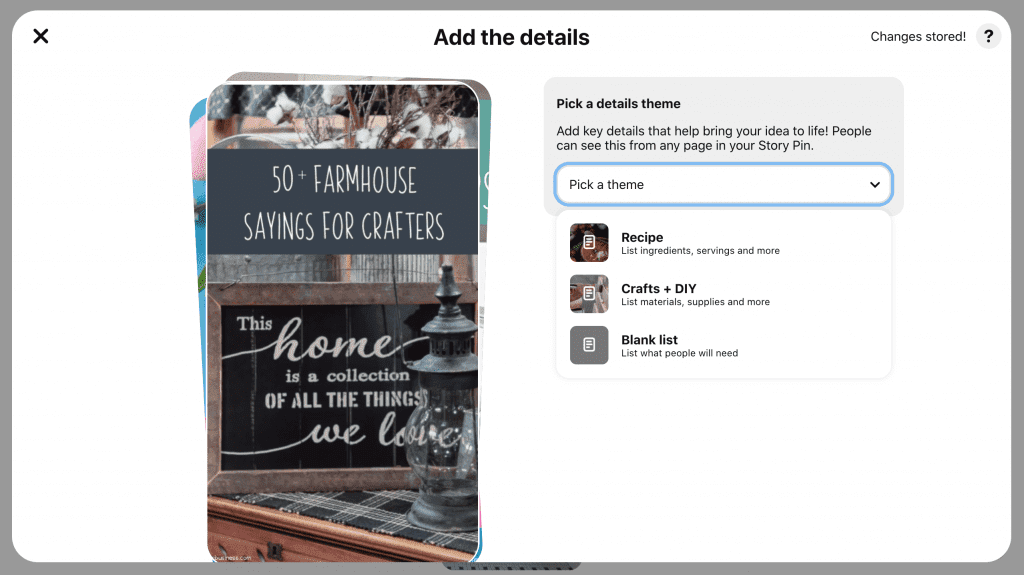
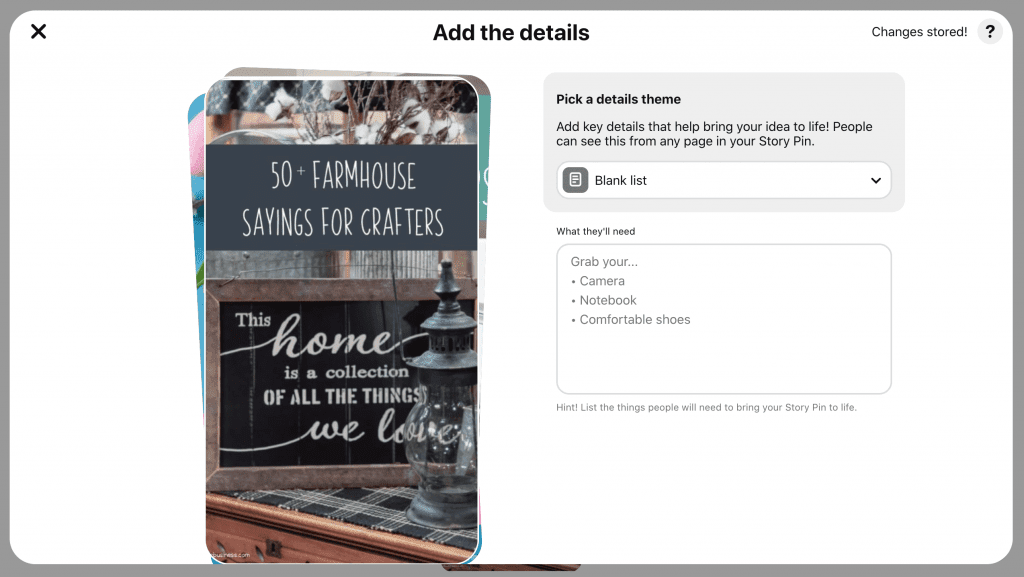
    5. Choose a theme for your Story Pin. You can choose from: Recipe, Crafts, or Blank. Then, add details about your pin. For my pins, I’m choosing ‘Blank’, and then adding details. It is important to put a link to where the buyer can buy your products in the details section. (Alternatively, you can also put your shop link on the images… or both!)

    What are Pinterest Story Pins? Are They Worth It For Craft Businesses? - by cuttingforbusiness.com.
    What are Pinterest Story Pins? Are They Worth It For Craft Businesses? - by cuttingforbusiness.com.

    Click ‘Next’ after you’ve added the details.

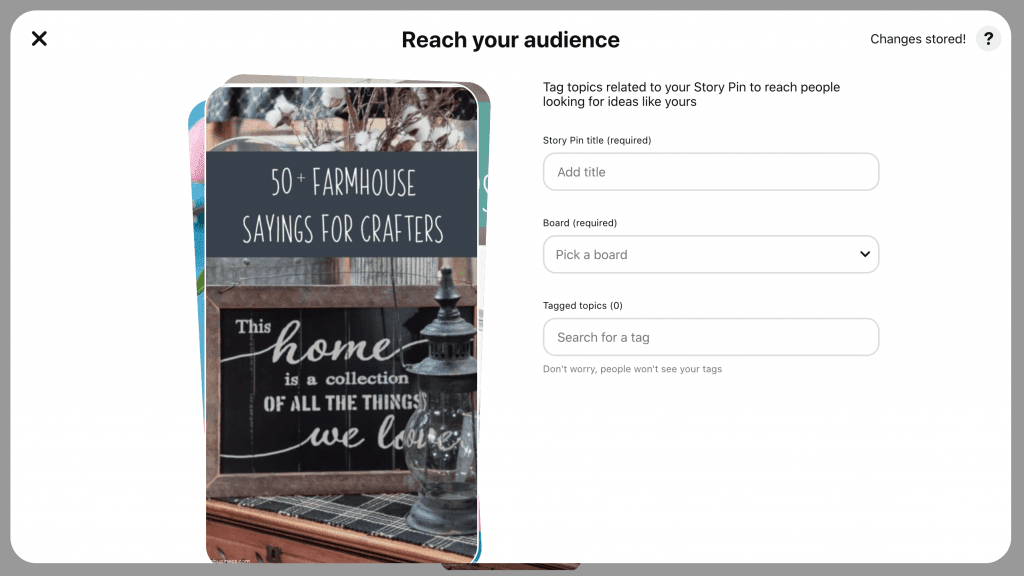
    6. Finally, add the audience details. Give your Story Pin a keyword rich title, choose a board, and add related tags. (Note: Tags are populated in Pinterest and there aren’t a lot to choose from.)

    What are Pinterest Story Pins? Are They Worth It For Craft Businesses? - by cuttingforbusiness.com.

    Last, click the ‘Publish’ button to put your Story Pin on Pinterest.

    Are Story Pins Worth It on Pinterest?

    So, are they worth it? In my opinion, it depends on your goal.

    • If you are looking to drive traffic to your website directly from your Story Pin – then no, Pinterest Story Pins are not worth your time right now. They may be worth your time if links are allowed at a future date.
    • If you are looking to drive traffic to your Pinterest account – then yes, Pinterest Story Pins are worth it. See, Pinterest has recently rolled out Story Pins and they are putting a lot of effort into promoting Story Pins throughout the network. Accounts using Story Pins see a lot of views on their Story Pins – and quickly. This may lead to new followers on Pinterest. Additionally, what I’ve personally seen is that it also leads to increased views on the pins I upload immediately before and after the Story Pins.

    Example Story Pins

    Interested in seeing some Story Pins live on Pinterest?

    Next time, I’ll share ideas for using Story Pins in your craft business.

    Need help using Pinterest in your Silhouette or Cricut business? Check out my book.

    What are Pinterest Story Pins? How Can You Use them in Your Craft Business? By cuttingforbusiness.com.
  • Mini Guide: Etsy Shop Boot Camp for Silhouette & Cricut Businesses

    Buy It NowClick here to purchase Etsy Shop Boot Camp for Silhouette & Cricut Businesses.


    More Information

    • Etsy Shop Boot Camp for Silhouette & Cricut Businesses is a 7 day self study guide. Each day I present information about specific tasks, and you are expected to complete the tasks before moving to the next day.
    • You do not have to have an Etsy account or any experience selling online to use the guide.
    • This mini guide is geared towards owners of Silhouette and Cricut small businesses, but can be used by anyone.
    • No tutorials for creating craft projects are included in this guide.
    • Buy with confidence: I have a 5 star rated Etsy Shop and have been selling on Etsy since 2015. Verify this at this link.

    Buy Now

    • Etsy Shop Boot Camp for Silhouette & Cricut Businesses is a 41 page ebook and costs $10. Click here to purchase. After purchasing, it will be emailed to you automatically. (Please check your spam/junk folder if you don’t see it.)
    Mini Guide: Etsy Shop Boot Camp for Silhouette and Cricut (Portrait, Cameo, Curio, Mint, Explore, Maker, Joy) - by cuttingforbusiness.com.