Today, let’s take a look at designing word collage SVG files.
Before you start, brainstorm a quick list of spring related words. Here are some to get you started:
- Spring
- Bees
- Flowers
- Birds
- Garden
- Rain
- Blossoms
- Markets
- Plants
- Grow
If you’re having a hard time coming up with Spring related words, this is the perfect task for ChatGPT.
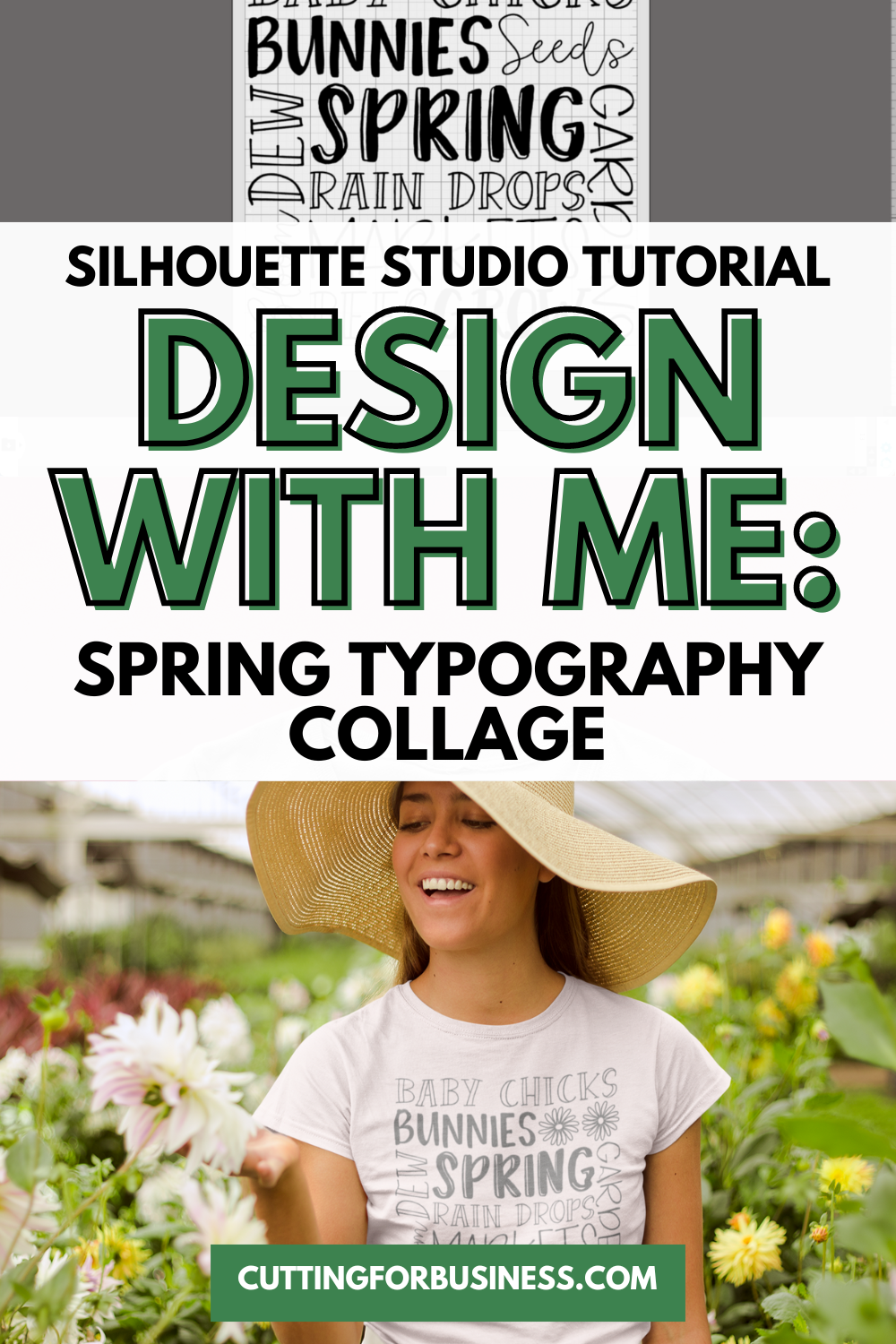
Tutorial: Spring Typography Collage Design
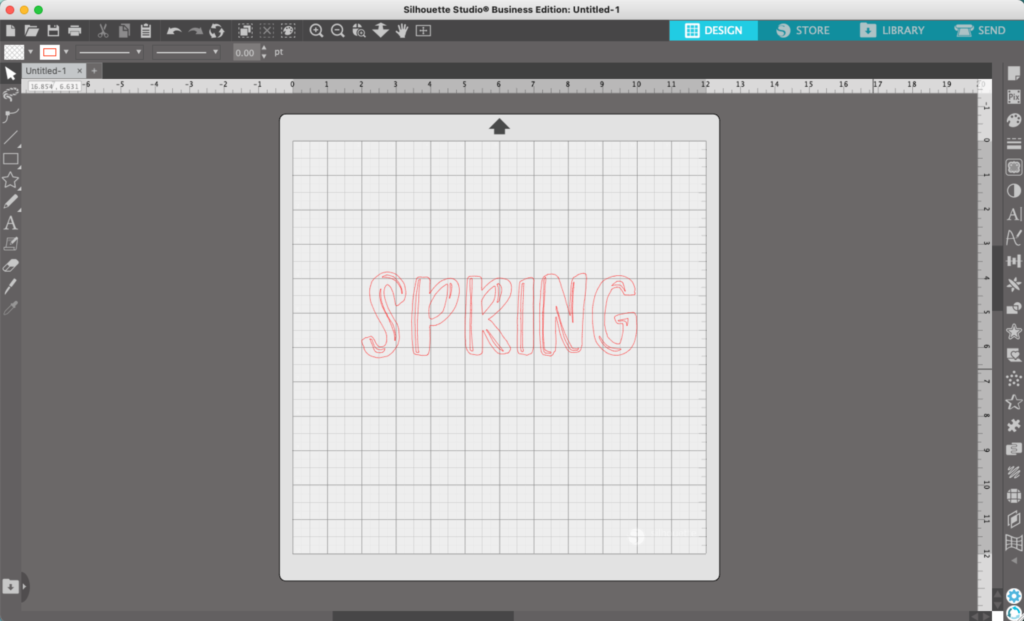
- In Silhouette Studio, add a word in the center of the mat.
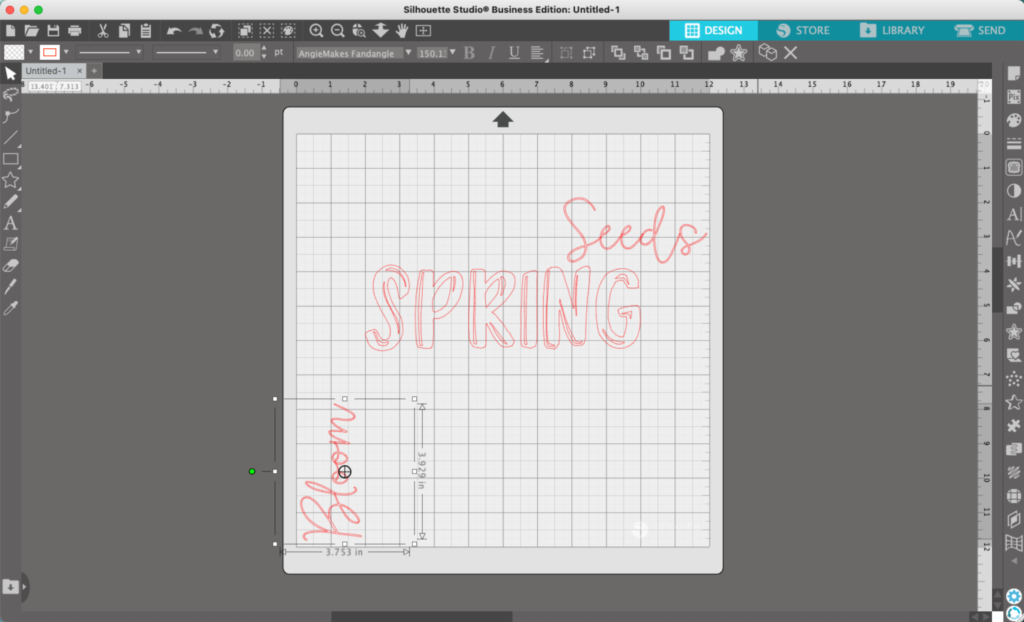
2. Add more words, turning some of them on their side. When designing these typography collages, I like to use the largest font on my focus word in the center. I make all other text smaller.
3. Add more words. For fonts, I’m breaking the rules of 2 – 3 fonts per design. However, I’m using a set of fonts that are designed to work together.
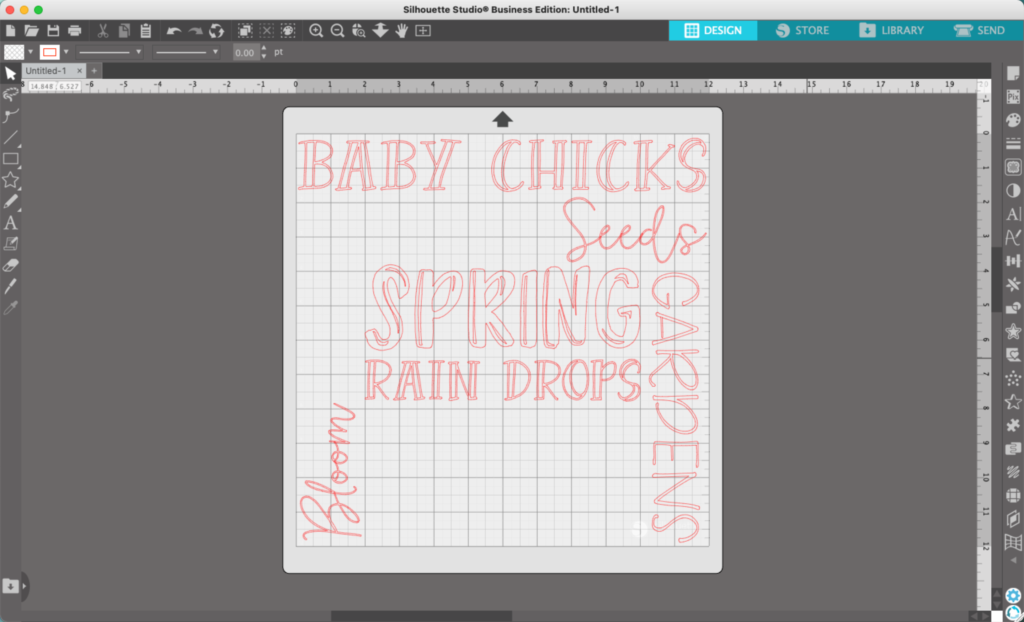
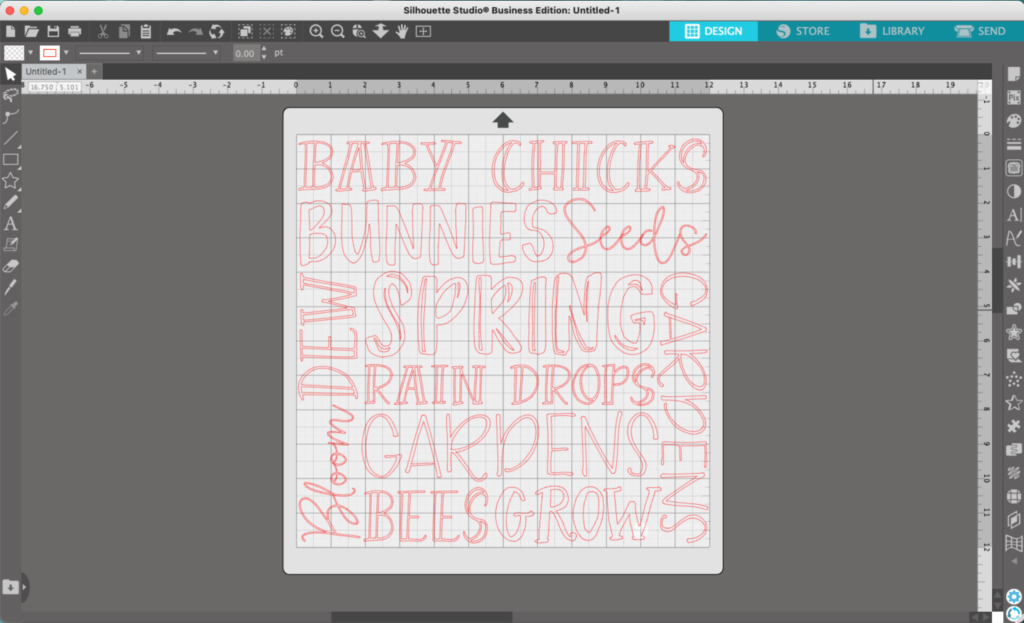
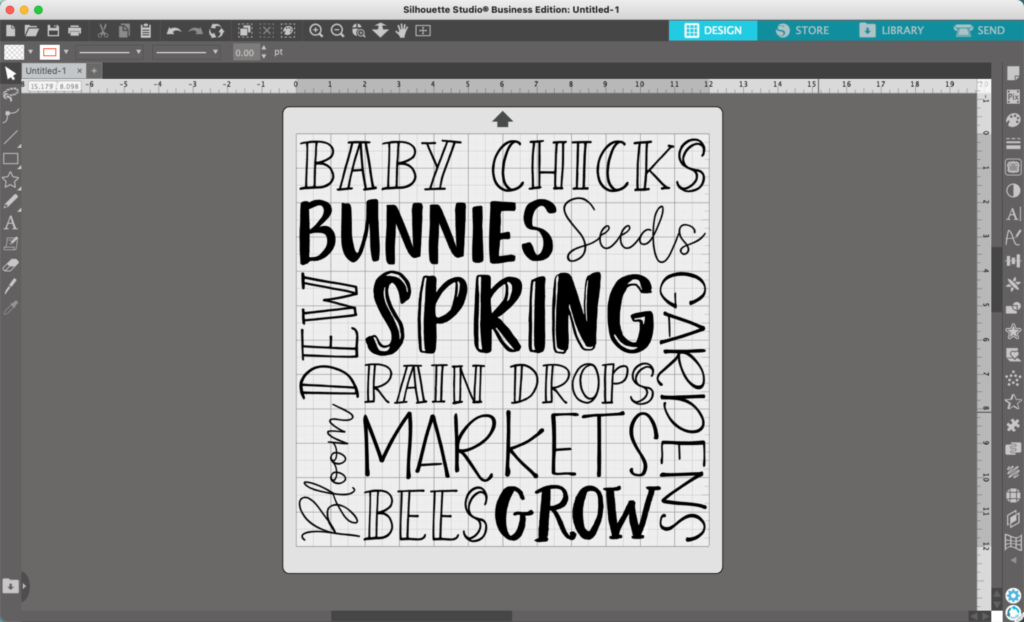
5. Fine tune placement and alignment. (And, correct any mistakes – whoops!) Then, add color to your design.
But, what if you have weird spaces you can’t fill in the design? While I lucked out with this design, sometimes you’ll have small areas you can’t fill. In these cases, I usually fill with a related clipart.
For example:
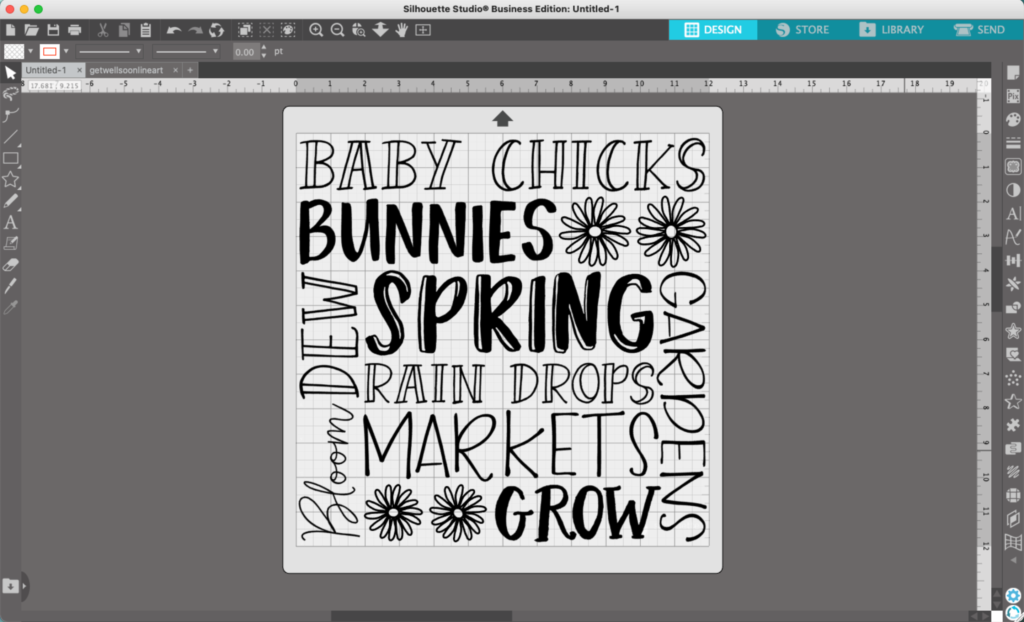

That’s it! Your design is ready to go!
Don’t Forget to Save!
To save your new SVG creation, head to ‘File’, ‘Save As’, ‘Save to Hard Drive’, name the file, then select ‘SVG’ from the dropdown menu.
Want More SVG Tutorials?
View more Design with Me SVG tutorials.
Leave a Reply