It’s no secret, the internet is full of spam. Unfortunately, social media is no exception. In an effort to combat spam and spammers, Instagram has bots that ban certain hashtags. If you’ve had an Instagram post that doesn’t perform well, chances are that you might have used a banned hashtag. Today, let’s take a look at how you can find out what hashtags are banned.
How to Find Banned Hashtags on Instagram
Banned hashtags change daily, so there’s no single site that can keep an accurate list of all banned hashtags. However, it only takes a minute to check a hashtag. Here’s how:
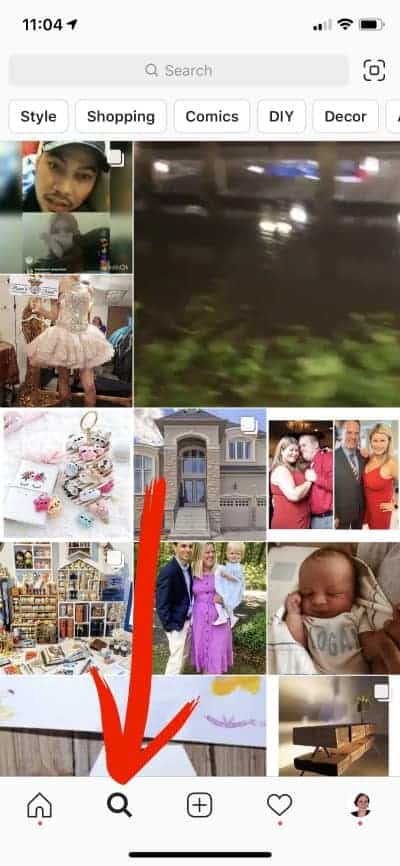
Go to Instagram, and click the magnifying glass at the bottom of the screen.
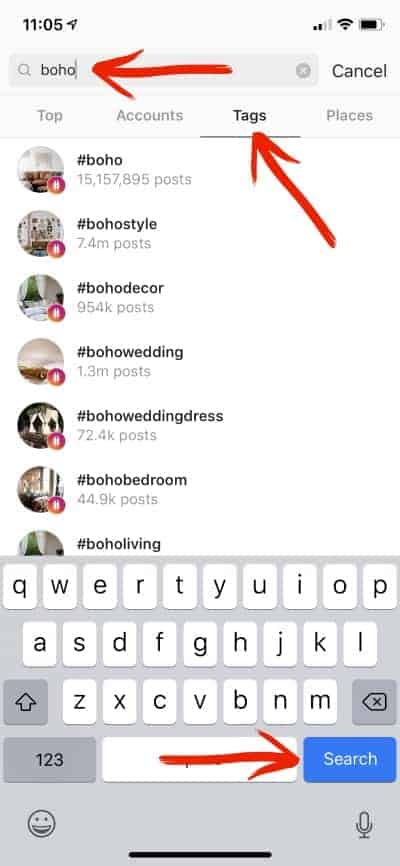
Enter a hashtag in the search bar, tap ‘Tags’, and click the ‘Search’ button.
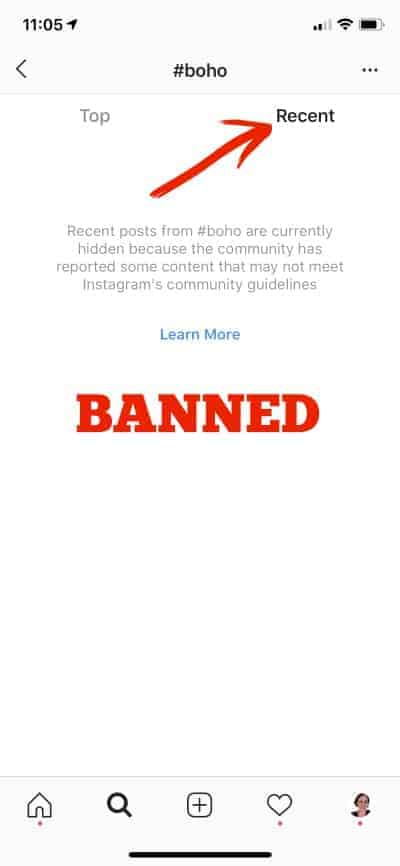
Click on the hashtag you are looking up, then tap on ‘Recent’. If you see a message that posts are hidden instead of seeing recent posts, you’ve located a banned hashtag.
A Few Surprising Banned Hashtags
In doing research for this post, I found a handful of surprising banned hashtags. (Remember, these are currently banned but may not be banned forever.)
#adulting
#boho
#dm
#direct
#hotweather
#humpday
#parties
#snapchat
Putting This to Use in Everyday Marketing
It’s pretty obvious that if you want to do well on Instagram; you should avoid using banned hashtags. Using them could get your account flagged as spam and it could seriously limit your reach and engagement. But, it’s is pretty time intensive to search every hashtag before you use it. I’d suggest listing out the most common hashtags that you use and searching each of those every month or so.
Social media marketing is an important part of all small businesses.
If you are just starting your business, you may wonder if you should choose Facebook Pages vs Groups.
What is a Facebook Page?
A Facebook page is a public page on Facebook where anyone can see updates your business posts.
Additionally, anyone can like or follow the page to have your updates shown on their Facebook feed. However, Facebook’s algorithm determines how much your posts show on user’s feeds. This is called organic reach. In recent years, organic reach has been more difficult to get – especially if your posts have links in them.
Unique Features of Facebook Pages
Ability for customers to leave reviews
Paid advertising is available
Direct messaging
What is a Facebook Group?
A Facebook Group is a community of people interested in the same thing on Facebook.
Groups can be public – anyone on Facebook can see the content of the group; or private – only members can see what is posted in the group.
Unique Features of Facebook Groups
Group chats
Buy and sell posts
Q & A sessions
Guides
Fundraisers
Facebook Pages vs Groups
Your craft business should have a Facebook Page.
Your craft business could have both a Facebook Page and a Facebook Group.
Your craft business should not have only a Facebook Group.
Keys to a Successful Facebook Group
Call it a club, VIP Program, or something catchy. You want your customers to feel special when joining. Do not refer to it simply as a Facebook Group.
Post regularly to your Facebook Group.
Post different content to your Facebook Group than your Facebook Page.
Do not neglect your Facebook Page. You will still need to post regularly to your Facebook Business Page, even if engagement is low.
Your page should be an admin of your group.
Have a backup admin (or two) in your Facebook Group. If for some reason your account gets limited, someone will need to be able to manage the group.
I’ve talked a lot about social media practices on the blog. However, the other day I got an email from a reader asking what ‘social media engagement’ means. Today, let’s take a lot at what social media engagement is. More importantly, we have to talk about why it’s important.
What is Social Media Engagement?
Social media engagement is simply the number of likes, reactions, comments, shares, and follows that your social media post or account receives.
Why is Social Media Engagement Important?
All the social media networks run on formulas called algorithms. The algorithms are programmed to show content that people find useful. Usefulness can be equated to likes, reactions, comments, shares, and follows. So, if you post something and no one interacts with the content – it’s reach (the amount of people that see it) will be low. Similarly, if you post something and people leave comments and reactions – the reach will be higher.
A Challenge for You
Now that we’ve talked about social media engagement, I have one challenge for you. Before you publish any content on social media, ask yourself: ‘Will my customers engage with this?’ If so, post away. If not, edit it, then post it.
When you ask yourself, ‘Will my customers engage with this?’ You may find yourself posting less content. That’s ok. You’ll find yourself doing better on social media if you post more meaningful content. Quality over quantity – but still try to post once per day.
Looking for help with what to post? Head to this post.
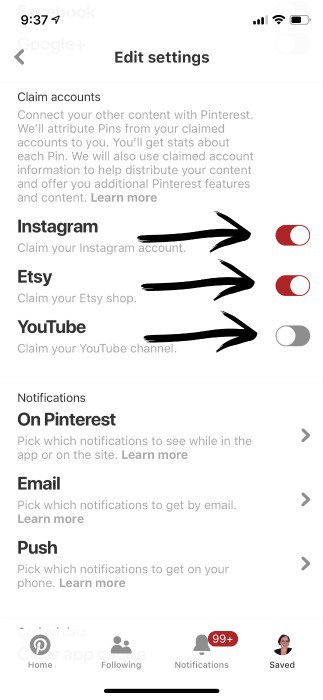
Have 5 minutes to spare today? (I know you do!) This new feature on Pinterest will literally take you less than 5 minutes to set up. What is it? It’s the ability to claim other social media accounts on Pinterest. Currently, you can ‘claim’ your Instagram, YouTube, and Etsy accounts. Basically, when you ‘claim’ your other accounts you are connecting other places you promote your business to Pinterest.
Why You Should Claim Your Instagram, YouTube, and Etsy Accounts on Pinterest
Before you get started, why would you want to do this ‘claiming’ thing anyway? Here’s two good reasons:
When you or another Pinterest user pins something from your Instagram, YouTube, or Etsy accounts, your name and profile picture will be shown under it. This is helpful to help get your name out there, and has the possibility of increasing your Pinterest views and followers! That’s a win/win!
You have access to additional analytics in your Pinterest account. Not only will you be able to see the analytics of pins you pin, but you’ll be able to see the analytics of pins saved from your claimed accounts on other user’s boards. While I don’t put much stock into constantly scoping out how particular pins are doing – it’s nice to know I could.
Great! Now that I’ve convinced you to claim your accounts, let’s look at how to do it.
How to Claim Your Instagram, YouTube, and Etsy Accounts on Pinterest – Pinterest App
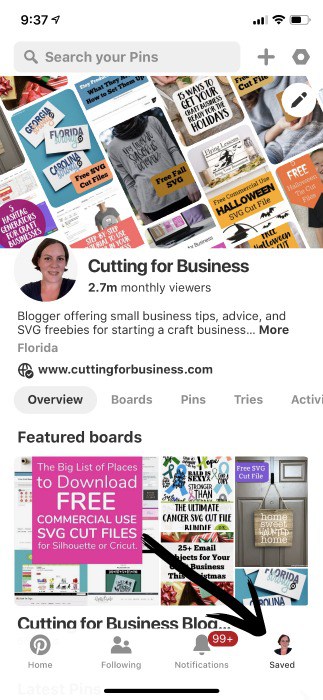
Open your app and navigate to your profile.
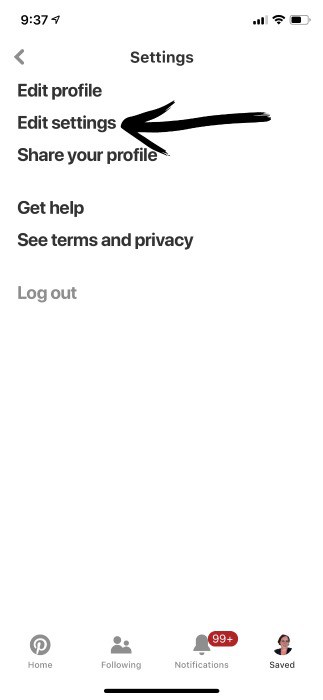
Tap ‘Edit Settings’.
Toggle the switch next to the networks that you’d like to connect. You’ll then authenticate each of them.
That’s it! That probably didn’t even take 5 minutes!
How to Claim Your Instagram, YouTube, and Etsy Accounts on Pinterest – Desktop Version
Note: You must have a Business Account on Pinterest to claim accounts.
Log into your Pinterest account.
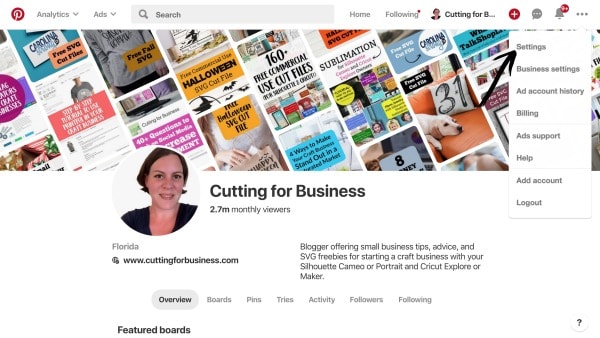
Click the three dots in the top right corner and select ‘Settings’.
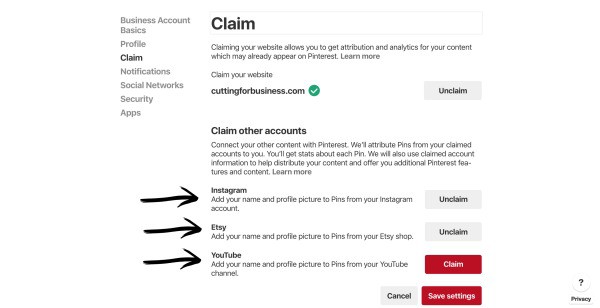
Navigate to ‘Claim’. Now, select the red ‘Claim’ button next to each platform you want to connect. After you hit the button, you’ll be asked to verify your account.
That’s it! Your accounts are claimed! While you are on the same page, better make sure that you also claim your website if you have one.
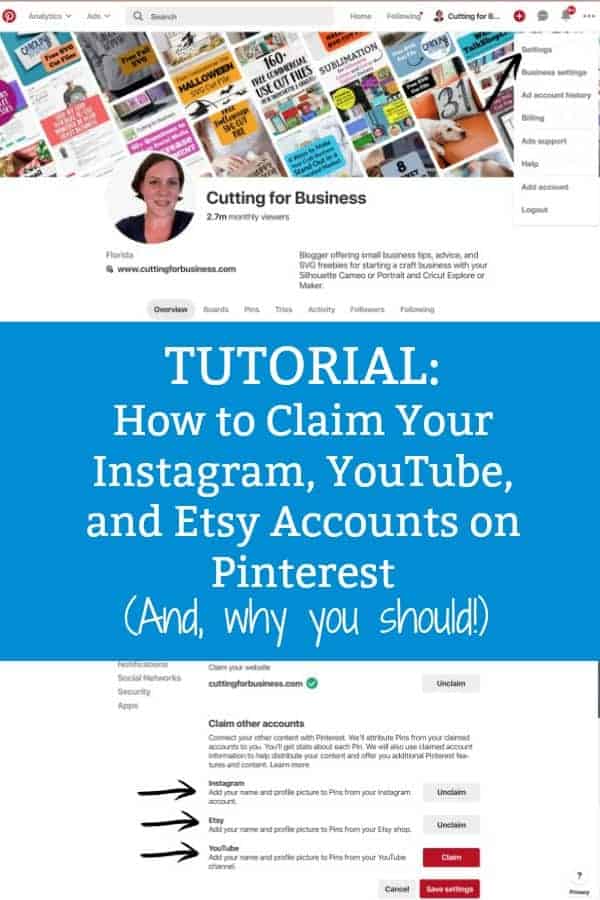
Was this tutorial helpful? Save the image below to Pinterest.
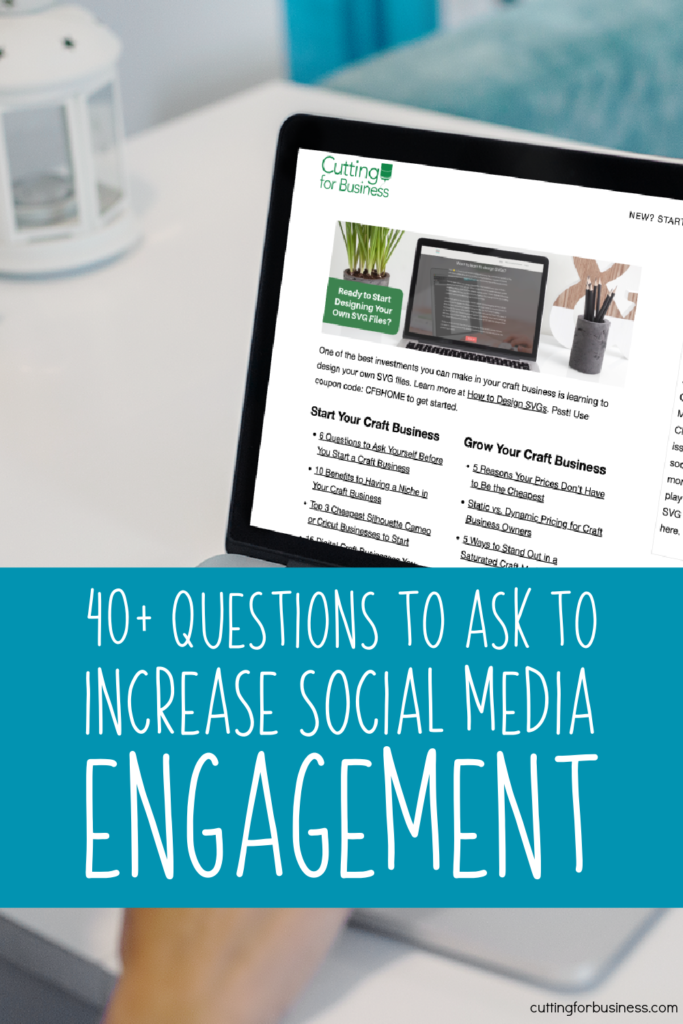
Looking to improve your social media engagement? Not sure how to do it?
Social media, like Facebook, Instagram, and Twitter, have changed our lives, but it has also changed the way that we get our small businesses out there.
Years ago, it was much easier to be seen on social media. You created a profile, posted some content to it, and your fans could see it when they logged in.
Now that social media has grown. It seems like you have to follow ever changing expert advice, keep up with constantly changing social media algorithms, and even pay to advertise to get your small business seen.
Today, let’s take a look at engagement. In addition to posting regularly, social media engagement is the easiest way to get your craft business noticed on social media.
Why Does Engagement Work on Social Media?
Social media is at its core a way to connect with others and have discussions. When your content is getting noticed by likes, shares, and comments; social media networks will show your posts to more of your audience.
But, how do you get more people to engage with your content? It’s easy: Ask questions.
I’ve compiled a list below with different questions you can ask to get higher engagement on social media, along with some ways that you can related the questions to your craft business.
Personally, rather than post random questions that have nothing to do with your business, I prefer to keep them business related.
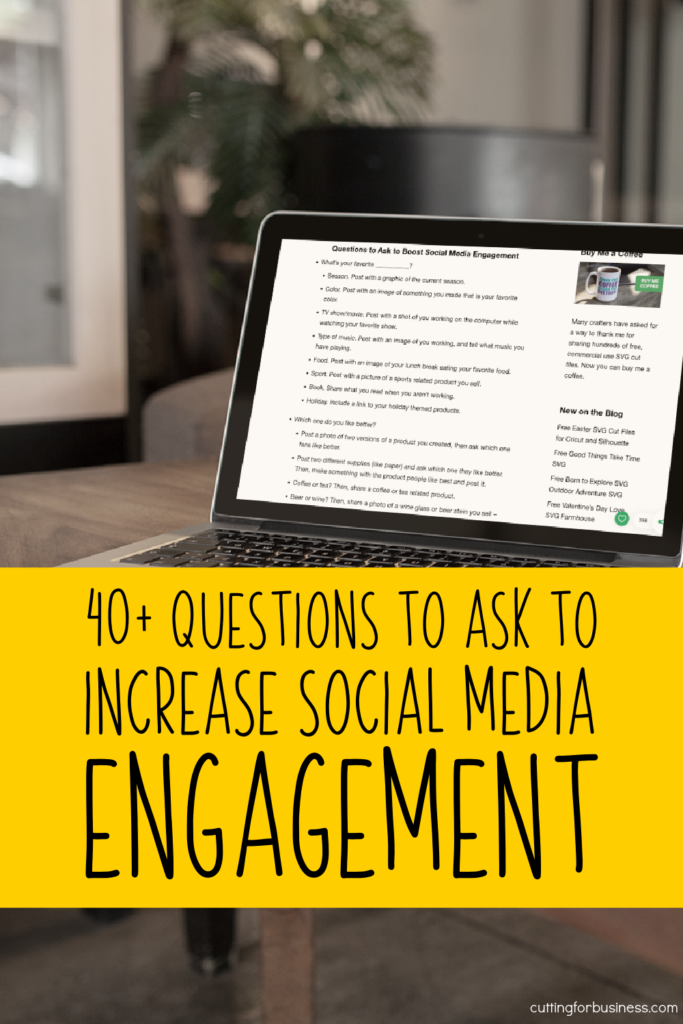
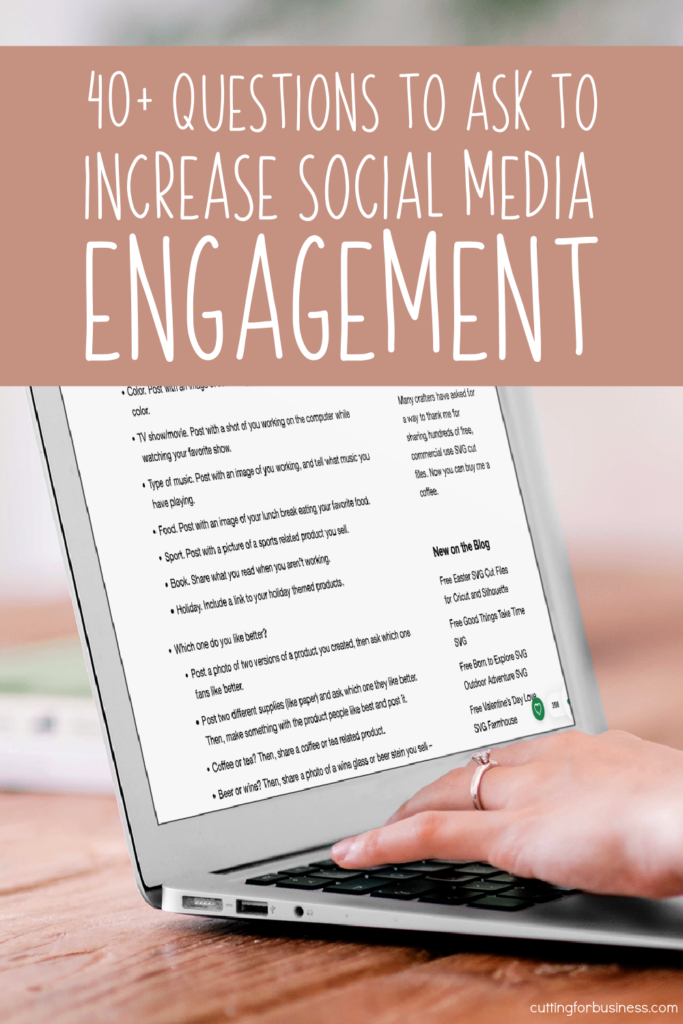
Questions to Ask to Boost Social Media Engagement
What’s your favorite ___________?
Season. Post with a graphic of the current season.
Color. Post with an image of something you made that is your favorite color.
TV show/movie. Post with a shot of you working on the computer while watching your favorite show.
Type of music. Post with an image of you working, and tell what music you have playing.
Food. Post with an image of your lunch break eating your favorite food.
Sport. Post with a picture of a sports related product you sell.
Book. Share what you read when you aren’t working.
Holiday. Include a link to your holiday themed products.
Which one do you like better?
Post a photo of two versions of a product you created, then ask which one fans like better.
Post two different supplies (like paper) and ask which one they like better. Then, make something with the product people like best and post it.
Coffee or tea? Then, share a coffee or tea related product.
Beer or wine? Then, share a photo of a wine glass or beer stein you sell – or both!
Would you rather ___________ or ___________?
Buy something handmade or make it yourself?
Give a gift or get a gift?
Plan your days or choose on the fly? Then share your planner related products.
Be early or late? Then, share your answer.
If you could ___________…
Travel back in time, would you? Reminisce about the first days you started your craft business.
Meet anyone, who would it be? Share who you’d meet and why. Keep it tied to your business.
Retire today, what would you do with your free time? Of course, share that you’d keep running your craft business!
What if ___________?
You won the lottery… what would you do with the money?
You could travel anywhere in the world… where would you go?
You had to move to another country? Where will you go?
What was your ___________?
First car?
Last vacation?
Job?
Pet? Share a pet related product.
First Etsy purchase from us?
Favorite gift? Tie this into products that make good gifts from your business.
When you were a kid, what ___________ did you want?
Career. Share what career you wanted when you were a kid, but share why owning a small business turned out better.
Current events.
For big games: Which team do you want to win? Then, share a sports related product.
For political events: Which side are you on? Then, share a political product you sell.
Award shows/TV premieres: Who is your favorite actor and why? Then, share yours. Or, share a general movie/TV themed product.
Share a photo of ___________.
A product you bought from us.
Your family. Then, share one of yours.
The day you became a mom or dad. Then, share yours.
Ask us anything!
Ask social media followers to ask you anything about your business in the comments, then answer their questions. This is a fun way to also show the human side of your business.
Fill in the Blank: ___________ inspires me.
Choose a product or two that you sell and tell what inspired them.
If we ___________ what would you do?
If we gave you $1000 to spend in our shop, which products would you stock up on?
If we offered craft classes, which product would you like to learn to make?
If we offered to make you anything, what would it be?
What’s on your bucket list?
Share what is one your personal or business bucket list.
Remember, the answers people give you aren’t that important – the fact that they engaged with your content will help your social media presence.
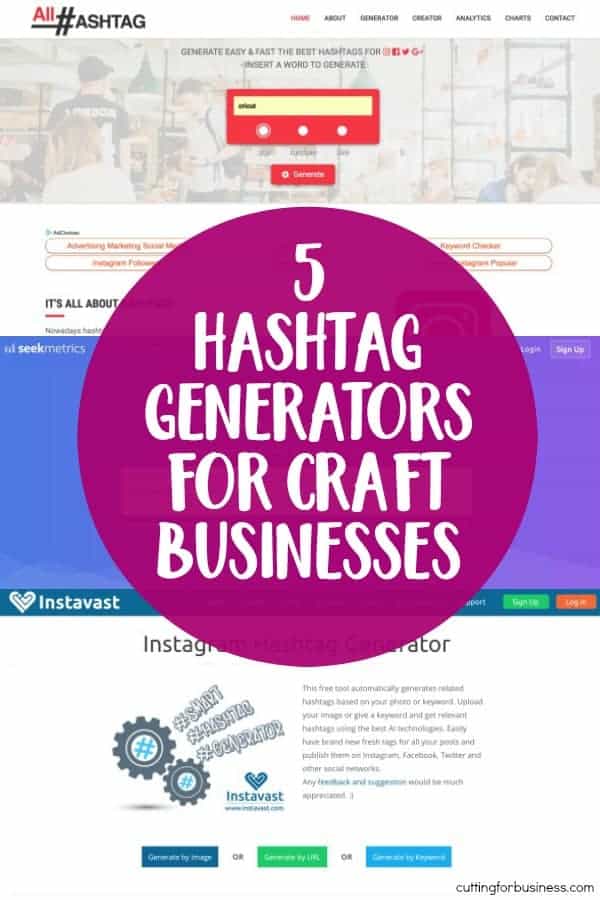
One thing that I get asked often about from Cutting for Business readers is where to find hashtags. I’ve previously laid out a strategy for using hashtags on Instagram in this post. But, what if you can’t think of hashtags to use that are related to your small business or crafting? Good news for you: There are generators to help you come up with hashtag ideas! Here’s a look at five of them – and they are all free!
5 Hashtag Generators for Craft Businesses
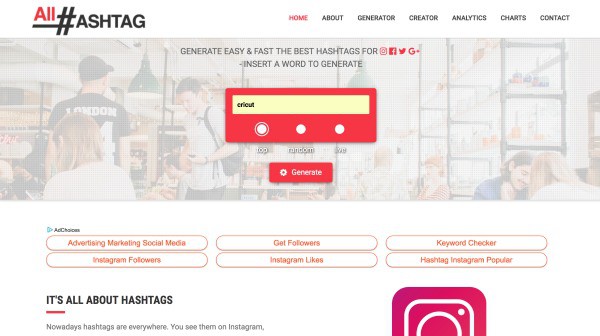
All Hashtag – Searching for the ‘Top’ hashtags seems to be most effective.
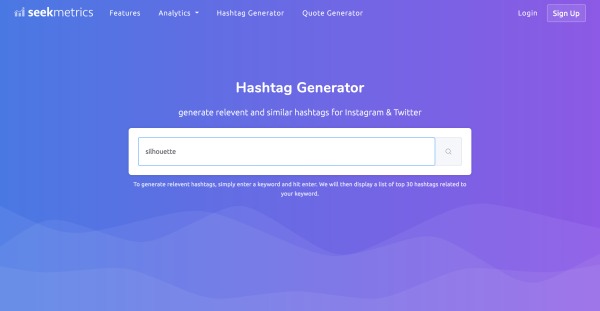
Seekmetrics – Easy interface and works well.
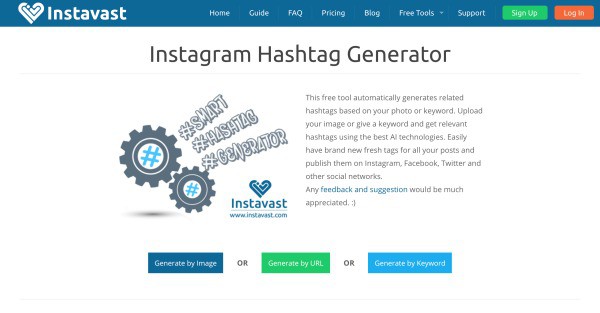
Instavast – This site offers three different ways to search for relevant hashtags. I didn’t find the URL or image search helpful. The keyword search worked well.
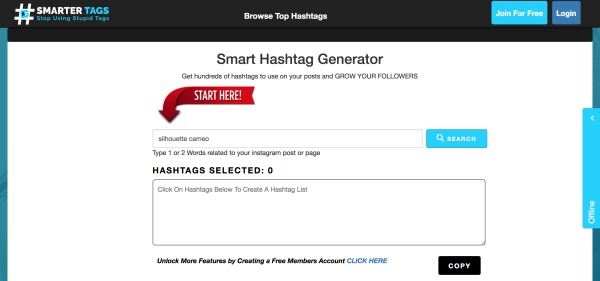
Smartertags – Works well. Suggested hashtags that the other sites did not.
Hashtag Generator #Hashme – The generators above are all websites. There are also a number of smartphone app hashtag generators. The one that I liked the best of the four I tried was Hashtag Generator #Hashme available in the Apple App Store and Google Play. The app is free, but can be upgraded to Premium from within the app.
Now, it’s easier for you to rock your Instagram posts and get your Silhouette or Cricut business out there. Do you follow me on Instagram? If not, get to it! @cuttingforbusiness
Social media for craft business owners. It’s a delicate push and pull: You need to promote your business using it, but if you over promote, you’ll lose the interest of your followers. Followers will (and do!) get tired of you simply saying “Buy this!”, “And this one!”, and “I’m having a sale on this one!”
I’ve said it before and I’ll say it again: Diverse content on social media is the most successful way to keep your followers engaged. Since the earliest days of advertising, customers have responded well to behind the scenes looks at businesses. (As an aside: If you’ve never seen the Schlitz Beer advertising campaigns of the early 1900’s – look them up. They are testaments of how powerful behind the scenes marketing can be.)
Now, let’s get onto it: How can you use behind the scenes marketing in your craft business?
8 Ways to Use Behind the Scenes Marketing in Your Craft Business
Share concept drawings. If you create your product designs from scratch, show how you do it. Or, if you doodle out concepts before ever starting your products, snap a few pictures as you draw. Real life example: If you create handlettered designs, take pictures of your rough drawing, take pictures of the digitizing steps, and take pictures of the final product.
Show yourself creating a product. A lot goes into creating a product – take pictures of the product from start to finish. Better yet, create a sped up time lapse video! Real life example: A wooden sign. Record everything from the initial wood cutting and sanding to the painting and attaching embellishments.
Show off your workspace. Whether it is sparkling clean or on the messy side, your customers want to see where your products are created. Real life example: I bared it all when I revealed my new craft space on the blog!
Share your inspiration. Creators need inspiration. Share with your followers what inspires YOU. Real life example: If you are inspired by the seasons, share a few great landscape shots. Better yet? Photograph your finished product in a spot that inspired you.
Tell customers what is going on in your personal life. Yes, you are a maker. But before that, you are a human. By sharing tidbits of your life on your social media networks, you connect with your customers on a different level. If you juggle young kids all day while working, so off a picture or two. Real life example: I have connected with and made several friends with strangers online whom read this blog all because we are caretakers of loved ones with cancer.
Introduce your employees. If you have employees, give them their 15 minutes of fame and introduce them on your social media. If you are a one person operation, it doesn’t mean you have to skip this one! Show off the mail carrier who pics up your packages, your husband or wife who runs to the store to grab something, or your kids who unpack your supplies.
Show your outgoing packages. Customers like what other customers like. So, don’t be bashful if you’ve got a big stack of outgoing packages. Snap a picture and share it on social media. Real life example: Take a peek at this Instagram post.
Share your blunders. While you won’t be showing your finest moments, share your mistakes, your trial and error, and your clumsiness. Why? Again, it’s fostering that connection between you as a human and your customers. Real life example: Do you remember that cringe worthy Valentine’s Day project using Silhouette’s chipboard? If not, view it here.
If you are like me and a regular Pinterest user, you might have been experiencing some glitches and bugs in the last few weeks. For example, when I logged in the other day – Pinterest showed that I wasn’t following any other users – and I had no followers! The following day, everything was displaying like normal.
My guess is that the bugs were being worked out as Pinterest rolled out a few new features. Let’s take a quick look at the new additions.
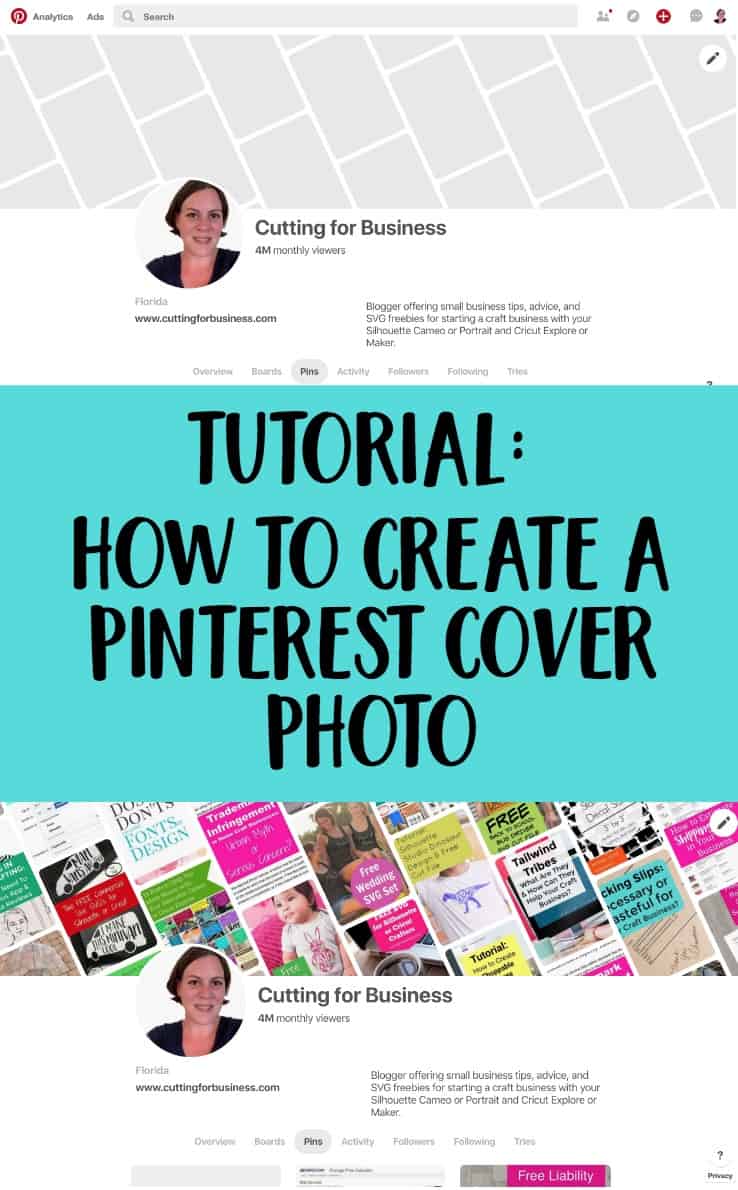
New Features on Pinterest: Cover Photos
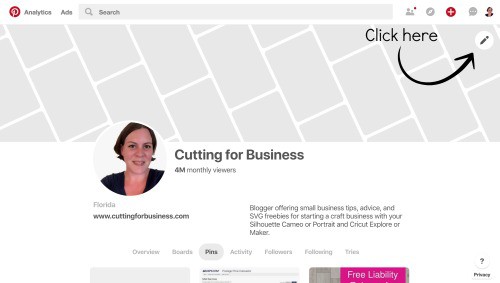
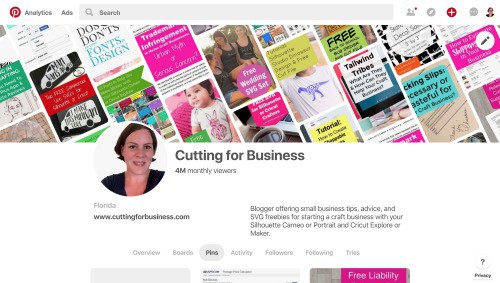
Your Pinterest profile now gives you a place to put a cover photo. Unlike other social media networks – you aren’t able to choose or create a specific photo – it’s an automatic compilation of your pins. However, you can customize which pins are seen. Briefly, here’s how it works:
At the top, you should see a cover photo spot. Click the pencil in the top right hand corner.
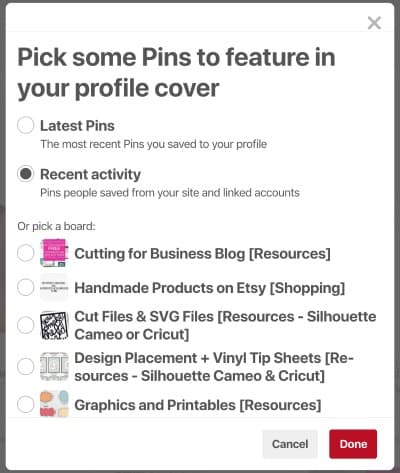
You can choose from three options on the popup screen to be featured in this space:
Latest pins from your account – Great if you pin a lot of your own stuff or seasonal stuff.
Recent activity – Great for showing off what pins of yours are being saved.
A specific board – Perfect to highlight specific pins. You could create a specific board so you have more control over what appears in the cover photo space.
After selecting an option, click done and your profile cover photo will be updated. It’s important to note that the pins that show up are not clickable, but there is a link to get to the board.
Other Pinterest Updates
There’s been a few other minor updates as well, I’ll quickly mention them:
Your monthly Pinterest reach it now publicly shown on your profile page. For example, mine is 4 million. I think this will be valuable when working with other accounts to see how widespread their account is. Also, I think when joining group boards it will be nice to see the reach of members.
Activity, Followers, and Following are now shown on your Pinterest profile in an easier to see spot.
Tailwind is a Pinterest management company that allows you to schedule pins, find content to pin, and generally manage your Pinterest profile. As a side note, Tailwind has also gotten into Instagram management. I have not explored their features for Instagram yet. This post focuses on the Pinterest aspect of Tailwind Tribes only.
What are Tailwind Tribes?
Tailwind Tribes are groups of Pinterest users that promote each other’s content. Generally, in order to share one of your pins to the group, you must first share another member’s pin. There are Tailwind Tribes to suit every need from travel to cooking to Etsy sellers and crafters.
Let’s take a look at Tailwind Tribes in action.
How to Use Tailwind Tribes
Visit Tailwind’s website. Then, sign up through the ‘Signup with Pinterest’ button.
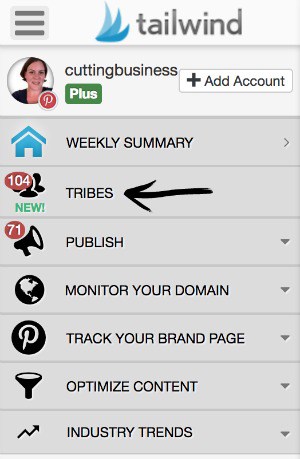
Once logged in, navigate to Tribes on the left navigation menu.
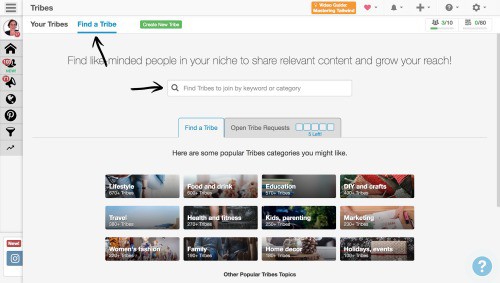
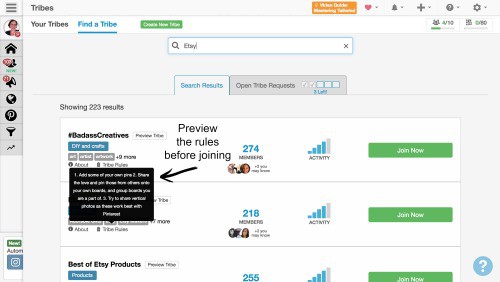
The first thing you are going to want to do is to look for Tailwind Tribes related to your business. To search, use type keywords into the search bar. Some example keywords could be, ‘Handmade’, ‘Etsy’, ‘Rustic’, ‘Jewelry’, ‘Home Decor’, and so on.
Before you join a Tailwind Tribe, choose wisely, you can only have 5 tribe requests open at a time. Personally, I’m selective on the Tailwind Tribes that I join and always look at the rules before applying.
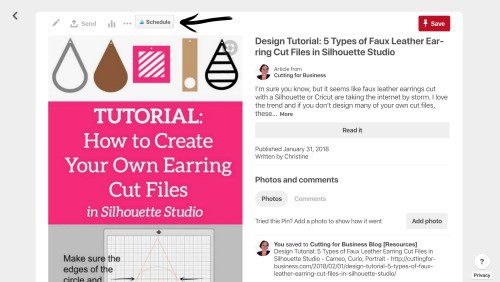
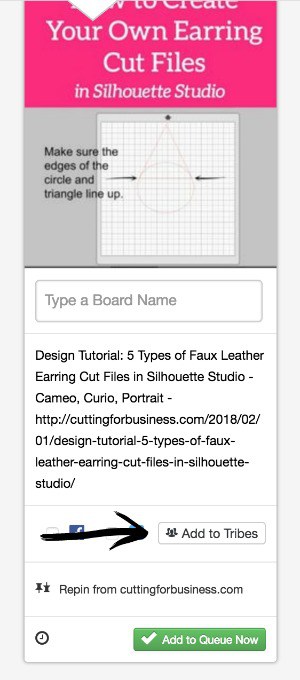
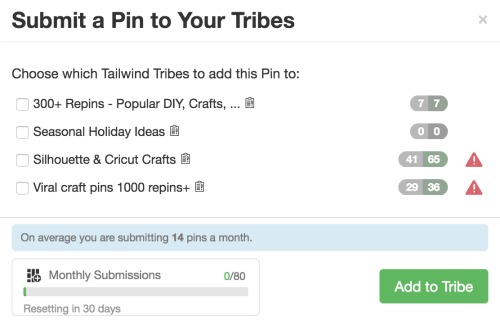
After you’ve joined (and been approved if needed), begin to add your content. I find it easiest to have the Tailwind App browser extension installed on my computer (Google Chrome). Here’s a link to download it. Then, I visit my Pinterest profile and click on the pin I want to add to a Tailwind Tribe. Next, click the ‘Schedule’ button:Then the ‘Add to Tribes’ button: Lastly, choose the appropriate Tailwind Tribe. (Tip: The red triangle indicates that I’ve already added that pin to that specific tribe.) If you already have pins loaded in Tailwind, you can also schedule directly from there.
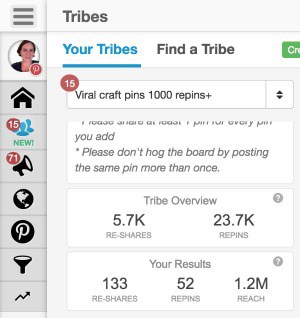
Repeat the process for as many pins as you’d like to add to the Tailwind Tribe. As you continue using Tailwind Tribes, you can check your statistics from each tribe under ‘Tribe Overview – Your Results’.
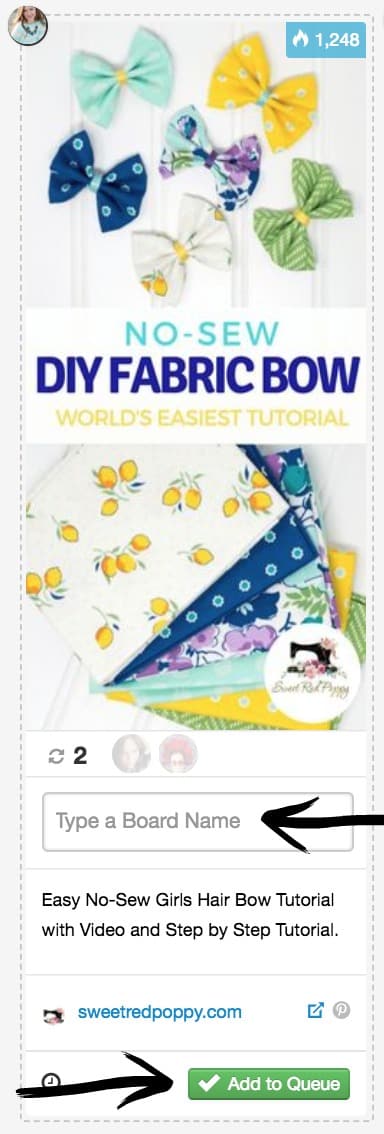
For most Tailwind Tribes, you’ll also need to share fellow Tribe content. To do so: Choose a pin from a fellow tribemate. Choose what board you’d like to add it to, then click the ‘Add to Queue’ button. In case you are wondering, the number in blue at the top is the number of times a pin has been pinned on Pinterest. If you’d like to check the source of the pin before repinning it, click the blue link near the bottom.
While Tailwind Tribes are relatively new, not only have I experienced growth of the blog through them; small craft businesses have seen dramatic effects as well.
Tailwind Tribes Pricing
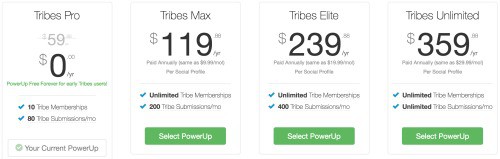
It’s good to know that Tailwind Tribes is free… for the time being. By joining now, you can ensure a free forever account that allows you 10 tribe memberships and up to 80 pins a month. Beyond that, you’d need a paid plan:
Psst, if you want to try out Tailwind’s other features or a power up for Tribes, here is a link for a $15 credit. (New users only.)
I hear from craft business owners all the time that they would love to be more active on social media, but they have a hard time deciding what to post.
Today, let’s look at content calendars and how they can help your craft business.
What are Social Media Content Calendars?
Social media content calendars are outlines of what you will post on social media each day. You use them to both plan your social media strategy and to keep your posting on track.
Why Should I Use a Content Calendar?
Using a social media content calendar helps you become more effective on social media. They also save time when scheduling social media posts on Facebook, Instagram, Twitter, and Pinterest.
How Do I Create a Social Media Content Calendar?
While creating your own calendar sounds daunting, it really isn’t. Follow these steps to create your own:
Make a list of content ideas you’d like to post about.
Print out a blank calendar. Any weekly or monthly layout will do.
On each day, write a different theme. Some examples include:
Monday: A product you sell.
Tuesday: A picture of you working on a product.
Wednesday: A picture of your packaging.
Thursday: A customer review.
Friday: A coupon code for your shop.
Saturday: A link to another social media network.
Sunday: A funny meme that relates to you or your business.
Monday: Behind the scenes at your company.
The best part? After you create a calendar, you can reuse it month after month.
How to Create a Social Media Content Calendar Using ChatGPT
One great use of ChatGPT is to create your own customized content calendar. Let’s take a look at an example:
ChatGPT Prompt: Write a 30 day content calendar for a company selling digital SVG cut files to use on Facebook. Keep the tone light and fun.
ChatGPT Response:
“Day 1: Let the Cutting Begin!
Share a colorful image of a finished project created using your SVG cut files.
Invite followers to join the crafting fun with your digital cut files.
Ask them to comment with their favorite crafting tool or machine.
Day 2: Monday Motivation ✨
Post an inspirational quote related to creativity and crafting.
Encourage followers to start their week with a burst of creative energy.
Share an image showcasing one of your intricate and unique SVG designs.
Day 3: Crafty Quiz Time!
Create a fun quiz to determine the perfect SVG cut file for different crafting personalities.
Ask followers to comment with their quiz results and tag a crafting buddy.
Offer a special discount on the recommended SVG cut file for the day.
Day 4: Let’s Get Punny!
Share a funny crafting-related pun or joke.
Encourage followers to comment with their favorite crafting puns.
Offer a small prize to the follower with the most creative pun.
Day 5: Show Off Your Skills!
Ask followers to share images of their latest projects made with your SVG cut files.
Feature some of the best submissions on your page.
Thank them for their creativity and offer a discount code for their next purchase.
Day 6: Fun Fact Friday
Share an interesting fact about SVG cut files or the crafting world.
Encourage followers to share their own crafting facts in the comments.
Offer a surprise giveaway to one lucky participant.
Day 7: Sunday Funday DIY
Provide a simple, quick DIY project using one of your SVG cut files.
Encourage followers to try it out and share their results.
Feature some of the most creative and unique interpretations.
Day 8: Crafting Hacks
Share a useful crafting hack or tip related to working with SVG cut files.
Ask followers to share their own favorite hacks in the comments.
Offer a discount code on a popular SVG cut file for the day.
Day 9: Monday Mood Boost
Share an image of a vibrant and colorful project made with your SVG cut files.
Ask followers to describe their current crafting mood using emojis.
Reply with an emoji that represents your excitement for their creations.
Day 10: Crafting Confessions
Post a lighthearted question asking followers to share their funniest crafting mishap or bloopers.
Share a funny anecdote or mishap that happened during your own crafting process.
Offer a discount code on SVG cut files as a token of appreciation for their shared stories.
Day 11: Crafters’ Spotlight
Highlight a talented crafter who uses your SVG cut files in their creations.
Share their story, showcase their work, and provide a link to their social media or website.
Encourage followers to support and follow their fellow crafters.
Day 12: Trivia Time!
Post a trivia question related to crafting or SVG cut files.
Ask followers to guess the correct answer in the comments.
Reward the first person to answer correctly with a special discount code.
Day 13: Creative Caption Contest
Share an amusing or intriguing image related to crafting.
Ask followers to come up with the most creative caption for the image.
Select the top three captions and let followers vote for the winner.
Day 14: Show Us Your Craft Room!
Ask followers to share images of their craft rooms or creative spaces.
Comment with emojis or positive remarks on their organization skills.
Feature some of the most inspiring and well-arranged craft rooms.
Day 15: Midweek Surprise Giveaway
Announce a surprise giveaway for followers who have made a purchase in the past month.
Encourage others to participate by sharing their favorite SVG cut file in the comments.
Select a winner randomly and announce the prize.
Day 16: Crafter’s Playlist
Share a curated playlist of upbeat and inspiring songs to craft along with.
Ask followers to share their favorite crafting tunes in the comments.
Create a collaborative Spotify playlist with their suggestions.
Day 17: Fun with Filters!
Share a tutorial on how to use various editing filters to transform SVG cut files.
Encourage followers to try it out and share their edited designs.
Feature some of the most unique and eye-catching creations.
Day 18: Friday Freebie Extravaganza!
Release multiple free SVG cut files for your followers.
Announce a limited-time offer to download the files for free.
Encourage followers to tag their crafty friends to spread the word.
Day 19: Crafty Doodles ️
Share a fun and simple doodle tutorial related to crafting or your SVG cut files.
Encourage followers to try it out and share their doodles in the comments.
Offer a discount code on a popular SVG cut file for the day.
Day 20: Weekend Crafting Challenge
Present a crafting challenge using one of your SVG cut files.
Ask followers to create something unique and share their creations.
Select a winner based on creativity and announce a special prize.
Day 21: Craft Room Organization Tips ️
Share tips and tricks for organizing craft rooms or creative spaces.
Include photos or videos of well-organized craft rooms for inspiration.
Ask followers to share their own organization hacks in the comments.
Day 22: Unleash Your Inner Artist
Share an SVG cut file design that allows customization and personalization.
Encourage followers to get creative and add their unique touch to the design.
Share examples of personalized projects made with the same SVG cut file.
Day 23: Craft Supply Haul
Showcase a selection of essential crafting supplies that complement your SVG cut files.
Provide links or recommendations for where followers can purchase them.
Offer a discount code on one of the showcased SVG cut files.
Day 24: Crafty Inspirations
Share a collection of beautiful and inspiring craft projects made by talented creators.
Emphasize the versatility of your SVG cut files in creating stunning designs.
Encourage followers to try new techniques inspired by the showcased projects.
Day 25: Interactive Poll
Post a poll asking followers to vote for their favorite SVG cut file category (e.g., animals, floral, typography).
Share the poll results and announce a surprise discount on the winning category.
Encourage followers to tag friends who might be interested in the winning category.
Day 26: Crafting Self-Care ♀️
Share the importance of self-care and relaxation while crafting.
Offer suggestions for incorporating self-care practices into their crafting routine.
Provide a discount on SVG cut files with soothing and calming designs.
Day 27: Crafting with Kids
Share simple and fun crafting projects suitable for children using your SVG cut files.
Provide step-by-step instructions and safety tips for crafting with kids.
Encourage followers to share their creations made with their little ones.
Day 28: Crafters’ Pet Parade
Ask followers to share photos of their furry crafting companions.
Create a collage or video compilation of the adorable pets crafting alongside their owners.
Offer a discount code on SVG cut files featuring pet-related designs.
Day 29: Customer Appreciation Day
Express gratitude to your loyal customers and followers.
Offer an exclusive discount or freebie as a thank-you gesture.
Share heartwarming testimonials and success stories from satisfied customers.
Day 30: Crafting Goals
Encourage followers to share their crafting goals or projects they want to accomplish.
Provide motivational words of encouragement and support.
Offer a special discount on SVG cut files to help them achieve their goals.”
If you don’t feel like creating your own content calendars, no worry. There are plenty of marketing and small business bloggers online who offer free ones. Here’s a few of my favorites:
Rachel Rofe has a 31 day social media calendar. It isn’t tied to a particular month and can be used all year. View it here.
Constant Contact has a social media challenge. Again, I like it because it isn’t tied to a particular month. View it here.
Classy Career Girl has a 31 day calendar. It can be used in any month. See it here.
After you’ve got your calendar ready to go, don’t forget to schedule your social media posts. Here’s how to schedule:



 Then the ‘Add to Tribes’ button:
 Lastly, choose the appropriate
  If you already have pins loaded in