Design with Me is a new regular feature on Cutting for Business! Each Friday, I’ll bring you a new Silhouette Studio tutorial featuring how to design an SVG.
It seems fitting to end this great year on Cutting for Business with a New Year’s Eve SVG.
Wondering what I’ll be doing on New Year’s Eve when the calendar flips? Probably sleeping! LOL! What about you?
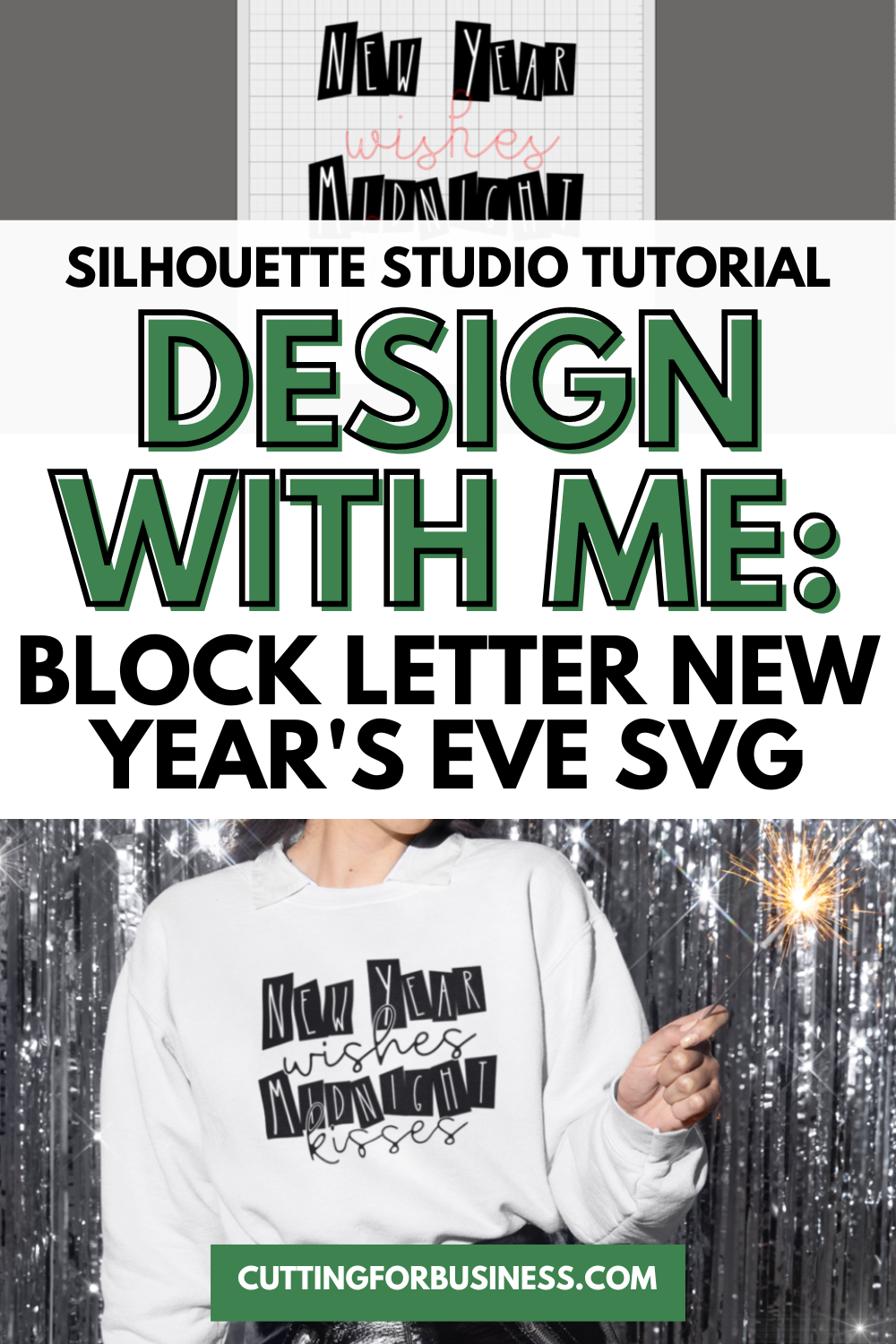
Silhouette Studio Tutorial: Block Letter New Year’s Eve SVG
Before you get started, decide what words you will put into your design. Then, count the letters.
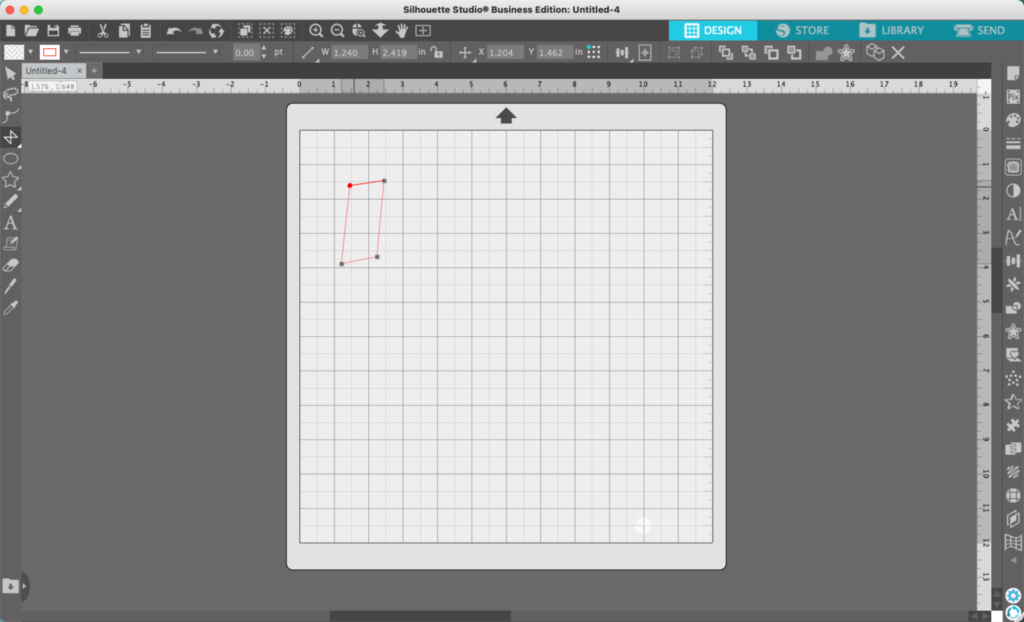
- In Silhouette Studio, use the ‘Draw a Polygon’ tool to draw a box for each letter in your design. In this example, my design will say: New Year Wishes Midnight Kisses. I’ll draw enough boxes for NEW YEAR and MIDNIGHT. The boxes can be sloppy and not even, just make sure they each overlap slightly.
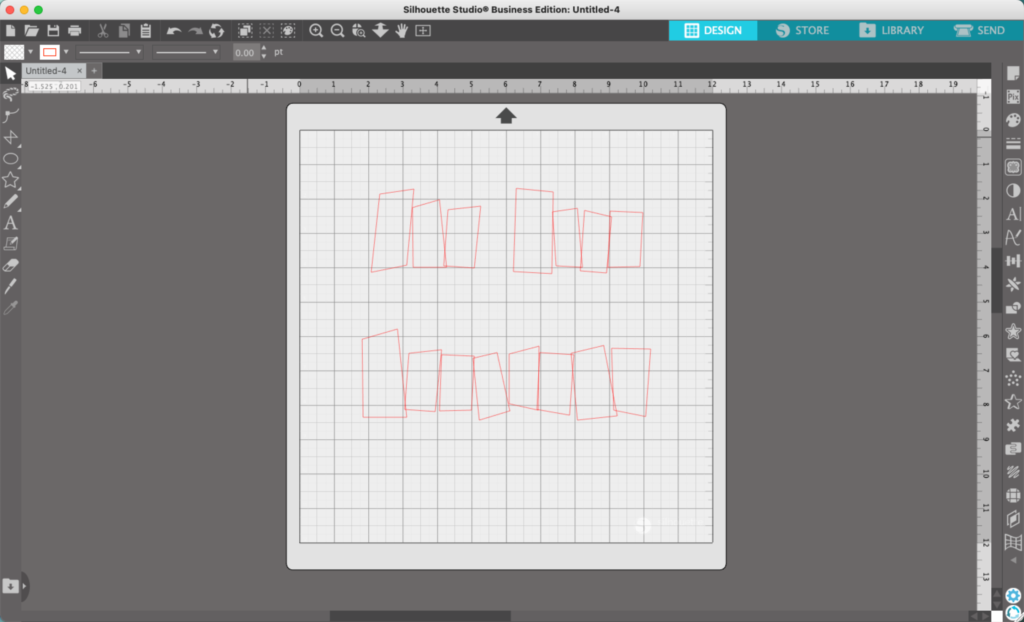
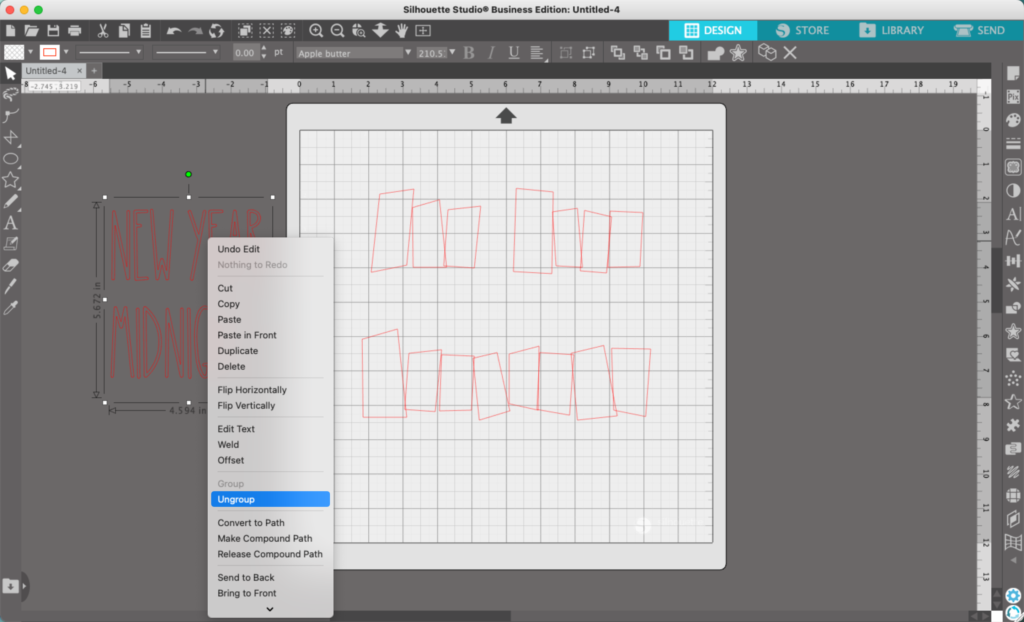
2. Add text to your blocks. You’ll want to type the text, right click to ungroup it, and move each letter into place.
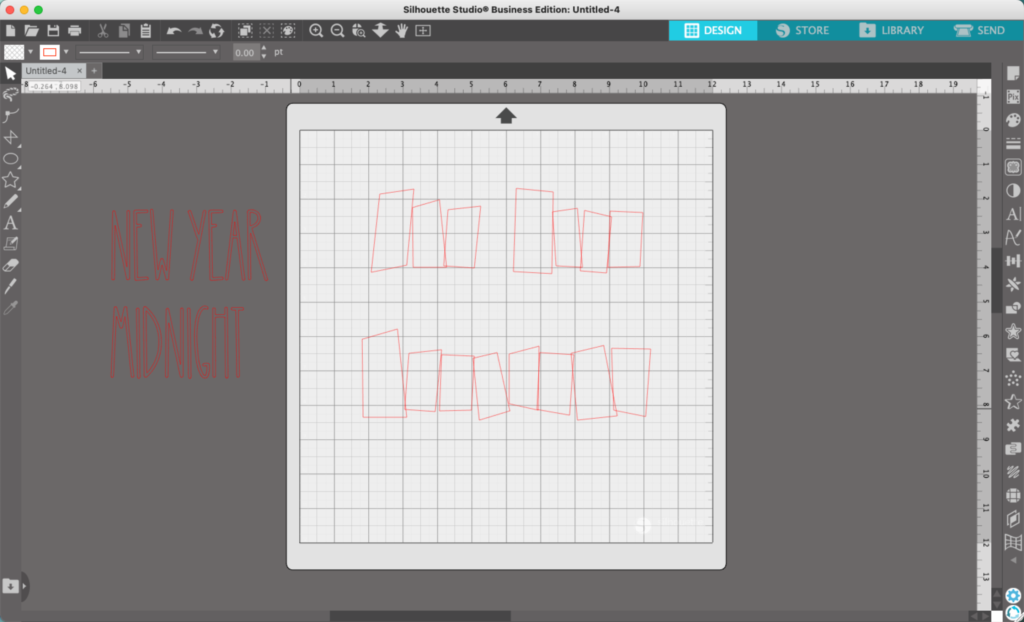
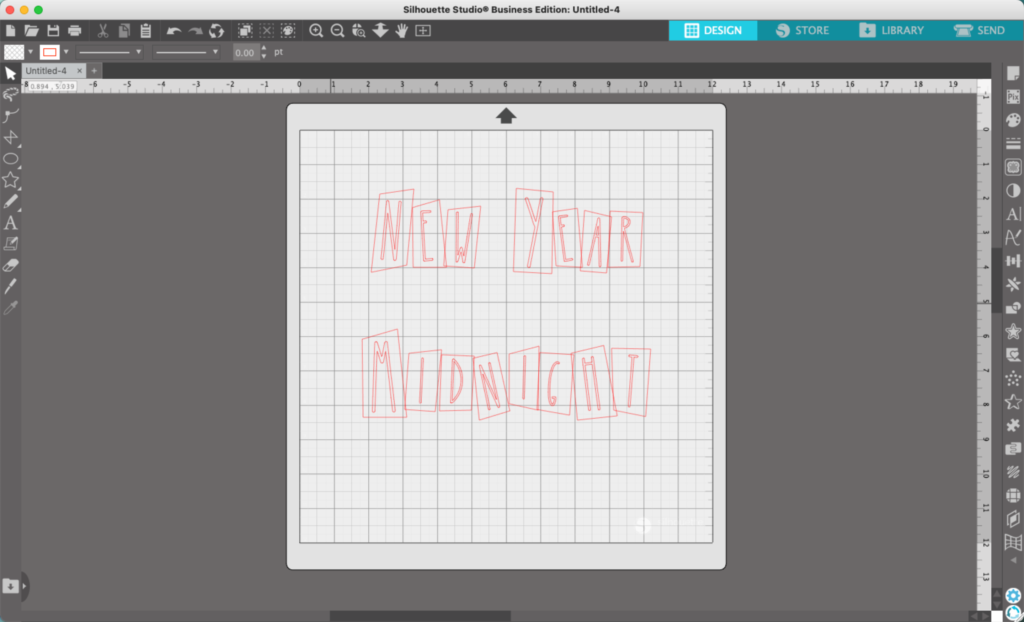
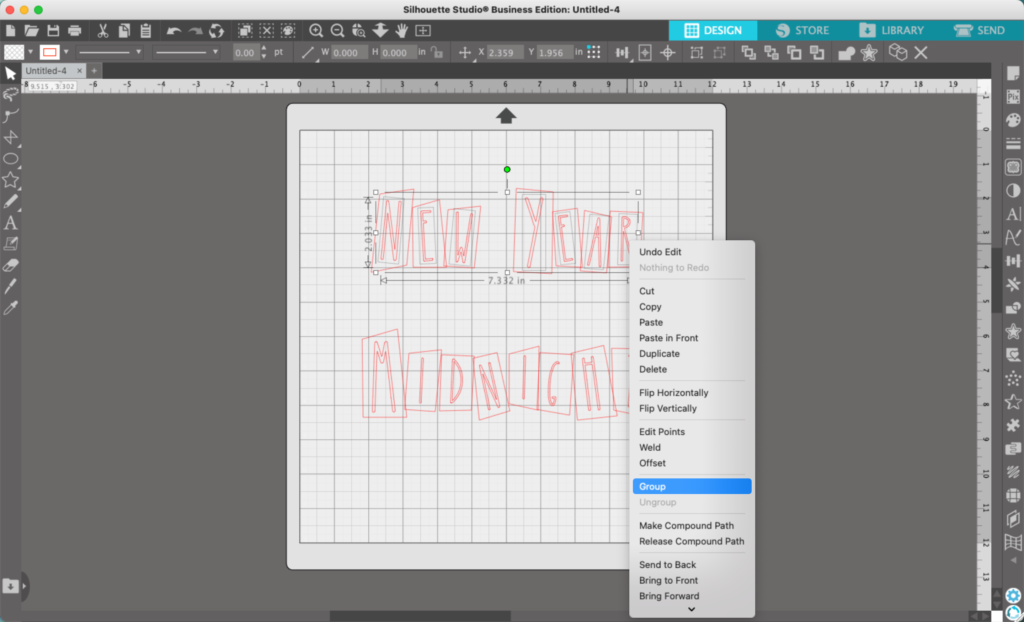
3. Select all the letters, right click, and ‘Group’ them back together.
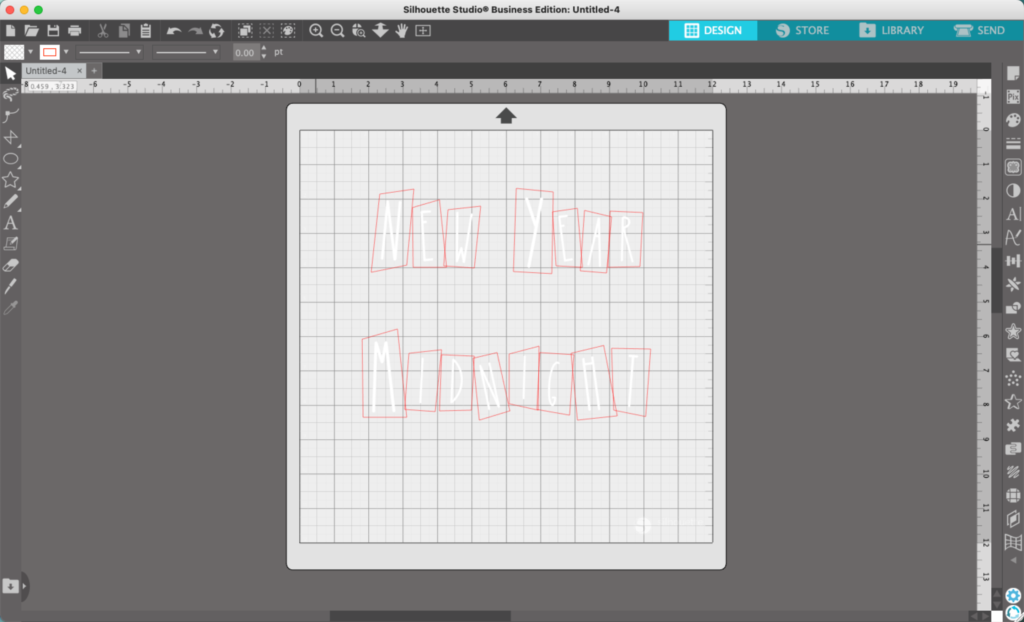
4. Add color to the letters. In this tutorial, I’m using white.
5. Select all the boxes, right click, and ‘Weld’ them together.
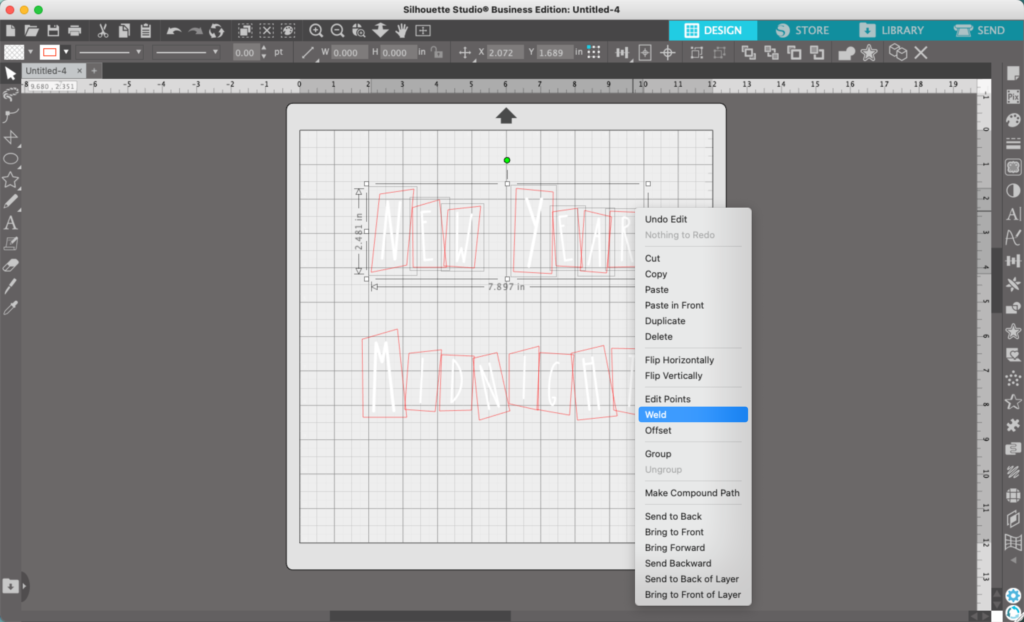
6. Add color to the boxes. I used black.
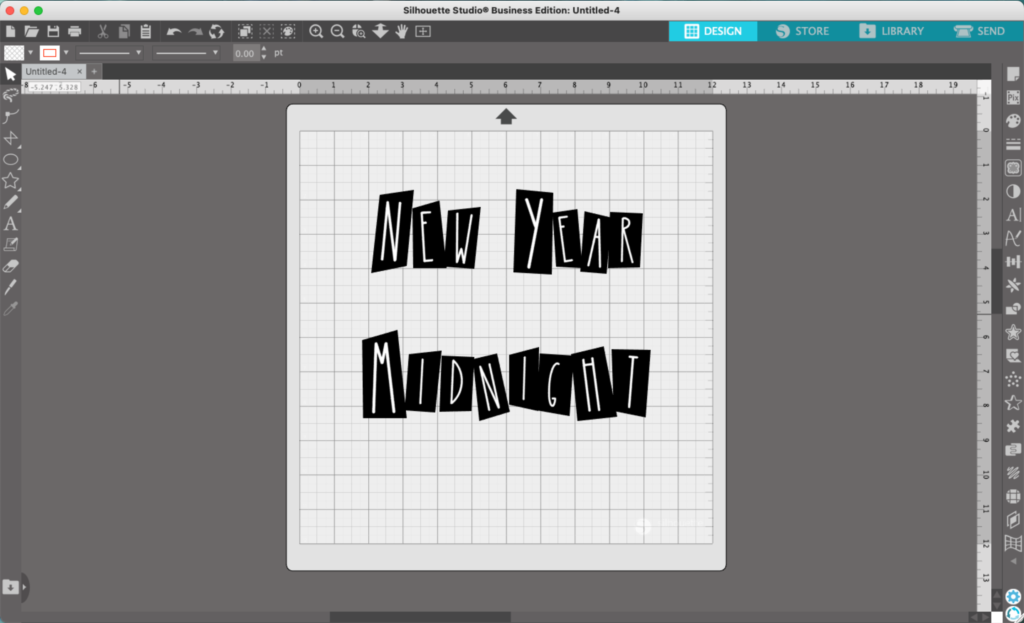
7. Add the remaining text in a script font.
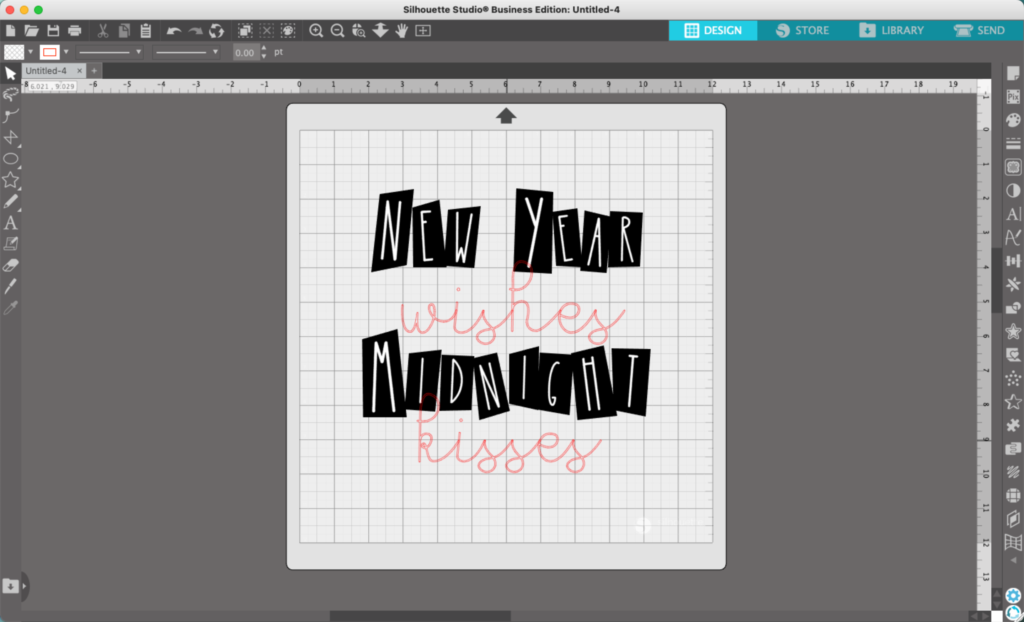
8. Resize and align everything as desired.
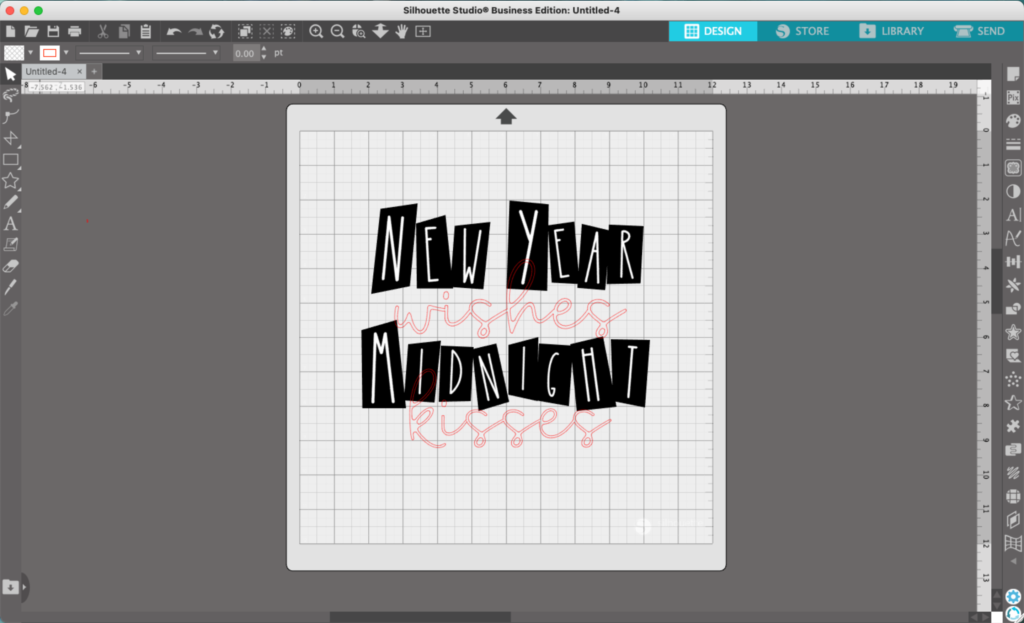
9. Navigate to ‘Panels’, ‘Offset’, and perform an offset on the script text.
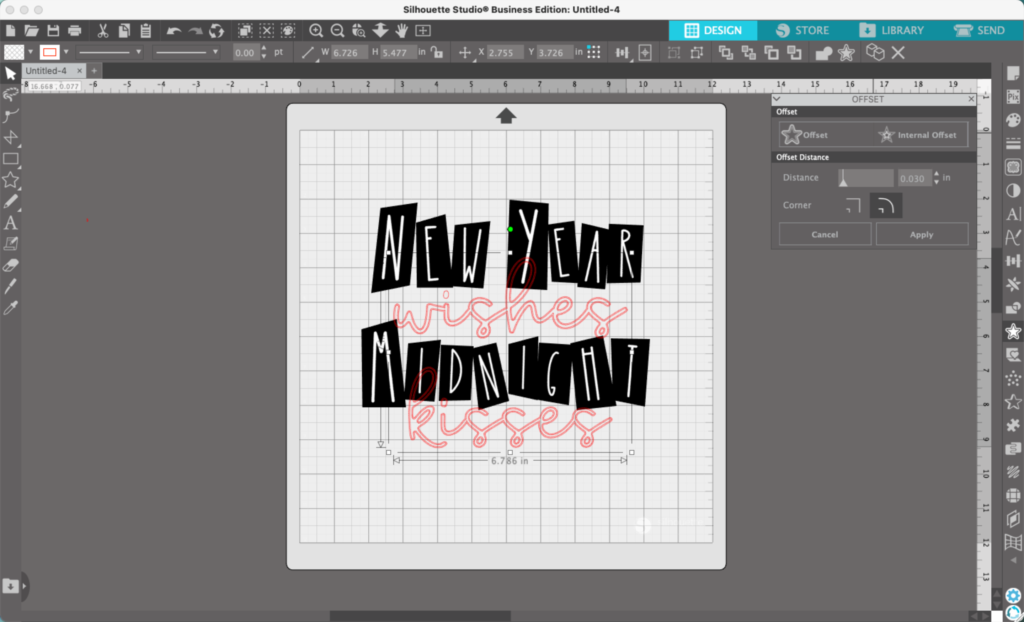
10. Subtract the offset letters from the blocks. As a reminder: Select the blocks, then the text, then ‘Modify’, ‘Subtract’.
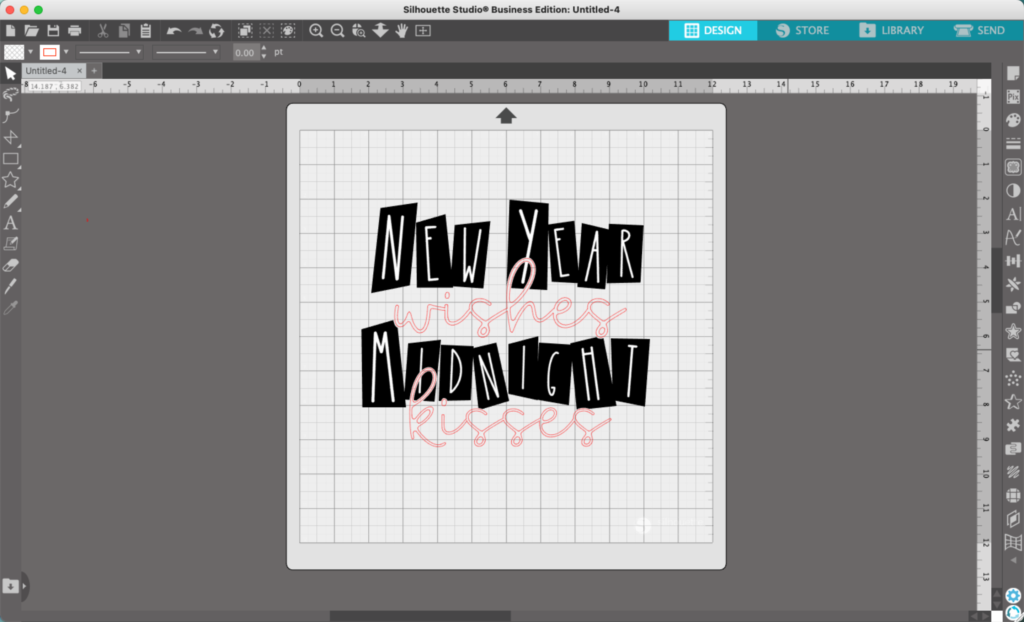
11. Add color to the remaining text and group everything together.
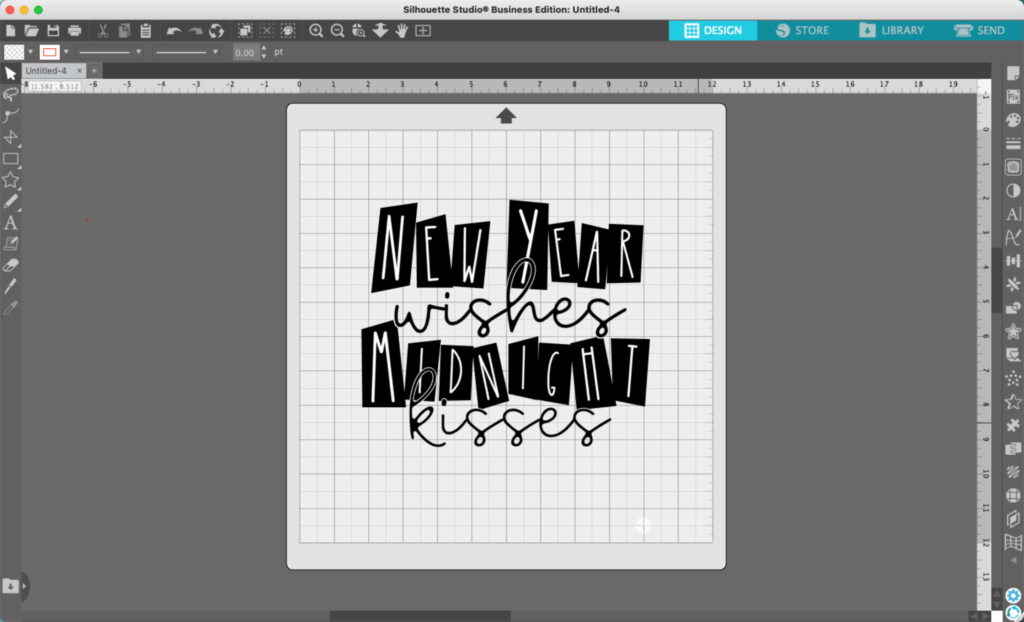
It’s ready to print on a design. If you are cutting in vinyl, you’ll want to be sure to subtract each letter from the block it sits in.
Curious about the fonts? They are Apple Butter and Glypher.
My finished design looks like this:
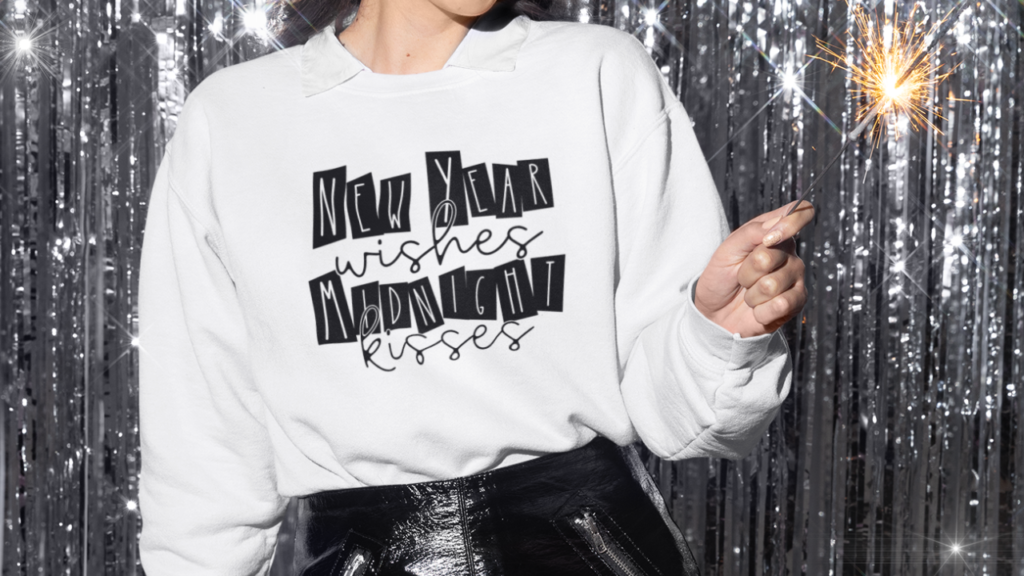
That’s it! Your design is ready to go!
Don’t Forget to Save!
To save your new SVG creation, head to ‘File’, ‘Save As’, ‘Save to Hard Drive’, name the file, then select ‘SVG’ from the dropdown menu.
Want More SVG Tutorials?
View more Design with Me SVG tutorials.
Leave a Reply