That time of year is coming up: Graduation! Whether you are celebrating kindergarten graduation, high school graduation, or college graduation – it’s such an exciting time of year.
Today, let’s design a 2024 graduation SVG. Of course, if you come across this tutorial after 2024, you can follow the same steps – just change the year.
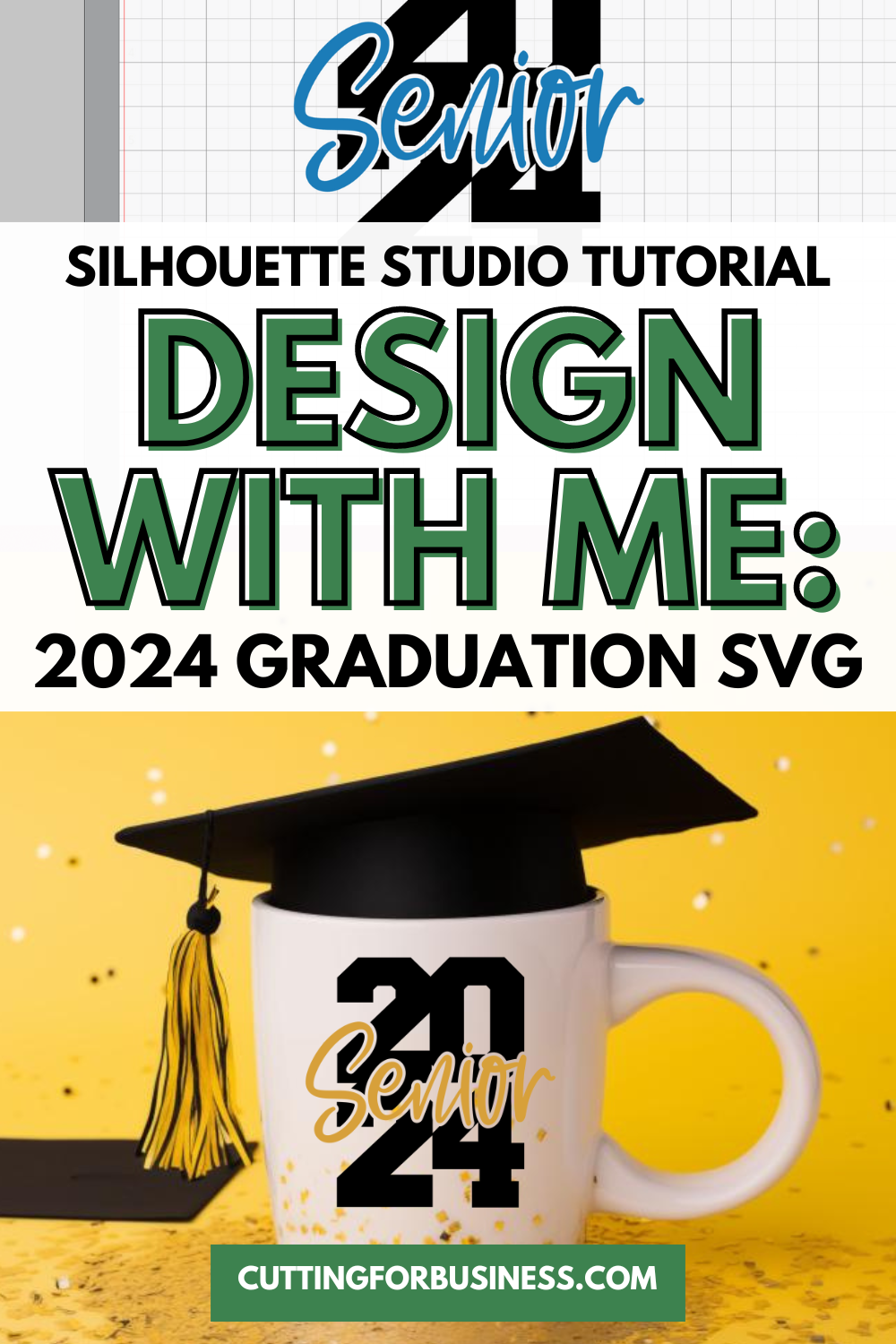
Tutorial: 2024 Graduation SVG
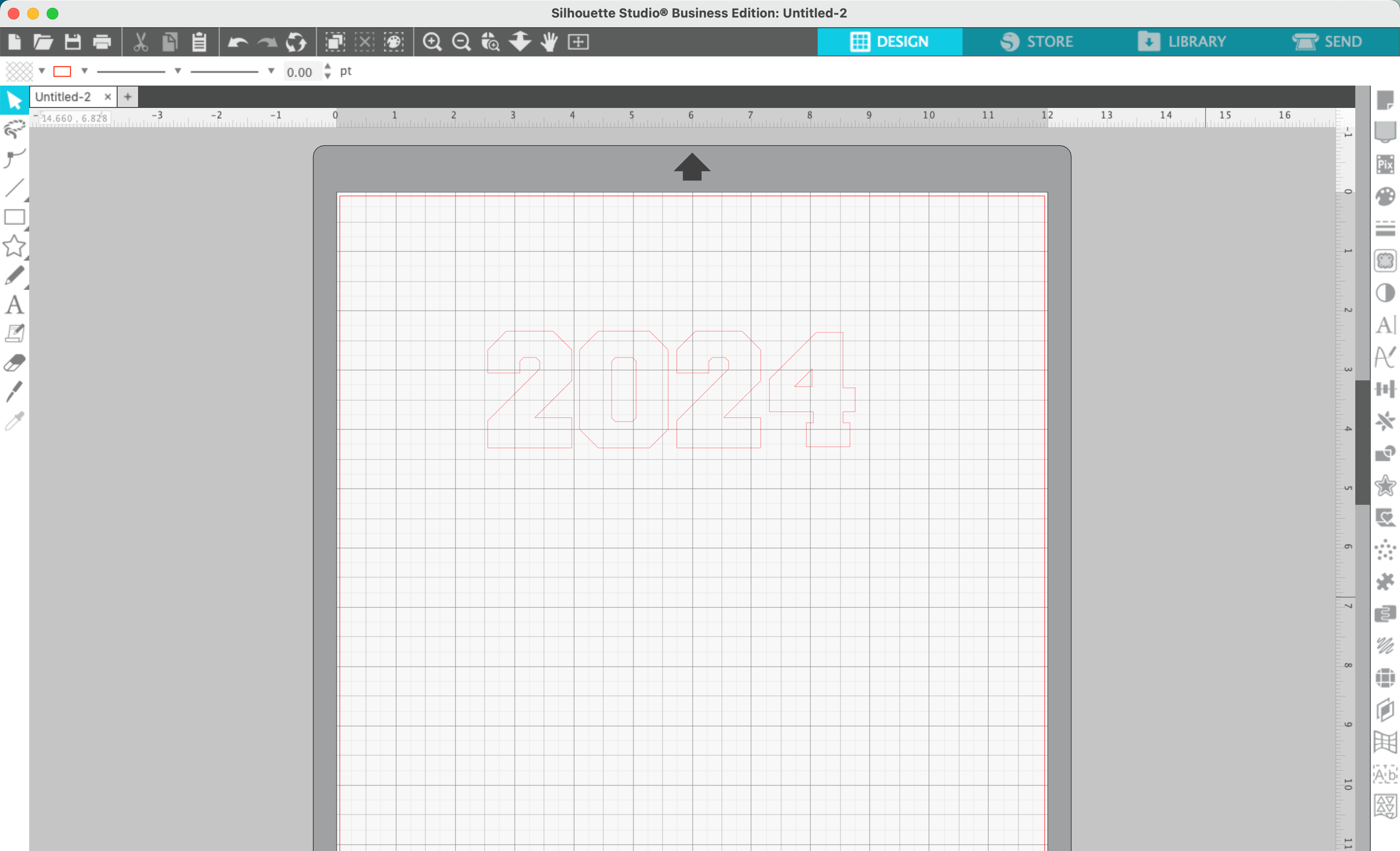
- In Silhouette Studio, type 2024 (or other year). Use a chunky, blocky font. In this tutorial, I used Freshman.
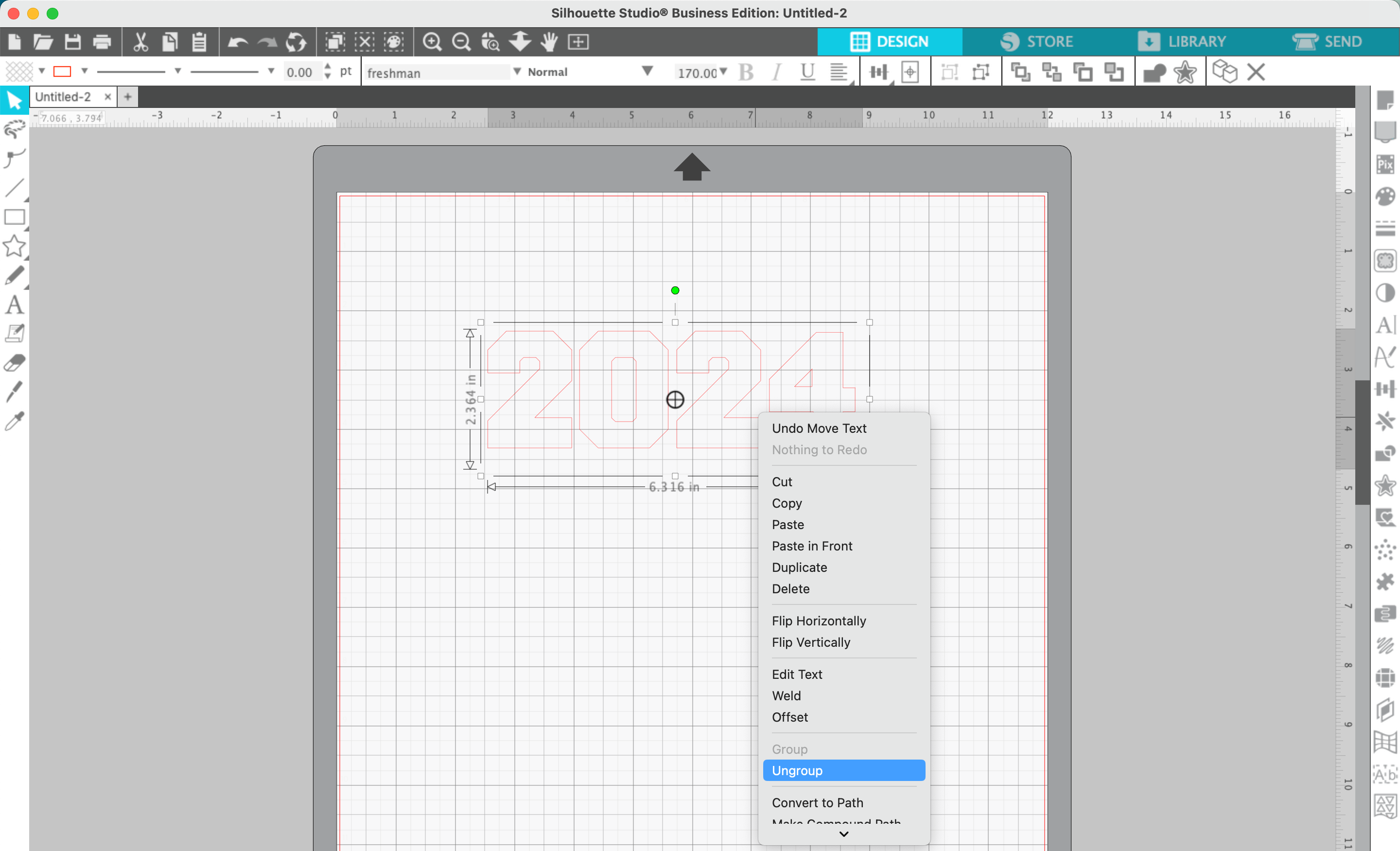
2. Right click the year and select ‘Ungroup’.
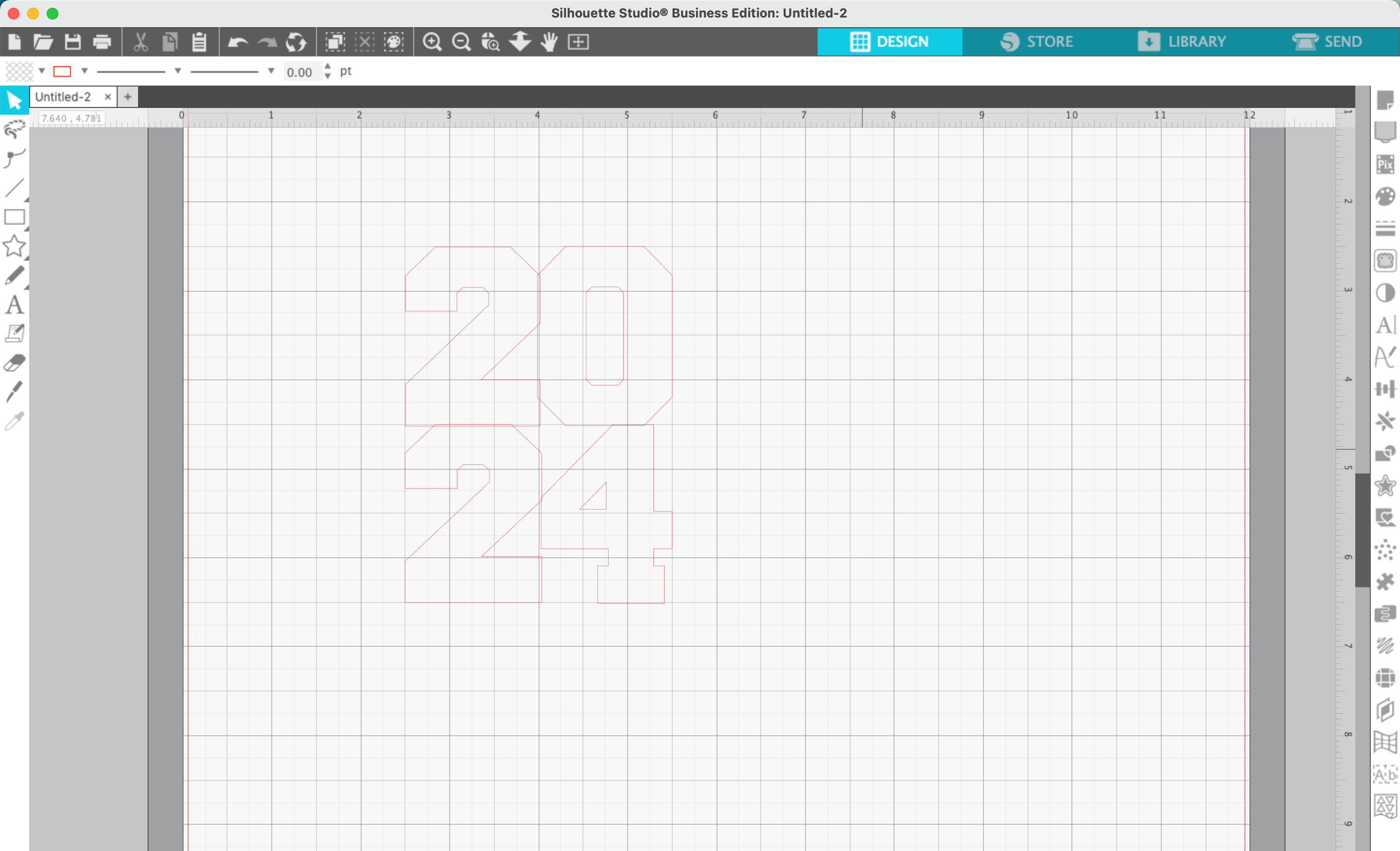
3. Drag the numbers into a square/rectangle, making them overlap each other slightly. Depending on the font you use, you may need to resize certain numbers slightly. I used the grid lines to help
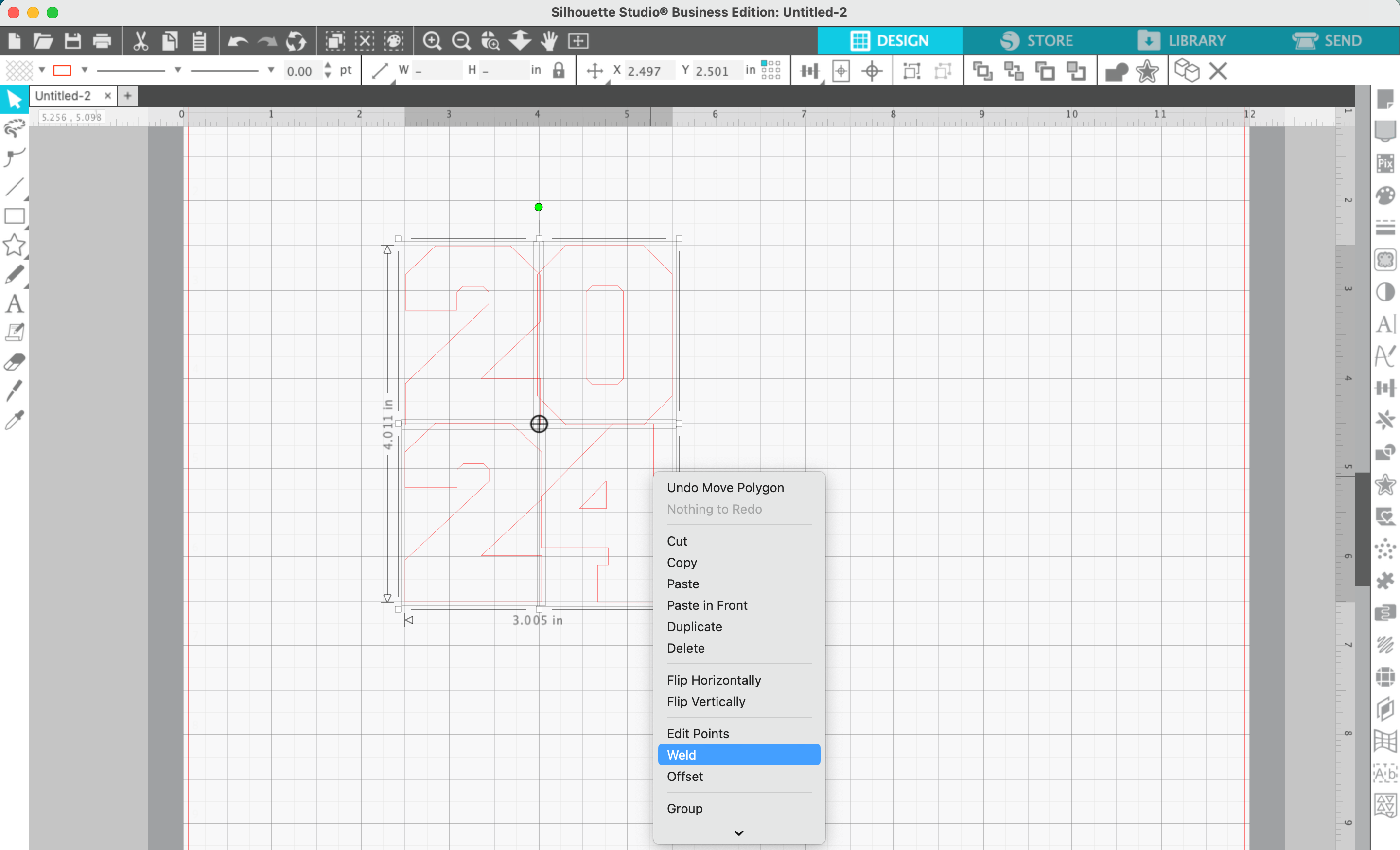
4. Select all the numbers, right click, and select ‘Weld’. This will merge the numbers together.
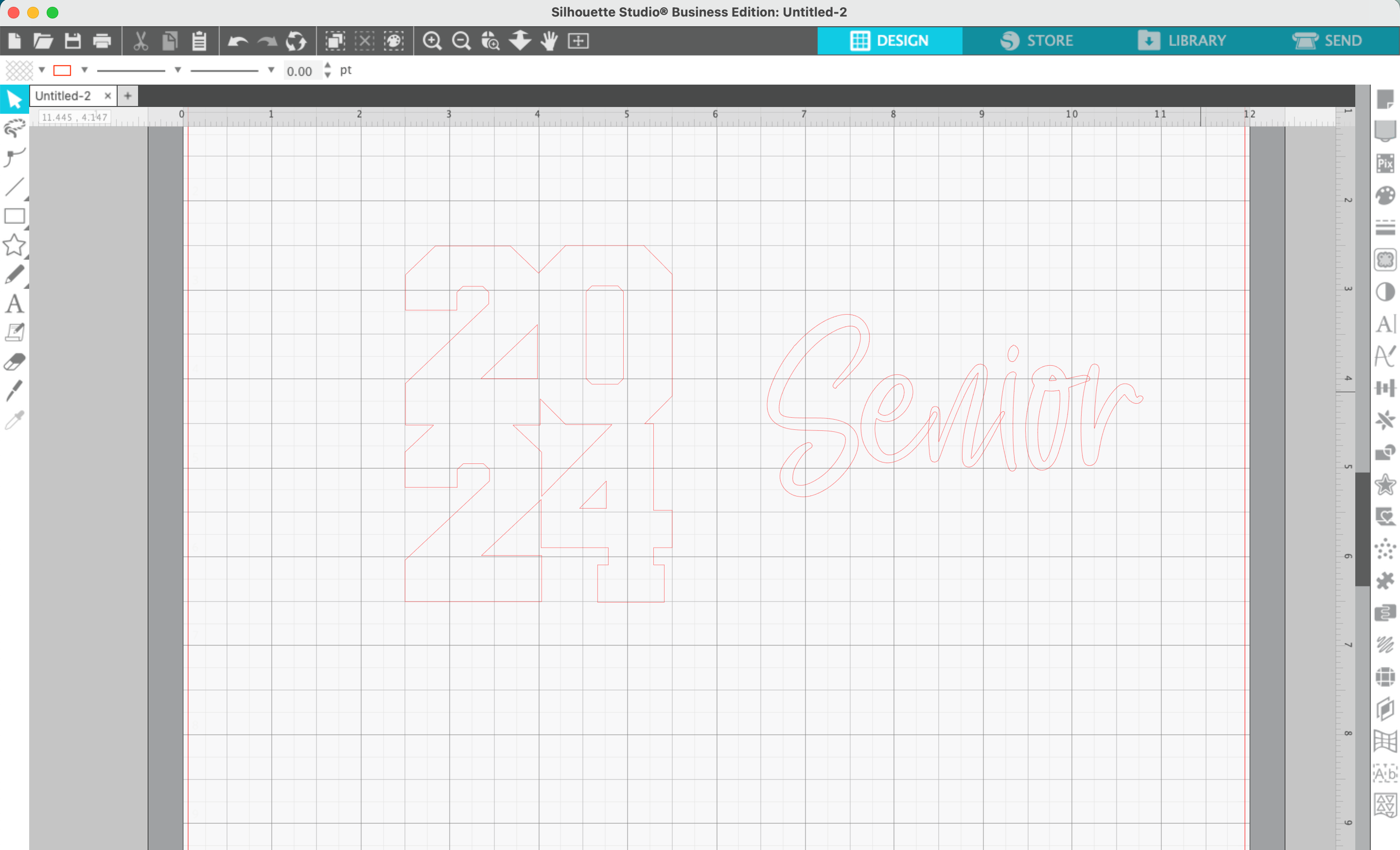
5. Type a word in a scribble or signature style font, then right click and ‘Weld’ it together. If needed, right click and ‘Group’ the welded design back together.
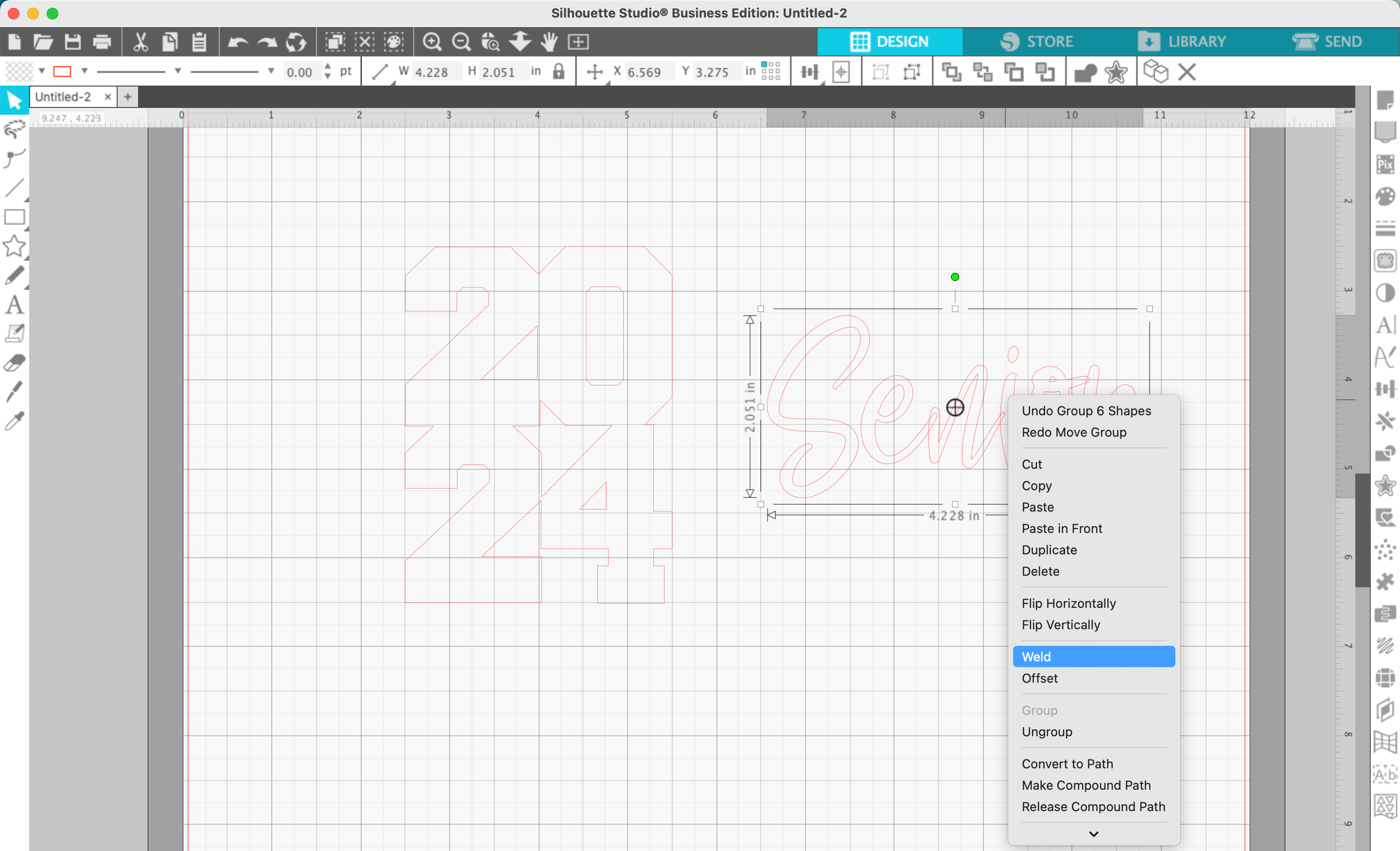
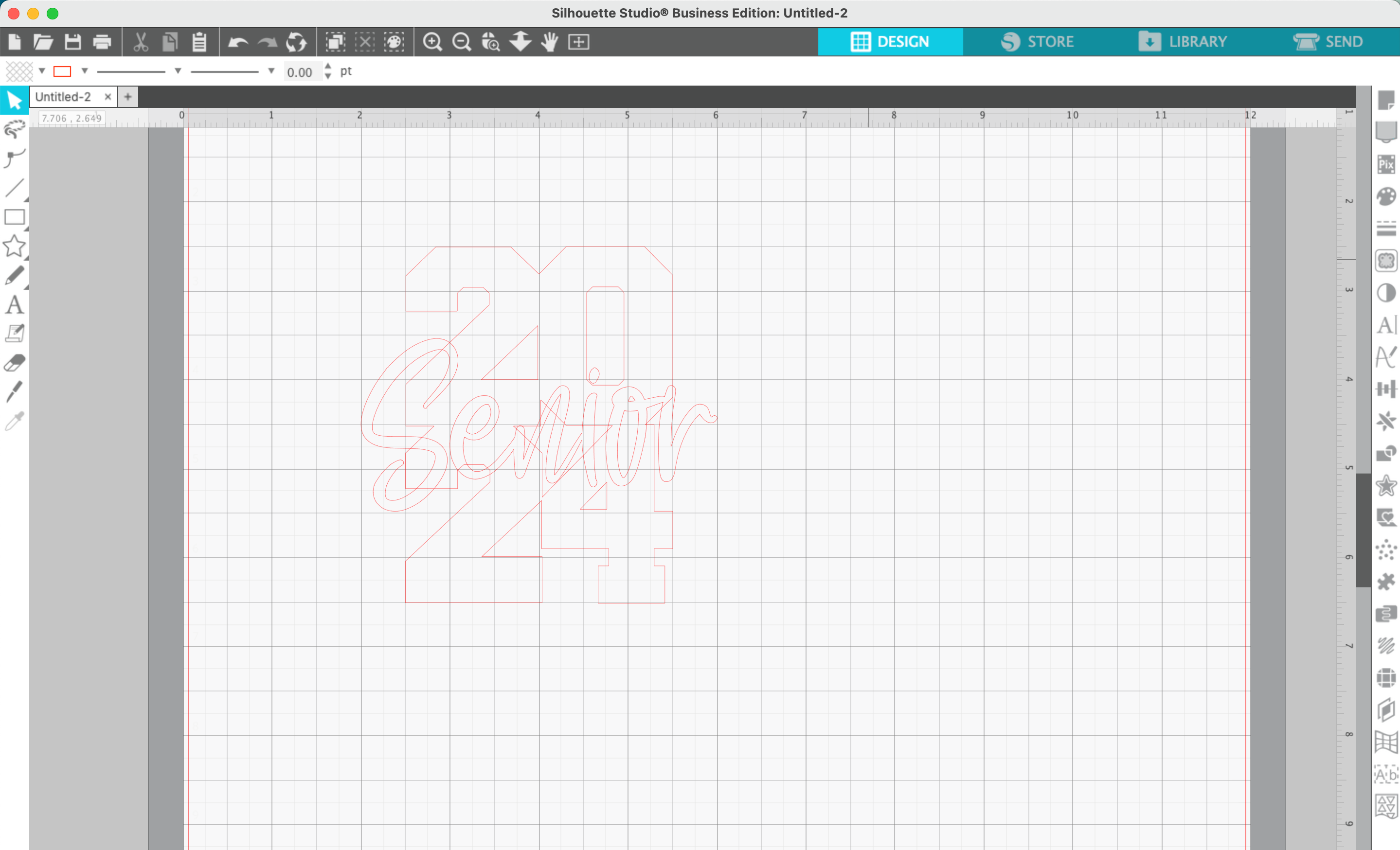
6. Drag the text onto your numbers.
7. Navigate to ‘Panels’, ‘Offset’. Then offset the text.
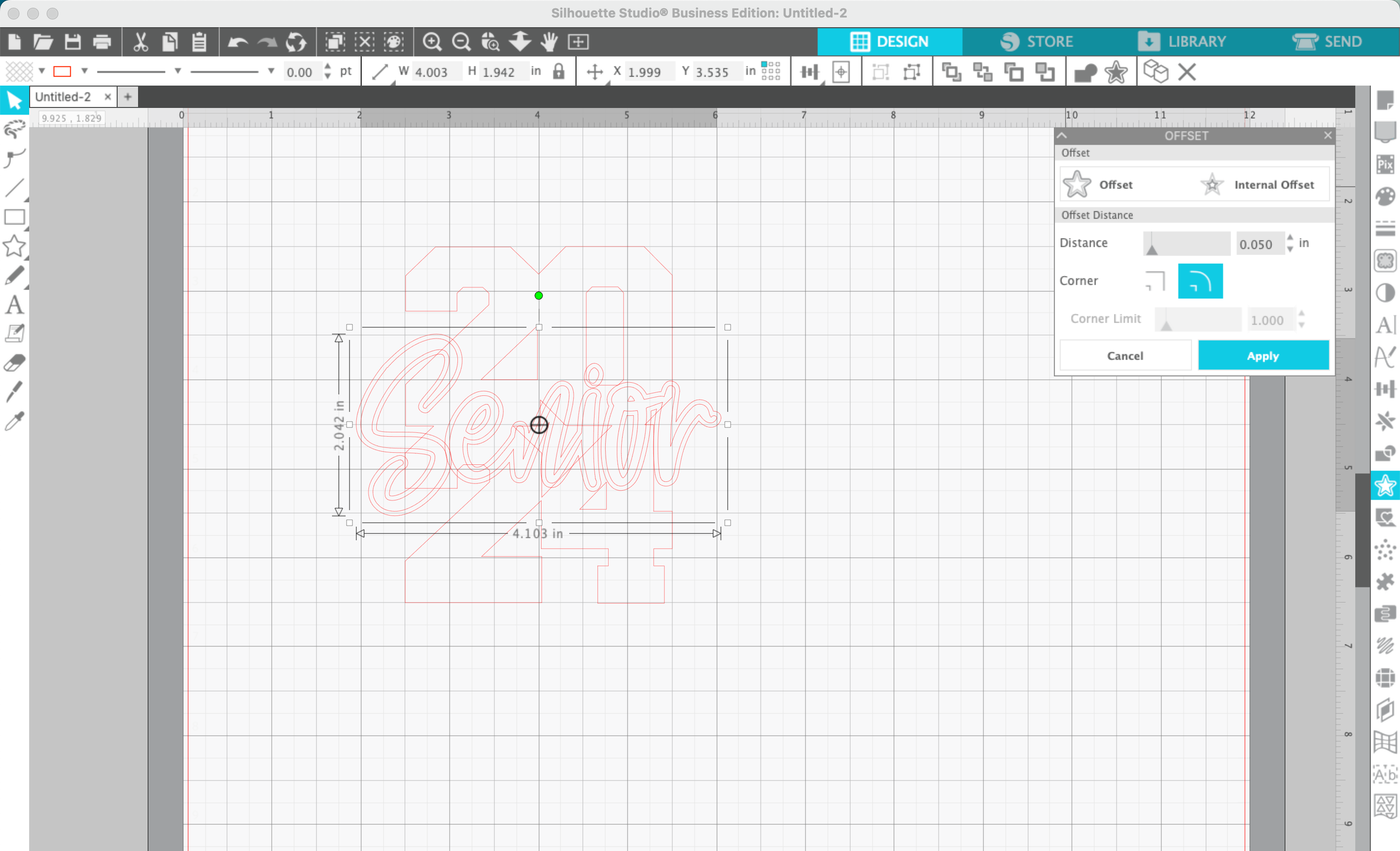
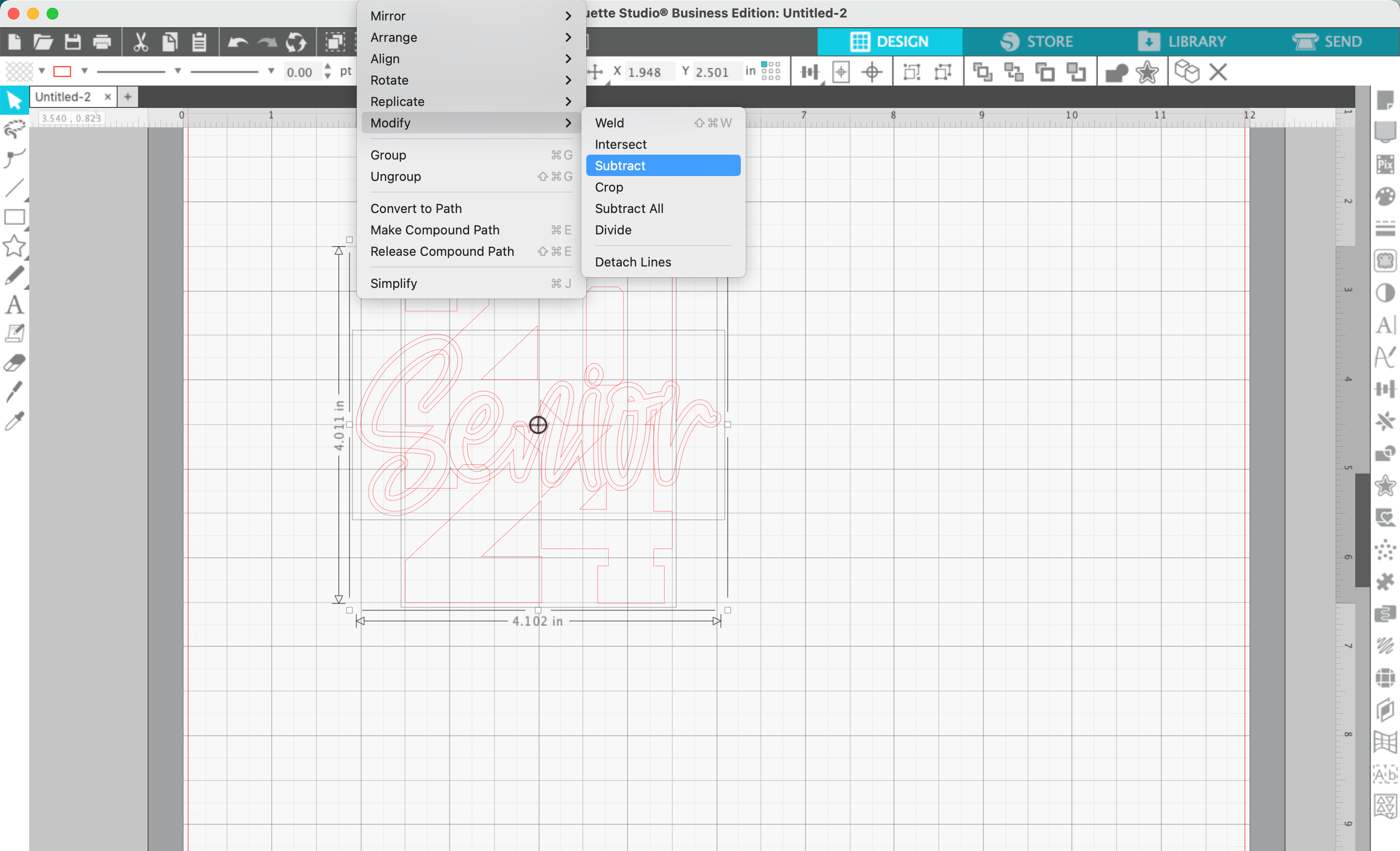
8. Select the numbers, then the offset text, then navigate to ‘Object’, ‘Modify’, ‘Subtract’. This will remove a small area around the text to make it more visible.
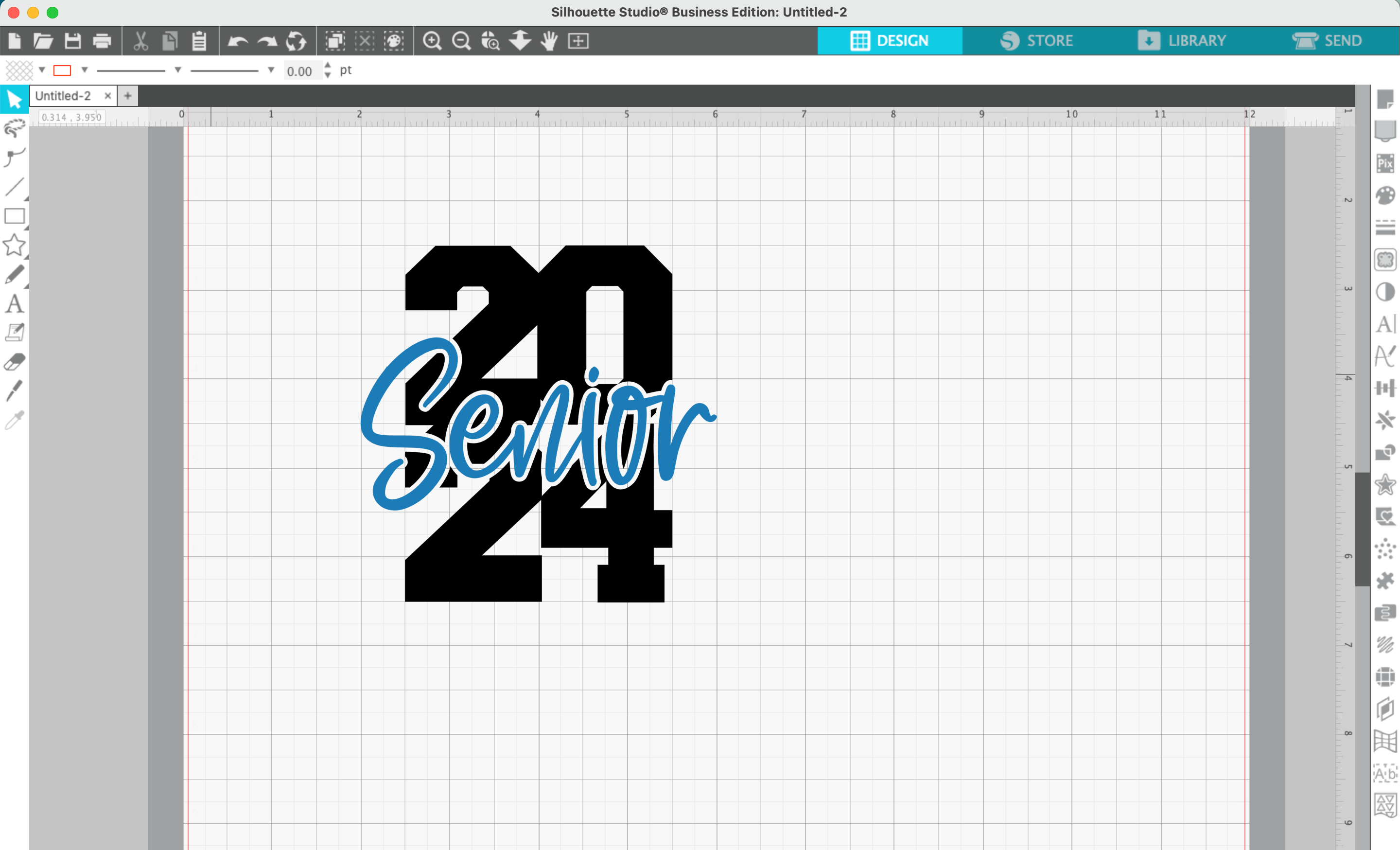
9. Add color to your design.
Design Alternatives
If you don’t want to use the word ‘Senior’, consider ‘graduate’, a graduation cap, or the words ‘Twenty Four’.
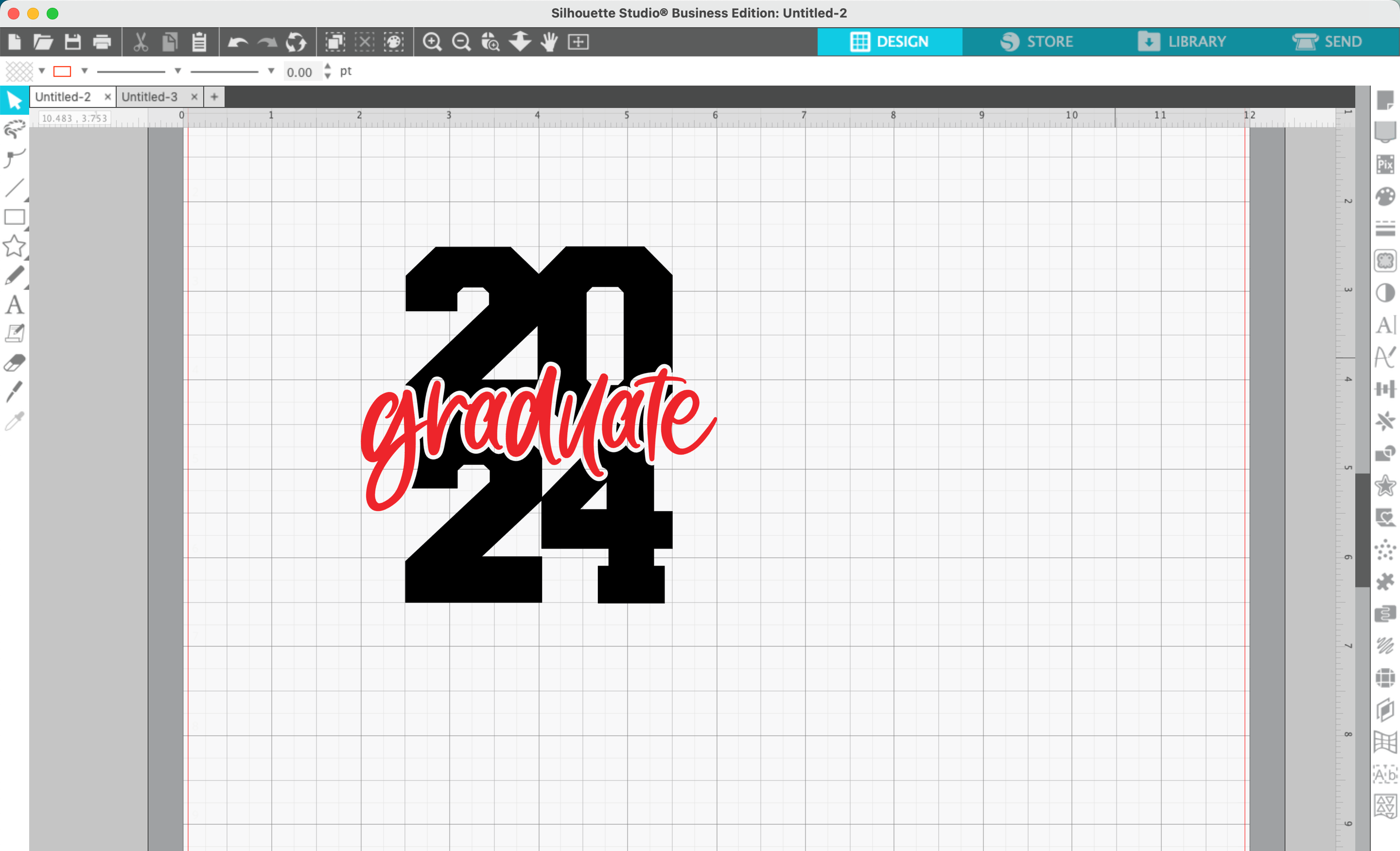
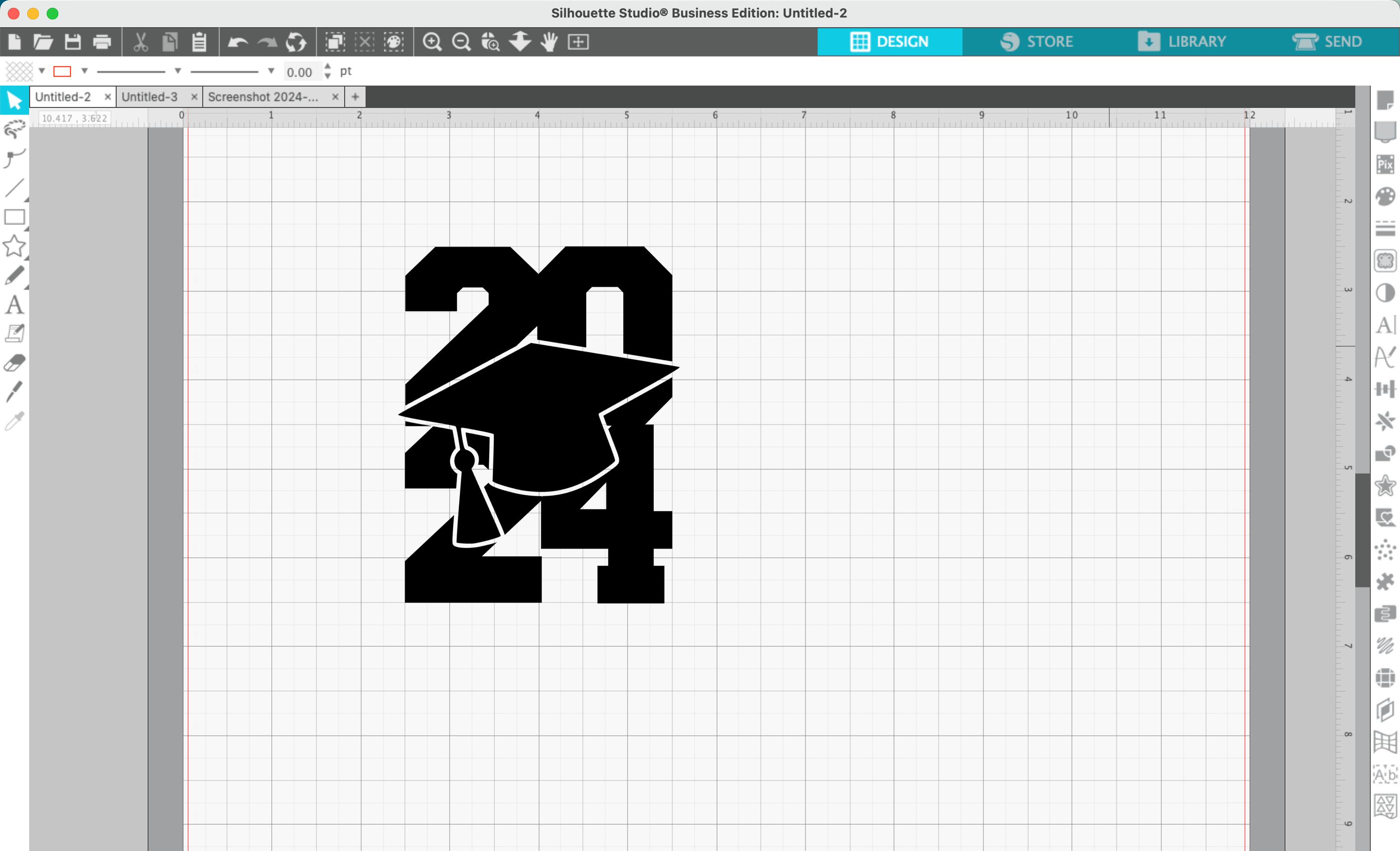
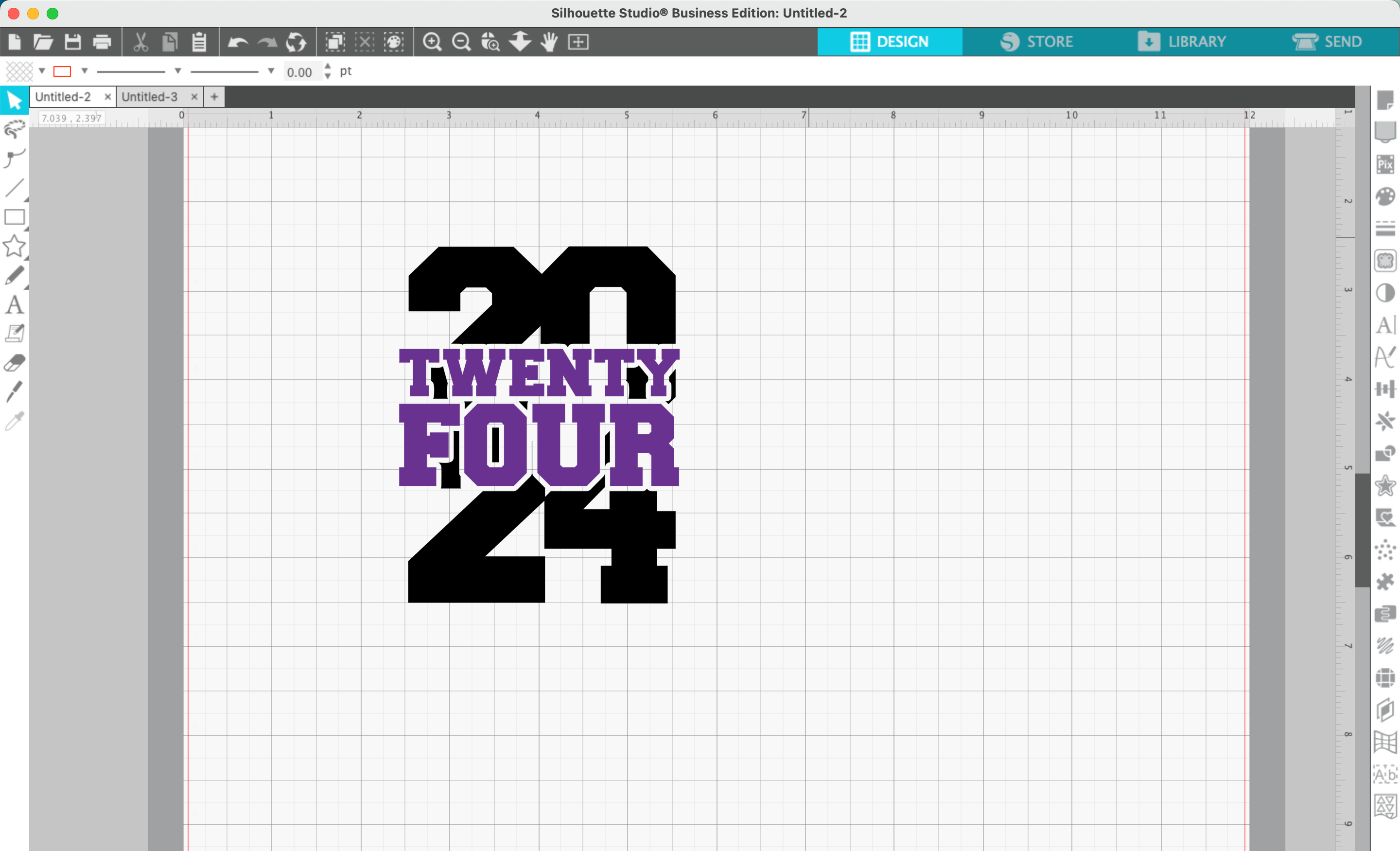
For example:

That’s it! Your design is ready to go!
Don’t Forget to Save!
To save your new SVG creation, head to ‘File’, ‘Save As’, ‘Save to Hard Drive’, name the file, then select ‘SVG’ from the dropdown menu.
Want More SVG Tutorials?
View more Design with Me SVG tutorials.
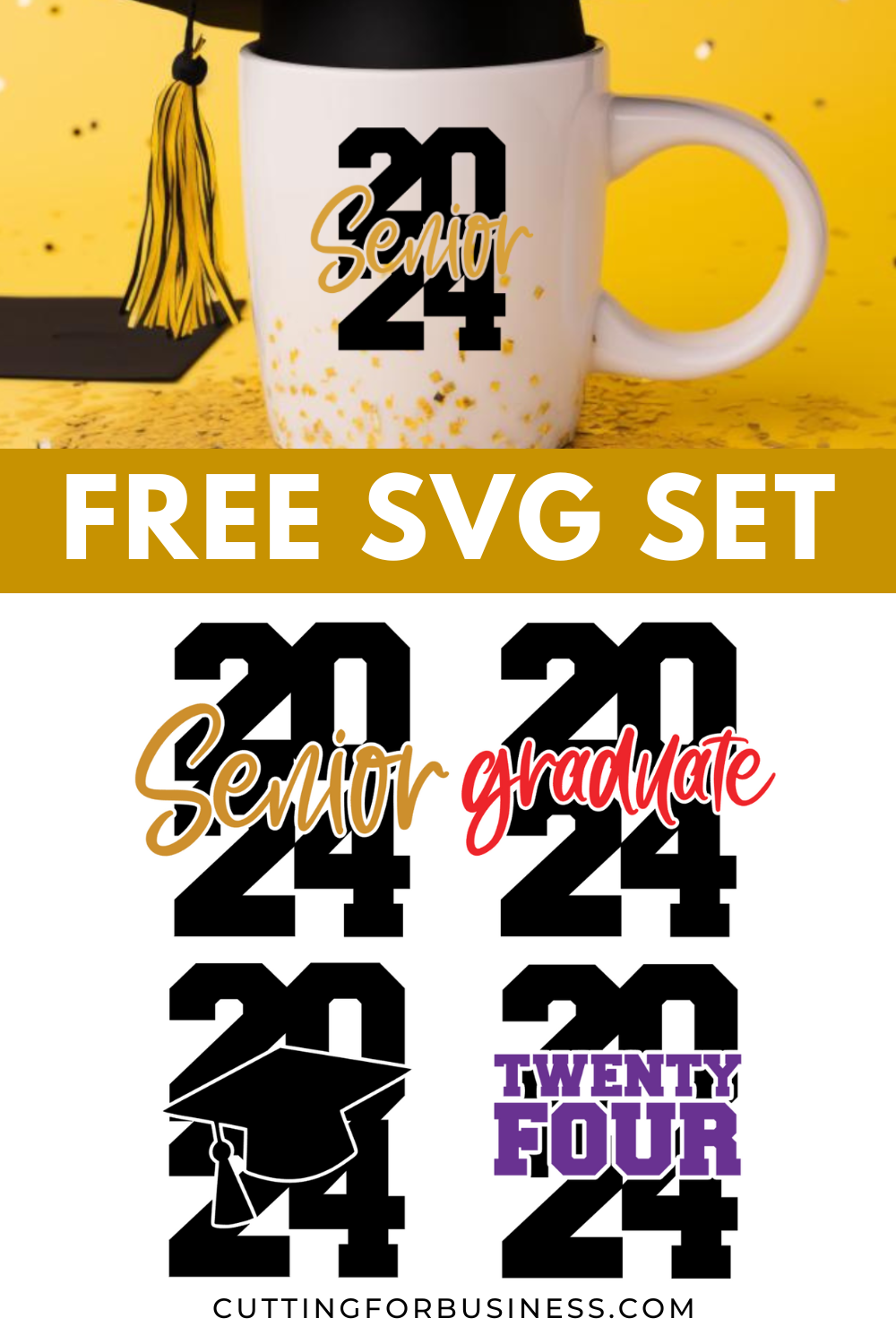
Download 4 Free 2024 Graduation SVGs
No time to design yourself? Cutting for Business subscribers can download all four of the SVGs seen in this tutorial.
Leave a Reply